
AI in Practice
AI-Built Unity UI: A Checklist Before You Ship the Screen
Unity's official Codex plugin is meant to help agents build menus and settings screens. A screenshot only proves how a screen looked once. Here is a proposed, project-specific way to approve AI-built Unity UI before it reaches players.
On this page
- What one early report suggests
- Gather the evidence before review
- Turn project taste into observable checks
- Separate reference art from ship assets
- Read geometry against real viewports and the player window
- Test input where the behavior actually runs
- Follow every button all the way to its destination
- Inspect structure and the next change
- A screen-specific acceptance sheet
- Move from Editor proof to device proof
- Use failures to repair one class of problem at a time
- Accept narrowly, or return the exact failure
Picture a proposed example. An agent builds a settings screen for a mobile game in Unity. The sliders line up, the fonts match the main menu, and the Save and Cancel buttons sit neatly along the bottom edge. In the Game view it looks finished. Then a player lowers the music, changes their mind and taps Cancel, and the new volume sticks anyway. On a phone with a camera cutout, the back arrow sits behind the notch where no thumb can reach it. A screenshot can hide both failures. A player trying those actions would encounter them.
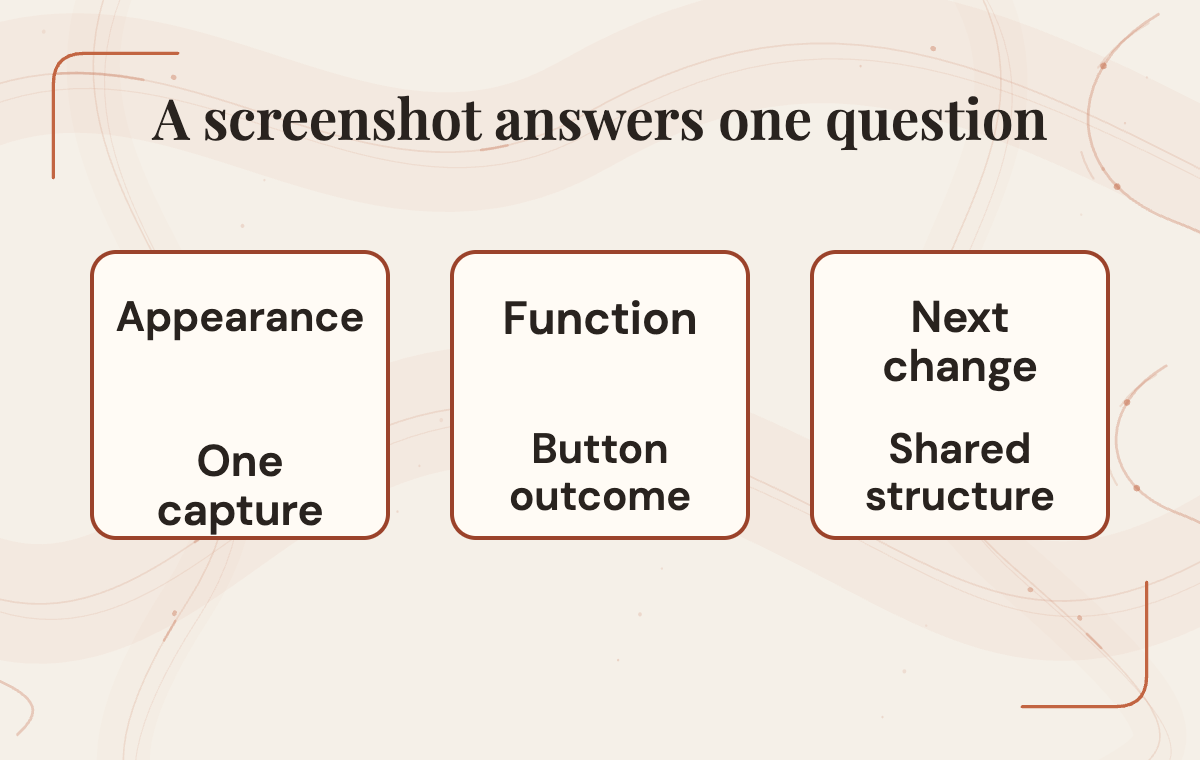
That gap is the real job of reviewing AI-built UI. A screenshot proves what a screen looked like at one capture, in one resolution, in one state. It does not prove the art is yours to ship, that the layout respects the device, that a tap reaches the button under the finger, or that pressing a button does what its label promises. Those are separate questions, and each one needs its own evidence.
On September 16, 2026, Unity announced its official Codex plugin, starting with 31 engine-written skills, including UI Toolkit and uGUI guidance. Unity presents it as a way to work faster with fewer errors, without publishing a comparison benchmark. If production becomes faster, review may become a larger share of the work. That is a workflow possibility to measure, not a demonstrated outcome.
Key takeaways >- Appearance, input, saved state and maintainability need separate evidence.- Write the screen's contract and framework choice before judging what the agent built.- A release hold marked not run stays open until the named check happens.- A device check supports the build, device and states actually checked.
What one early report suggests
One early public account shows the shift in miniature. On September 17, 2026, Shahar Bar of SBS Games published a report on using the plugin to build a single menu in his own project. He describes visual approval as insufficient for the rules his project needed, and later audits corrected decisions about safe area handling, hierarchy, raycast targets and prefab structure. He worked in simulated views rather than on a physical phone. That is one person, one session and one project, so it supports no general success rate. What it does is name the distance between a screen that looks right and a screen that is ready.
This guide is a proposed review method for teams that already have an AI-built screen in front of them and need to decide whether it ships. Rise has not built a game with the plugin, installed it into a project or run any screen on a device. The examples below are hypothetical, and the acceptance sheet later in the article is a starting template to adapt to your own project, not a universal Unity standard.
Gather the evidence before review
Collect the screen, the prompt that produced it and a version-controlled checkpoint from before the agent's changes. The prompt tells you what the agent was asked to do, while the checkpoint gives the reviewer a reference for the project diff. Neither is a record of every runtime effect. The plugin README describes gaps in change logging and what Editor undo can recover.
Write down the project's Editor version, the framework this screen uses, and the devices, orientations, languages and save states you support. Name who decides on art, input, persistence, shared components and device testing. If an item is missing, record it as a finding. You can still inspect the screen, but release approval needs the evidence your team agreed would count.
Turn project taste into observable checks
Your team may already have clear ideas about what a good screen looks like in its game. The trouble is that the knowledge lives in people's heads. An art lead says a button feels off. A designer knows the pause menu should never cover the health bar. An engineer remembers that every menu reuses the same button prefab so a style change lands everywhere at once. An agent cannot read any of that, and neither can a reviewer who joined the team last month.
The first step is to turn that taste into checks a person can observe and answer with yes or no. Start with the screen's role. What decision does the player make here, and what should happen after they make it? Then name your expectations for layout, text, assets, interaction and destination. "Buttons should be easy to hit" becomes the minimum size and spacing your team already uses on other screens. "Text should fit" becomes "every label fits at the longest translated string we ship, without shrinking below our readable size." "Matches our style" becomes "uses the existing button component and color settings rather than new copies of them."
Give each check an owner. Visual style might belong to the art lead, input behavior to gameplay engineering, and saved settings to whoever looks after persistence. When a check fails, its owner decides whether the failure blocks release or becomes a follow-up note. Named owners give the review thread a clear route to a decision when criteria conflict.
Unity's own guidance points in the same direction. The plugin documentation advises naming the UI framework in the prompt, having the agent read the relevant references, giving pipeline tasks enough detail, and calling a skill explicitly when the right one isn't picked up. It recommends UI Toolkit for new projects and asks existing uGUI projects to say they use uGUI.
Unity's UI system comparison page frames runtime game UI differently, with tables labeled for version 6.6 that lean toward uGUI at runtime. Neither page is a reason to migrate a working project. The practical decision is to write down which framework this screen uses and why, based on your project, and put that sentence in both the prompt and the review. Review time is the wrong moment to discover the agent quietly chose a different system from the rest of your menus.
 View image detail
Separate reference art from ship assets
AI-built screens often arrive with art attached. Sometimes it is a generated background, sometimes placeholder icons, sometimes a mockup the agent used as a guide and then traced. All of it can look finished, which is exactly why it needs its own check.
Ask three questions about every visual element. Where did it come from? Are you allowed to ship it? Can someone on your team change it later? The first two are about provenance and rights. If an image came from a generation tool, check that tool's terms and your studio's own policy before it goes into a build. If it closely resembles another game's interface or includes a company logo, treat it as reference only until someone with the authority to decide has approved it. Engine and platform logos come with their own usage guidelines, and those deserve a look before a mark appears anywhere a player will see it.
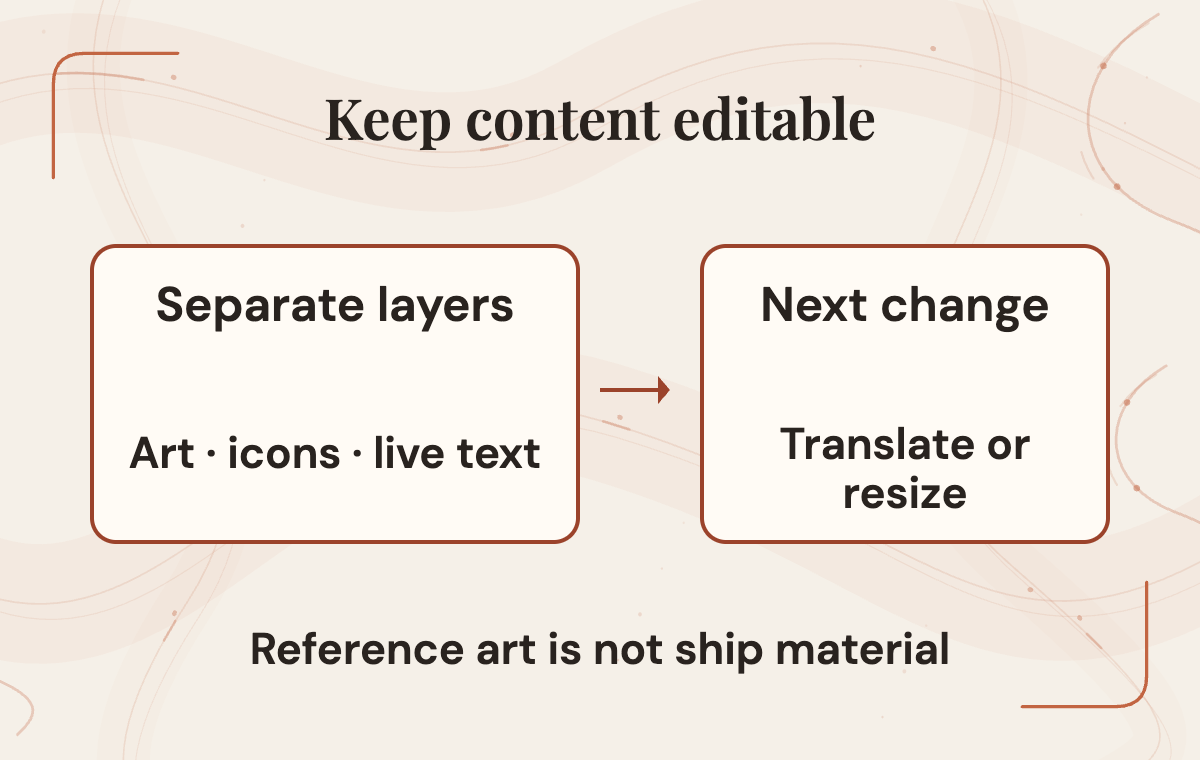
The third question is about editability, and it catches a concrete editability problem: text baked into an image. The button says "Play" because the word is painted into the sprite, not because a text component says so. That looks fine until someone needs to localize the game, fix a typo or change the label to "Continue." Labels belong in text elements your localization setup can reach. Icons belong as separate sprites with transparency where they need it, not flattened into a background.
Backgrounds and content also fit a screen differently. A decorative background may tolerate cropping if no important content is lost. Stretching can distort it, so judge the actual result. A panel full of text, sliders and buttons cannot. If the agent built most of the screen as one image with invisible hit areas laid on top, the painted labels and invisible targets may stop lining up when the aspect ratio changes. Check that each layer is a separate element, that images exist at the resolutions your target devices need, and that anything with a border, glow or shadow still looks right when scaled.
One rule is worth writing plainly into your process: art from someone else's experiment, tutorial or public write-up is direction, never ship material, even when it happens to fit your game perfectly.
 View image detail
Read geometry against real viewports and the player window
Layout is where screenshots mislead the most. The Game view shows one aspect ratio at a time. Phones have notches, rounded corners and gesture bars, and tablets have different proportions again. A screen that fits perfectly in one preview can lose a button under a cutout on another device.
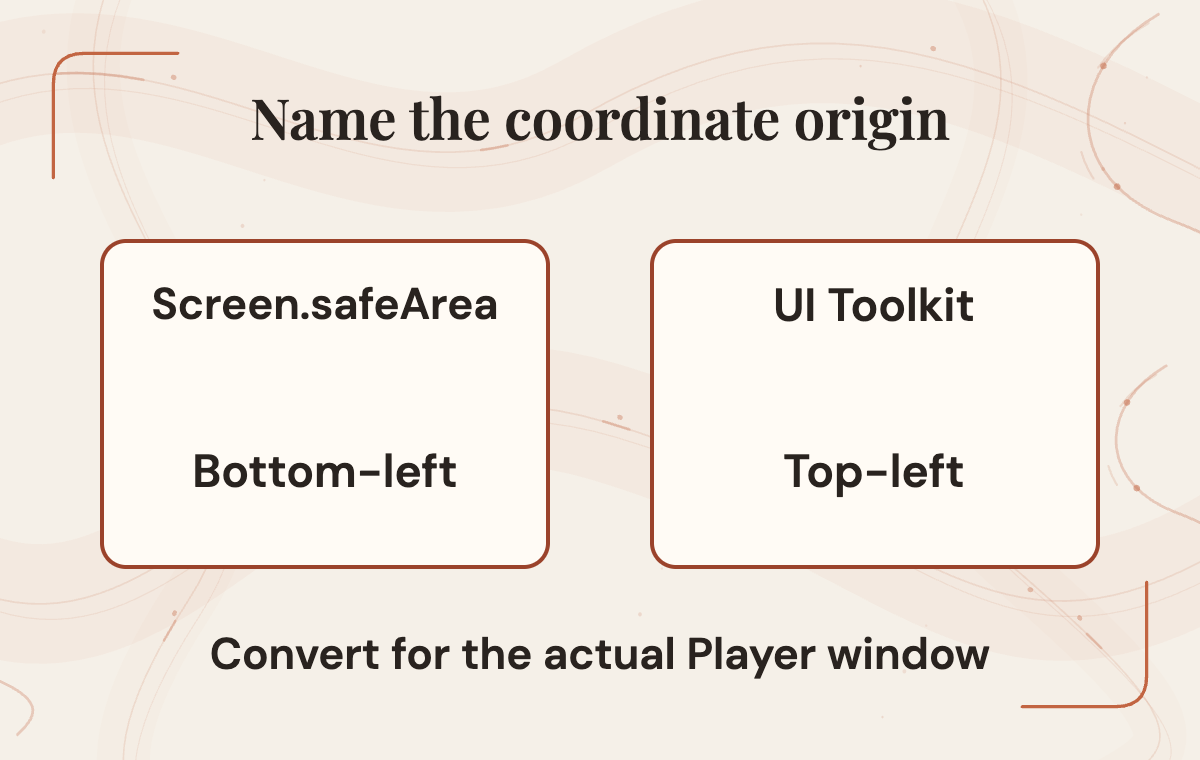
Unity exposes the usable region through Screen.safeArea. According to the Unity 6.0 scripting reference, it is a read-only rectangle in pixels, measured relative to the Player window, with its origin at the bottom-left. That last detail matters more than it looks. UI Toolkit positions elements from the top-left, so a value read from Screen.safeArea needs converting before it lines up with a UI Toolkit layout. The same page notes that on Android a player setting can change the window itself, which changes what the safe area is measured against.
So the geometry question in review is more specific than "does it fit?" Ask which code reads the safe area, which UI framework consumes the result, whether the coordinate conversion suits that framework, and whether the layout updates when the window changes size or orientation. If the agent wrote a conversion, read it against the documentation for your actual Unity version rather than trusting it because it compiled. Code that runs without errors can still place a panel on the wrong side of a cutout.
It also helps to separate what should respect the safe area from what should not. A background that bleeds to the screen edges is often a deliberate choice, and it usually looks better than a black bar. Buttons, labels and anything the player must read or tap belong inside the safe area, with whatever margin your team has agreed. Write that distinction into the review so nobody flags an intentional edge bleed while missing a back button tucked under a rounded corner.
Then check the extremes your game supports: the narrowest phone, the widest tablet, both orientations if you allow both, and the longest translated strings. Simulated views are a reasonable first pass for this work. They are not the final one, and a later section explains why.
 View image detail
Test input where the behavior actually runs
A button that highlights in the Editor has proven very little. Input problems tend to live in the gap between what looks tappable and what actually receives the event.
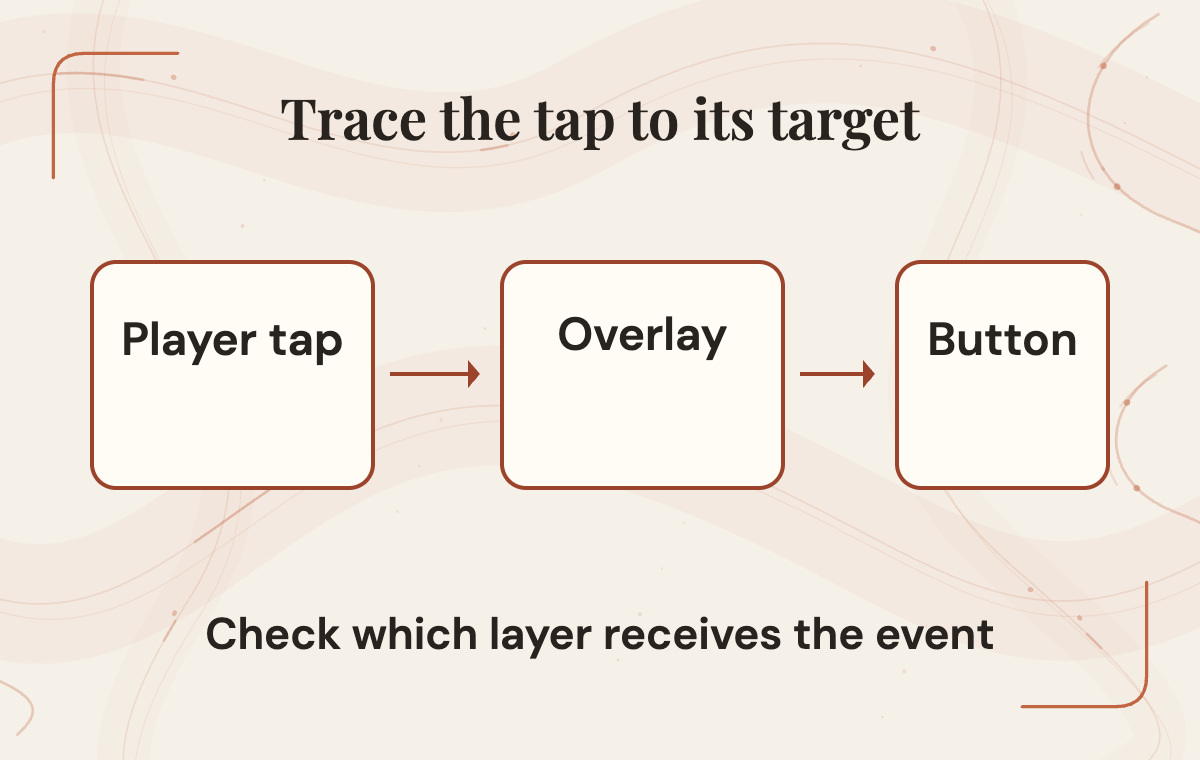
Run the screen in Play mode, or in whatever functional test setup your project already uses, and use it the way players will. Tap or click every interactive element and confirm the intended target responds. A frequent class of failure here is an invisible element sitting on top of a button and swallowing the input: a transparent image, a decorative overlay or a text box larger than its words. The button looks perfect and does nothing, or the element behind it responds instead. When something fails to respond, the useful question is what received the event instead, because that points straight at the layer to fix.
Repeat each action quickly. Players double-tap, especially on a slow loading screen. If pressing Start twice loads a scene twice or stacks two copies of a menu, that is a real bug no screenshot could show. Check disabled states as well. A grayed-out Continue button with no save file should ignore input, and it should look disabled clearly enough that players understand why.
If your game supports controllers or keyboards, move through the whole screen without a pointer. Focus should start on a sensible element, travel in a predictable order and never land on something invisible. For touch, confirm the target sizes your team set earlier, and make sure a scroll gesture over a list does not also trigger whichever button sat under the finger when the gesture began.
Exactly how to inspect events depends on whether the screen uses uGUI or UI Toolkit and how your project handles input, so this guide does not prescribe a specific API. The habit carries across both: test behavior in a running game, never in a still image.
 View image detail
Follow every button all the way to its destination
A click is not completion. A button can play its press animation, fire its event and still fail at the job its label promises. In the SBS report, buttons navigated but the destinations behind them had not been built yet. That is a fine state for an experiment and an important one to notice before a release.
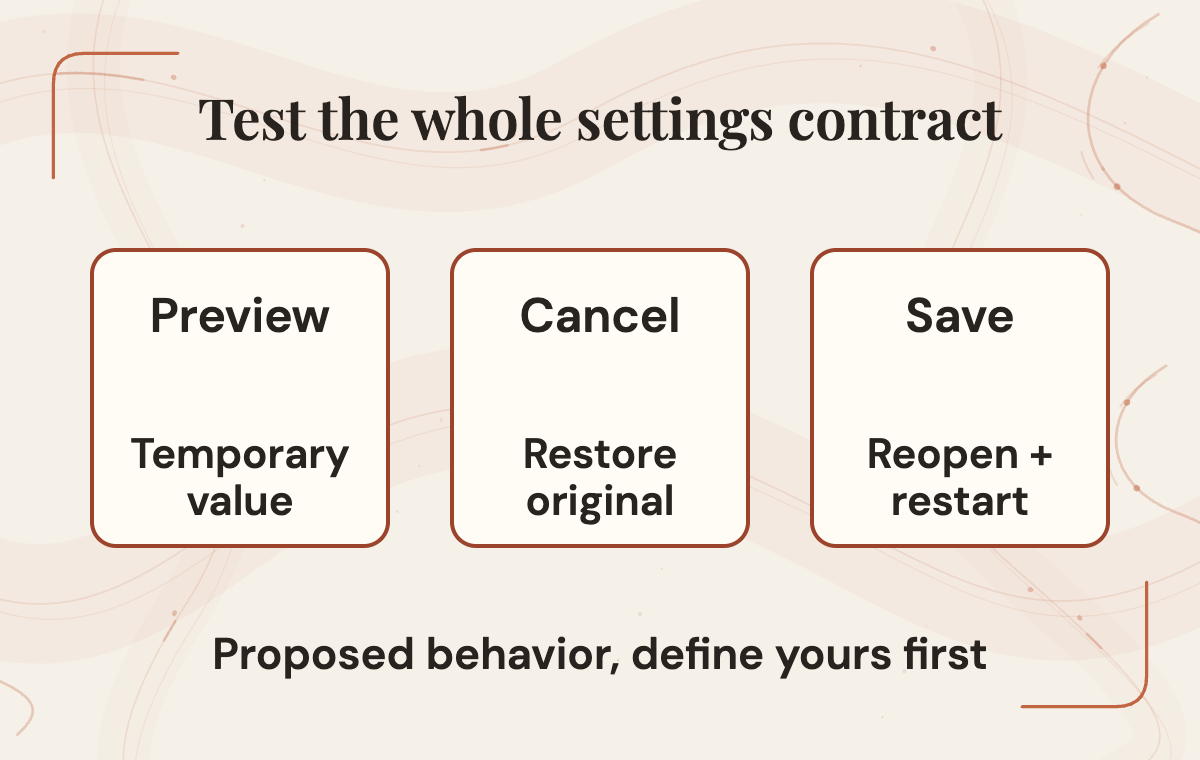
For each button, write down what done means, then follow the path to its end. Take the proposed settings screen from the opening. A reasonable contract might read like this. Moving a slider previews the new value right away so the player can hear it. Pressing Save writes the value to wherever your game stores settings and closes the screen. Pressing Cancel restores the value from before the screen opened, then closes it. Reopening the screen shows the saved value, not the last previewed one. Restarting the game keeps the saved value. Backing out with a system back gesture or a controller button behaves like Cancel unless your design says otherwise.
Each of those sentences describes a test you can run by hand, and each one catches a different bug. The Cancel check catches screens that write settings on every slider movement. The reopen check catches screens that read from a temporary copy. The restart check catches settings that never reach storage at all. None of them is visible in a screenshot, and any of them could affect a player if left unchecked.
Your own contract may look different. Some games apply settings instantly with no Save button at all, and that is a perfectly good design. The point is to state the contract before the review begins and check the screen against it, rather than inferring the intended behavior from whatever the agent happened to build.
 View image detail
Inspect structure and the next change
A screen that works today still has to survive next month's request. AI-built UI deserves an extra look here, because an agent can make many edits quickly, and those edits are not always where you expect them.
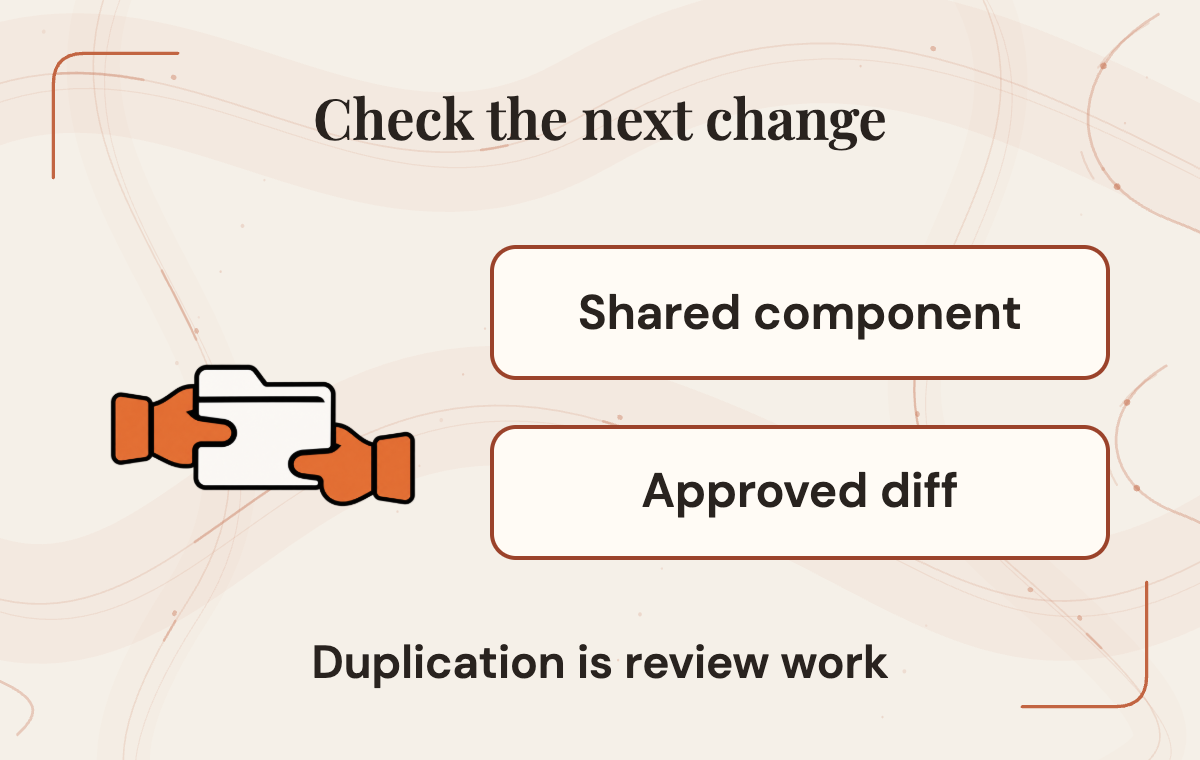
Unity's plugin repository is direct about this. The plugin can change scripts, scenes and assets directly, and it can run C# in the open Editor. The README describes limits to change logging and Editor undo, and recommends a version-controlled checkpoint before work begins. Treat that as a review instruction, not a footnote. Save a version-controlled checkpoint before the agent starts, then read the diff afterward. A short, readable inventory of what changed is a practical first maintainability check.
While reading the diff, look for a few patterns. Did the agent reuse your existing button prefab, or create a new copy with slightly different settings? Copies drift, and the next time someone updates the shared button style, this screen will quietly fall out of step. Did it put labels and layout where your project normally keeps them? Did it touch files outside the screen it was asked to build, such as a shared style sheet, an input settings asset or another scene? Changes to shared components are not automatically wrong, but they need approval from whoever owns those components.
Then run a small thought experiment. If a designer asks for one more button next week, how many places would someone need to edit? If the change follows the shared prefab and label conventions, the structure is easier to review. If the answer is three duplicated objects and a hard-coded position, the extra duplicated objects are maintenance work to include in the adoption decision. When you send fixes back, the smallest change that satisfies the contract is usually the right one to accept.
 View image detail
A screen-specific acceptance sheet
Everything above can fit on a single sheet per screen. The proposed format below has five columns: the criterion, the evidence that proves it, the result, the owner, and what happens on failure. Keep it short enough to complete in one sitting, and edit the rows to match your own project's rules.
- Framework matches project choice: Evidence: Prompt and hierarchy name the same UI system; Result: Pass, fail or not run; Owner: Engineering lead; If it fails: Return with framework named
- Assets are shippable and editable: Evidence: Source noted for each image; labels are live text; Result: Pass, fail or not run; Owner: Art lead; If it fails: Hold release
- Interactive elements inside safe area: Evidence: Checked at narrowest and widest supported devices; Result: Pass, fail or not run; Owner: UI owner; If it fails: Hold release
- Taps reach intended targets: Evidence: Play mode test of every interactive element; Result: Pass, fail or not run; Owner: Gameplay engineer; If it fails: Return with failing element
- Repeated and disabled input behave: Evidence: Double activation and disabled state checked; Result: Pass, fail or not run; Owner: Gameplay engineer; If it fails: Return with steps to reproduce
- Controller or keyboard focus works: Evidence: Full navigation without a pointer; Result: Pass, fail or not run; Owner: Gameplay engineer; If it fails: Return with focus path
- Save, Cancel, reopen and restart match contract: Evidence: Each contract sentence run by hand; Result: Pass, fail or not run; Owner: Persistence owner; If it fails: Hold release
- Shared components unchanged or approved: Evidence: Diff reviewed against checkpoint; Result: Pass, fail or not run; Owner: Component owner; If it fails: Hold until approved
- Device behavior confirmed: Evidence: Named build on named device; Result: Pass, fail or not run; Owner: QA owner; If it fails: Hold until run
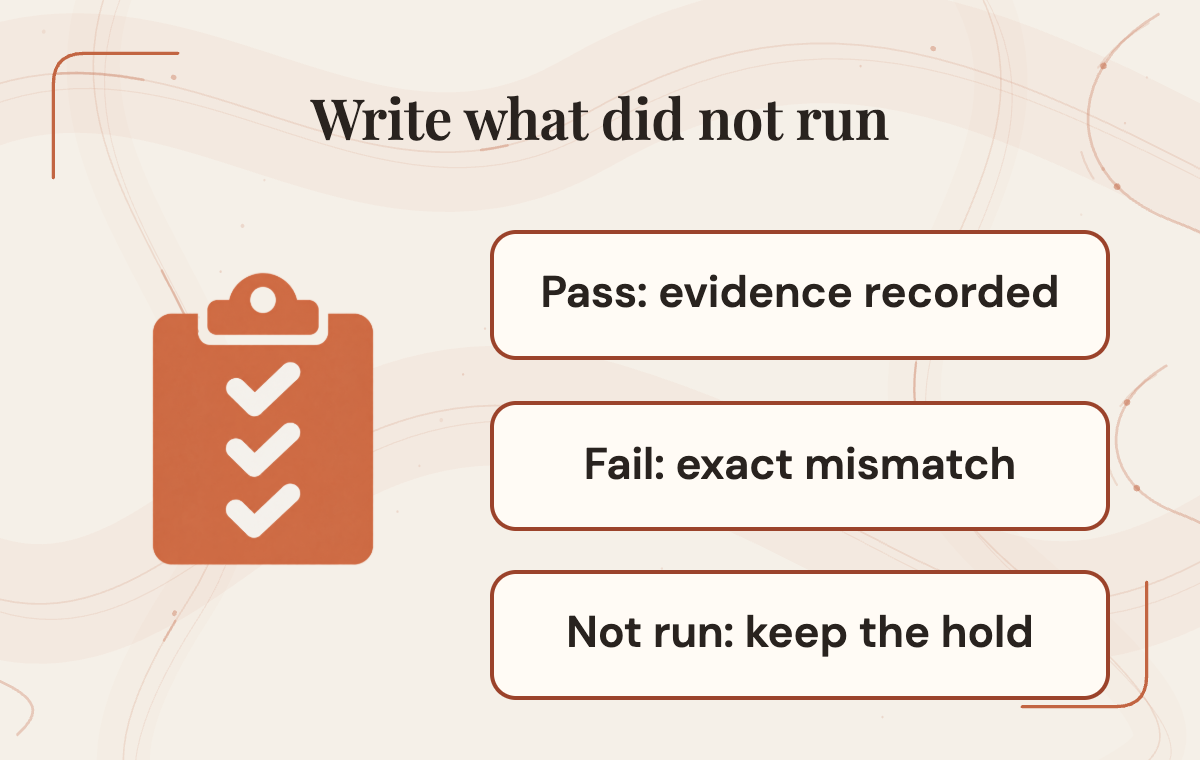
The most important feature of the sheet is honesty about what did not happen. "Not run" is a valid result and should be written that way, along with the reason, such as no test device available yet. It is different from a pass, and for rows your team marked as release holds, it should block the release just as firmly as a failure would. A guessed pass today is a bug report later.
Resist turning the sheet into a score. A screen with eight passes and one broken Save button is not almost ready, because the broken row is the one players will remember. Keep the completed sheet alongside the change itself, so the next reviewer can see what was proven last time and what was assumed.
 View image detail
Move from Editor proof to device proof
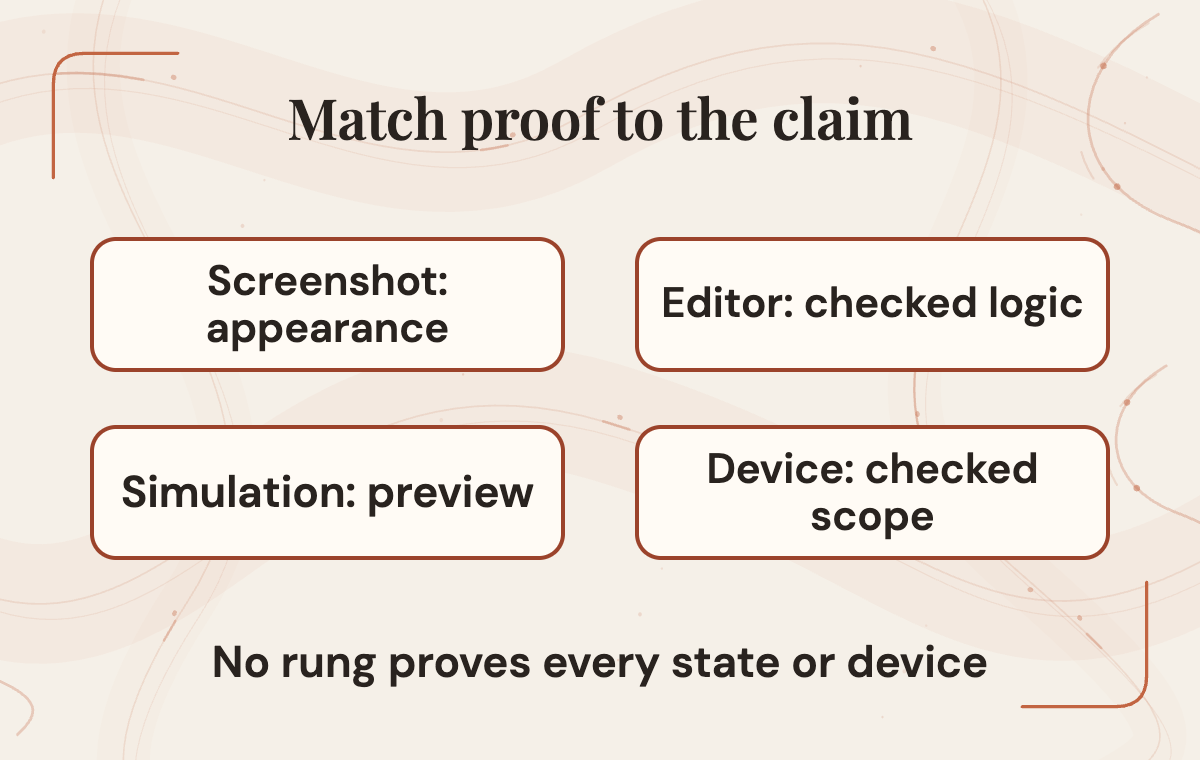
Each kind of review proves something different. A screenshot proves appearance at one capture. Play mode in the Editor lets you check the selected logic and input paths in that environment. A simulated device view lets you preview different screen shapes and safe areas. A real build on a real device provides evidence for the behavior you checked in that build on that device.
A simulated notch can show whether a layout respects a cutout. It cannot tell you how the screen feels under a thumb, whether touch targets are comfortable at real size, how text renders at a device's actual pixel density, or how the platform handles a back gesture.
Before accepting a screen for release, define the device scope: which phones and tablets, which orientations, which languages and which save states, such as a fresh install, an existing save and missing or damaged settings. Build for at least the extremes of that scope and repeat the input and destination checks there. Record the build, the device and exactly what was checked. If no device is available yet, mark those rows as not run and keep the screen out of the release until someone can do the work.
Performance belongs here only if you measure it. Note which build ran on which device and what you observed. A general statement that a screen feels fast is not evidence.
Confirming the plugin itself is installed is yet another kind of proof, and it is easy to mistake for more than it is. Unity's Codex setup guide treats a fresh session showing the /unity: skill menu, plus the plugin listed as installed and enabled, as the installation check. That tells you the agent can see the skills. It says nothing about whether the Editor is connected or whether any screen behaves correctly. Editor control runs through the separate Unity Pipeline package, which needs Unity 6.0 or later and an open project, and the Unity CLI it relies on is still marked experimental.
 View image detail
Use failures to repair one class of problem at a time
When a screen fails its sheet, the temptation is to paste the entire list back to the agent and ask it to fix everything at once. A broad rewrite can replace the screen in ways that make the original failures harder to trace. A steadier approach is to sort failures into layers and repair one layer at a time.
A proposed set of layers works well for UI. Visual failures cover spacing, color, alignment and text fit. Input failures cover wrong targets, double activation and focus order. State failures cover save, cancel, reopen and restart. Source failures cover rights, baked-in text and missing resolutions. Build failures cover anything that only appears on a device or under a specific platform setting. Each layer has a different kind of fix and often a different owner.
A narrow spacing repair may be simple to recheck, but changes to shared styles or layout rules can affect other screens. State repairs can touch storage code that other screens depend on, so they deserve a careful diff. Source repairs may mean replacing art entirely rather than adjusting it.
When you return a failure, give the agent or the person fixing it the exact criterion, the evidence of failure and the expected result. "Cancel kept the new music volume after reopening; expected the previous value" is a task someone can act on. "The settings screen is buggy" is not. After the repair, rerun the failed check and every other check in the same layer, because the repair may affect adjacent behavior.
Some failures should hold the release no matter how polished everything else looks. Decide those before the review starts. Art without confirmed rights, interactive elements outside the safe area on a supported device, Save or Cancel behavior that breaks the contract, and unapproved changes to shared components are sensible candidates. Writing the holds down in advance keeps them from becoming a judgment call made at the end of a long day under deadline pressure. For an agent that operates through interfaces, where a computer-use agent should stop develops the broader approval question. Here, name the exact screen criterion that triggers the hold.
None of this produces a quality score for the plugin. One screen passing or failing tells you about that screen, that prompt and that project. Over several screens, though, it is worth noticing which layers fail most often, because that pattern tells you what to put in the next prompt before the agent starts.
Accept narrowly, or return the exact failure
The useful outcome of a review is a narrow, specific decision. Either the screen meets its contract on the devices and states you checked, and you record that scope in writing, or it fails a named criterion and goes back with the evidence attached. "Looks good" is neither of those things.
The plugin is a candidate for repetitive interface work in a small team: wiring up another settings panel, laying out the fifth variant of a pause menu, moving labels into a localization system. If the workflow returns time, it can go toward the parts people do well, like deciding how a menu should feel, what a player needs at that moment and what the game should prioritize. Careful review is part of that judgment. It is how the team decides whether a generated screen meets the contract it wrote.
If an AI-built screen is waiting for approval right now, start there. Write its contract in five sentences covering what it is for, what each button must do, which devices count, which assets ship and what would hold the release. Then run that contract once from start to finish, and let the results decide what goes back to the agent. If the request is still too broad to review, borrow the first-change questions from Base44 Base Code: choosing a first change, then apply this screen's own Unity checks.
For a broader coding-agent review boundary, see Claude Opus 5.5 for unattended coding: where review should stay. Keep this screen's acceptance sheet alongside that broader delegation decision.
Rise Productive has no sponsorship or affiliation with Unity Technologies or its affiliates. Unity and its logo are trademarks or registered trademarks of Unity Technologies or its affiliates in the United States and elsewhere.
Checked for this article
Sources
- Unity, "Unity plugin for Codex" announcement, September 16, 2026Unity Technologies
- Unity Technologies, skills repository READMEUnity Technologies
- Shahar Bar, SBS Games, report on the Codex Unity plugin, September 17, 2026SBS Games
- Unity Documentation, Unity plugin for Codex setupUnity Technologies
- Unity Documentation, About the Unity pluginUnity Technologies
- Unity Technologies, unity-agent-plugin repository READMEUnity Technologies
- Unity Documentation, Unity CLI overviewUnity Technologies
- Unity Documentation, Unity Pipeline packageUnity Technologies
- Unity 6.0 Scripting API, Screen.safeAreaUnity Technologies
- Unity Manual, Comparison of UI systems in UnityUnity Technologies
Keep going
Related notes.

AI in Practice
Manus 2.0 Studio: When to Keep an Editable AI Project
Manus Studio adds editable video and game projects. Decide when the next person needs the source, which elements an edit must preserve and how to check the final export.
Read the article
AI in Practice
What to Check Before Putting Real Data into Tencent Octop
Octop is self-hosted, but a real deployment still connects accounts, providers, tools and people. Check each boundary before real data enters the workflow.
Read the article
AI in Practice
Claude Docs Sharing: What to Check Before You Send a Work Link
A pre-send checklist for Claude Docs links: verify recipient access, workspace policy, document version, export and mobile limits before sharing work.
Read the article