
AI in Practice
Gemini Gems Are Becoming Skills: What to Save Before the Change
You don't need to rebuild every Gem today. Save what each one depends on, write a small test, and check the Skill that actually shows up in your account.
On this page
- The personal-account timeline, in order
- What a Skill is, according to Google
- How the parts of a Gem map to a Skill
- Make a one-page inventory for each Gem
- Keep your files outside Gemini
- Write the test before you see the new Skill
- Check how the Skill behaves in a real chat
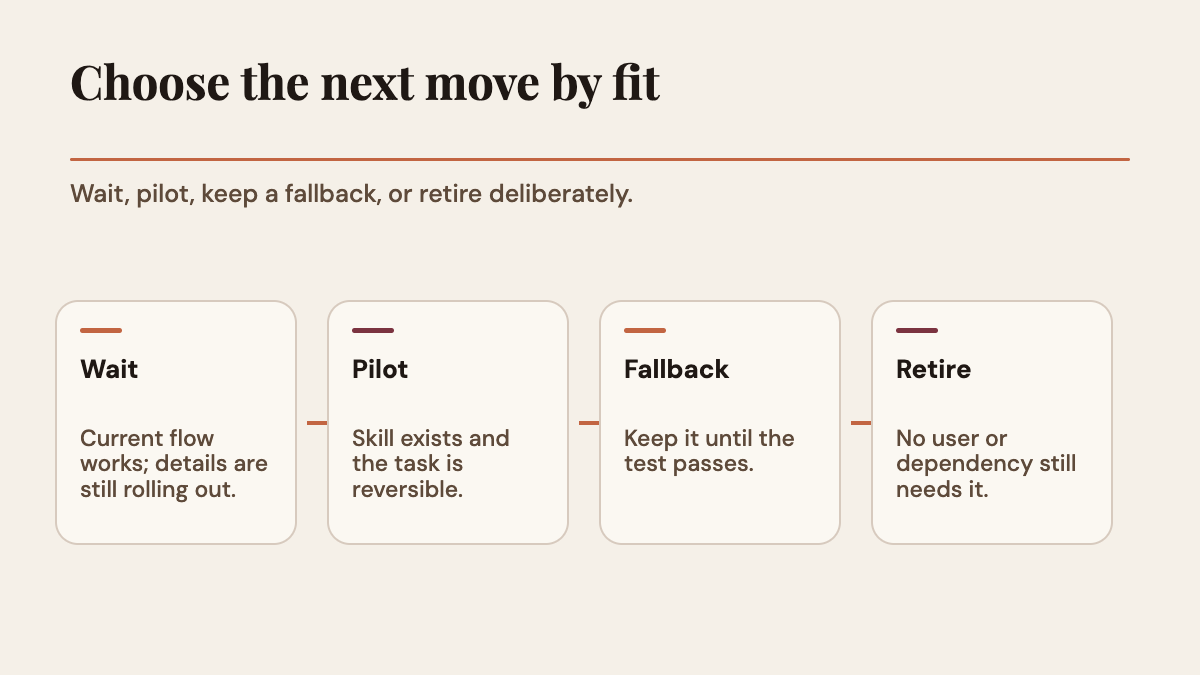
- Decide: wait, pilot, keep a fallback, or retire
- Prepare one Gem in a single pass
- Frequently asked questions
- Will my Gems be deleted on November 17, 2026?
- When do personal Gemini accounts switch from Gems to Skills?
- Will my Gem's knowledge files move to the Skill?
- Can a Skill run a script that fetches data from the web?
- What we checked, and what we didn't
- Sources
Testing note: Rise Productive did not test any Gemini account, Gem migration, Skill upload or rollout for this article. Google Workspace sources were reviewed on September 30, 2026, and the Gemini Apps Help pages on Skills and the transition were rechecked on October 2, 2026 UTC. One attributed news report is also listed at the end.
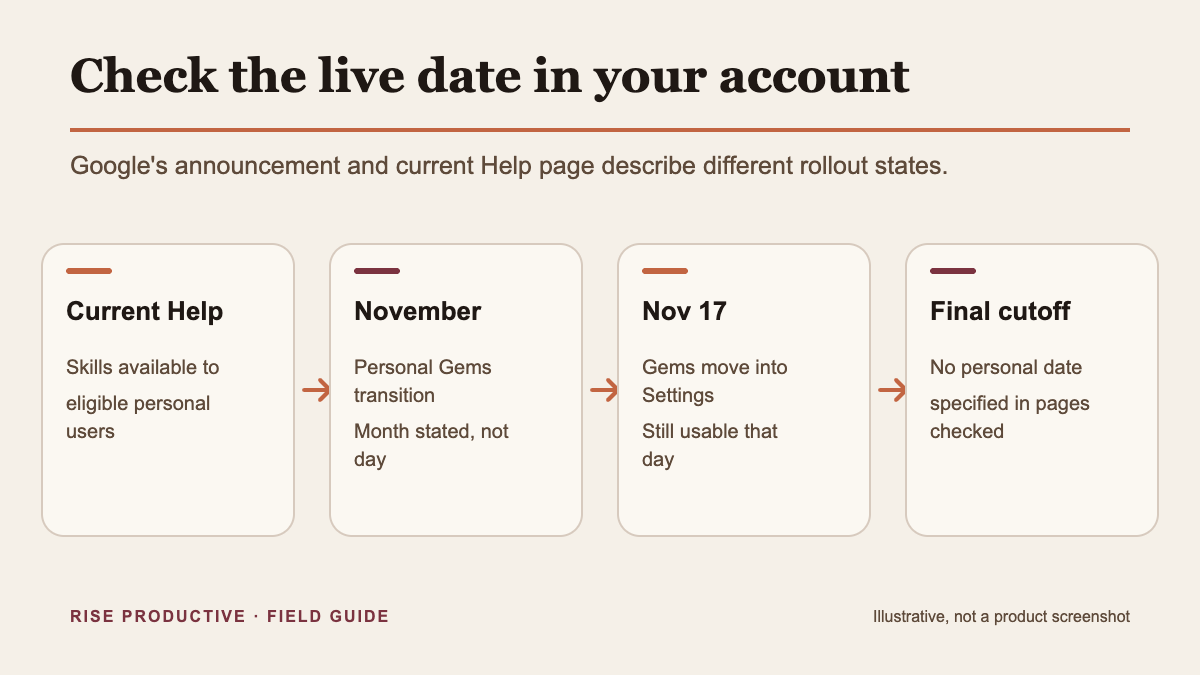
If you use Gemini with a personal Google account and you rely on a Gem, here's the short version. Google's Gemini Apps Help page says personal accounts begin transitioning from Gems to Skills in November 2026. Its current Skills Help page says users must be 18 or older, use a personal account, and have Keep Activity on. Google's September 30 announcement conflicts on age: it says Gemini-app Skills will be available to users of all ages, while Workspace Skills have a separate over-18 rule. Check what your account currently shows as availability rolls out gradually. The announcement projected an October 13 start for the Gemini-app rollout. On November 17, Gems move into Settings, and Google says they remain usable that day. The sources reviewed name November as the personal-account transition month but do not specify a final day.
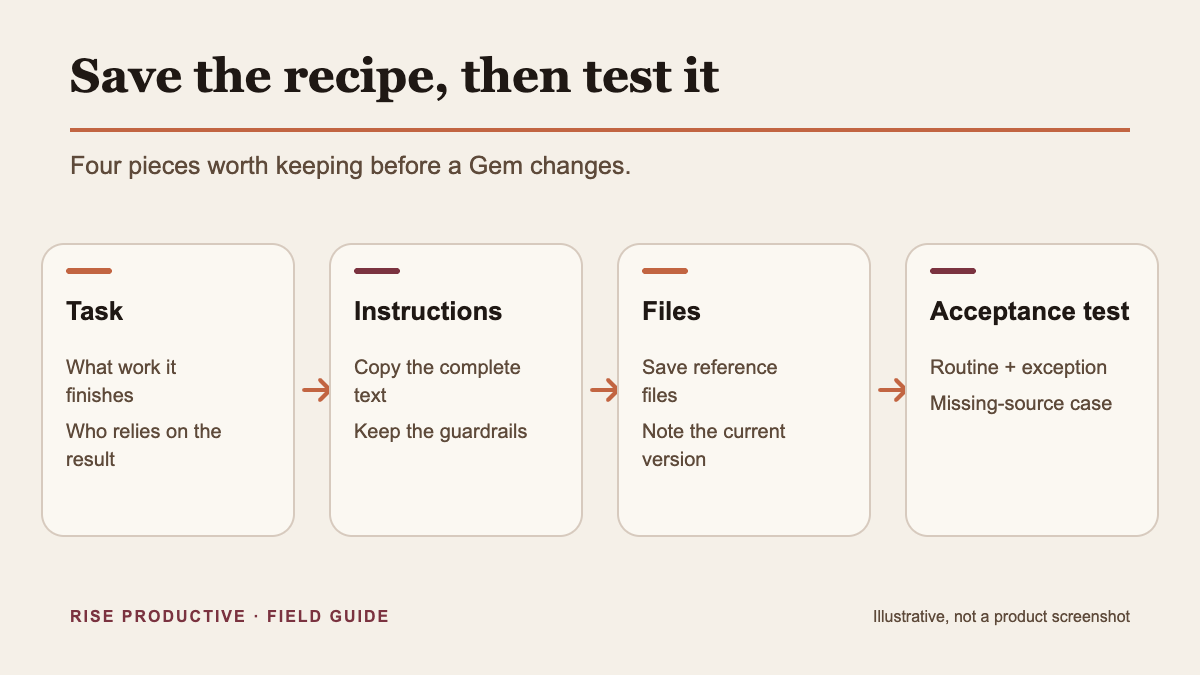
So this isn't a deadline to panic over. It's a good moment to save the recipe behind each Gem you'd miss: what task it handles, the exact instructions, any knowledge files, and a small test that tells you whether the replacement Skill still does the job. If you do it now, you can judge the new Skill against evidence instead of memory.
The real risk is rarely "everything disappears tomorrow." It's quieter than that. A familiar instruction ends up somewhere else, behaves a little differently, or loses a file you'd stopped noticing. A short inventory turns that into something you can check.
Key Takeaways >- Google says personal Gemini accounts begin transitioning from Gems to Skills in November 2026. The Skills Help page says Gemini-app Skills require users to be 18 or older; Google's September 30 announcement says they will be available to all ages. Workspace Skills have a separate 18+ rule, so check your account's availability. Gems move into Settings on November 17 and remain usable that day (Google Workspace Updates; Gemini Apps Help; Skills Help).- Save each important Gem's name, description, instructions and knowledge files outside Gemini, plus a three-case test, before the switch reaches your account.- When the Skill appears, check that it's turned on, run your test, and keep a fallback until it passes.- Google's Help page puts work and school accounts on a separate 2027 timeline handled through their administrators. Those dates don't apply to personal accounts.
 View image detail
The personal-account timeline, in order
For a personal account, three separate things happen. Skills arrive. Gems move. Eventually, Gems are transitioned. Mixing these up is how a "Gems are being killed off" headline turns into someone rebuilding everything in a hurry.
- October 13, 2026, in the September 30 announcement: What happens: Gemini-app Skills rollout was projected to begin; Source: Google Workspace Updates announcement; What it means for you: The current Skills Help page now says Skills are available to eligible personal accounts. Check your own account instead of treating one projection as a universal date.
- November 2026: What happens: Personal accounts transition from Gems to Skills; Source: Gemini Apps Help, "About the transition from Gems to skills"; What it means for you: This is the month Google names for personal accounts. It's a month, not a specific day.
- November 17, 2026: What happens: Gems move into the Settings panel in the Gemini app; Source: Google Workspace Updates announcement; What it means for you: Gems move somewhere else in the app. Google says they remain usable that day.
- Starting November 2026; exact day not specified: What happens: Gems and supported files are automatically transitioned when the transition reaches the account; Source: Gemini Apps Help; What it means for you: Watch your in-app notice. The November 17 move into Settings is not the final transition date.
The November 17 date is a relocation, not the personal-account transition cutoff. Google's announcement says Gems remain usable that day after they move into Settings, so look there if you cannot find one in the sidebar. It does not specify how long they remain usable after that date.
Early coverage made this harder to follow. A September 28 TechCrunch report by Sarah Perez covered the planned Gems migration and noted that existing Gems kept working ahead of the transition. It came out two days before Google published its more detailed schedule. The report is useful context, but Google's current pages and the notice inside your own account have the final word.
If you also have a work or school account, Google's Help pages put those accounts on a separate 2027 timeline and say administrators will receive transition details. Keep the two timelines apart. A date written for a business account tells you nothing about your personal one.
 View image detail
What a Skill is, according to Google
Google's Gemini Apps Help page on Skills describes them as reusable instructions you can use across chats and tasks. It says eligible personal account holders who are 18 or older can use Skills in the Gemini mobile app, Gemini for Mac, and Gemini on the web. The transition Help page also describes the personal and work or school account transitions. You can name a Skill yourself, Gemini may apply a relevant enabled Skill, and you can mix more than one Skill in a conversation. Google uses a root SKILL.md file for supported uploads.
There is a practical editing caveat in Google's current Help page. Google says manually created Skills won’t save in the Gemini mobile app; the suggested workarounds are to create one conversationally or use Gemini on the web. A Skill that includes uploaded files cannot currently be edited in the mobile app or Gemini for Mac; use the web app for those edits. If a Skill's instructions or reference files matter to your migration, verify the saved version from the web before you rely on it. This is a documented product limitation, not a claim that Skills cannot be used on those surfaces.
A Gem, by contrast, is a custom assistant you set up with instructions and open on its own. Google's Use Gems in Gemini Apps page describes that model. Both let you give Gemini saved instructions, which is why the names feel interchangeable. How you use them is different, though. A Gem is a place you go. A Skill shows up inside the chat you're already in, either because you asked for it or because Gemini decided it was relevant.
That difference matters more than it looks. It changes when your instructions apply, what other instructions they run into, and whether you can tell they're active. TechCrunch raised a related concern: choosing a Skill with a slash-style command may feel less friendly to everyday users than picking a Gem from a list. That's TechCrunch's opinion, not a measured result. Still, it's worth checking against how you actually use Gemini.
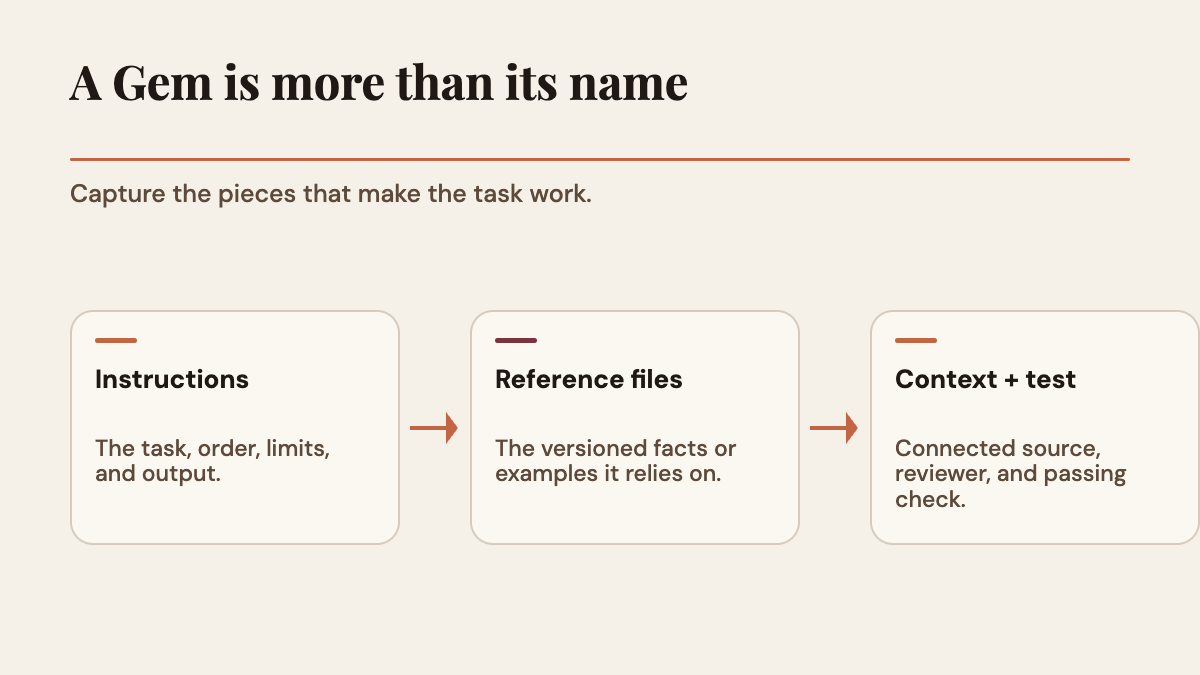
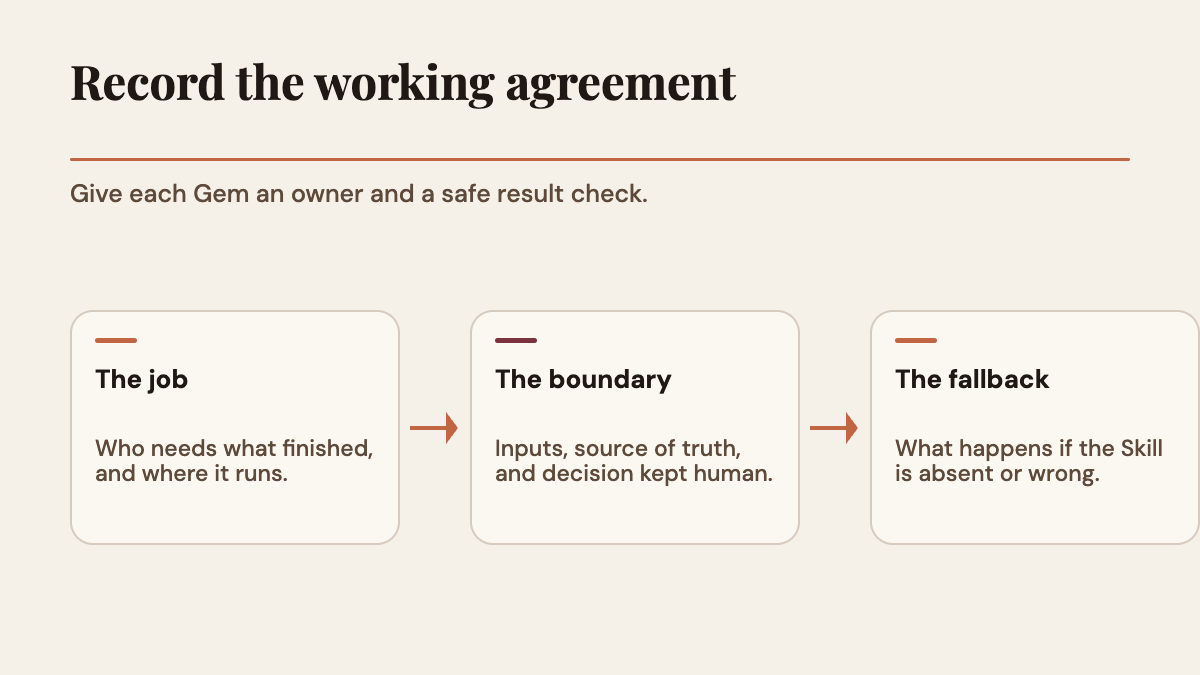
A useful Gem is a working agreement, not just a paragraph of tone instructions. It may hold a role, assumptions to avoid, reference files, an output shape and a habit of asking when something is missing. Saving only its name preserves the label, not the workflow.
 View image detail
How the parts of a Gem map to a Skill
Google's transition Help page describes a manual path if you want to recreate a Gem yourself rather than wait for the automatic transition. Here's how the pieces line up across that page and the Skills Help page.
- Name: Where it goes in a Skill: Skill name; What to watch: Make it specific enough that you'll recognize it when you call it up.
- Description: Where it goes in a Skill: Skill description; What to watch: Say plainly what the Skill is for, so the purpose is obvious later.
- Instructions: Where it goes in a Skill: Skill instructions; What to watch: Copy the full text. Don't retype it from memory.
- Knowledge files: Where it goes in a Skill: Downloaded individually, then added as references; What to watch: Google's page describes downloading them one at a time when you recreate a Gem by hand.
- Uploaded folder, where available: Where it goes in a Skill: A folder with a
SKILL.mdfile at its root plus reference files; What to watch: Check whether your account can upload the folder, and note that scripts can't make external requests.
The manual steps, as Google's Help pages lay them out, come down to this:
- Open the Gem and download its knowledge files, one by one.
- Create a new Skill.
- Copy the Gem's settings and instructions into it.
- If upload is available to you, upload a folder containing the
SKILL.mdfile and the reference files.
Google says it will automatically transition Gems and supported files when the change reaches an account. Its September 30 announcement describes the resulting Skills as drafts. Review what arrived, make sure the intended Skill is active, and compare it with your saved instructions and tests. Automatic migration saves copying, but it does not prove every attachment, link or habit made the trip unchanged.
One limit is worth calling out on its own. Google's Skills Help page says scripts that need the internet aren't supported, and scripts can't make external requests. If one of your workflows needs to fetch something live, write that down separately. A Markdown file won't recreate it.
Make a one-page inventory for each Gem
Before you change anything, describe the work each Gem does. The bar is simple: could someone else recreate its behavior from your notes without guessing? You don't need special software. A spreadsheet or a single note with one row per Gem is enough.
Capture these fields:
- Name: Which Gem is this, and why did you make it?
- Task: What are you trying to finish when you open it?
- Starting input: What do you usually paste in or attach?
- Instructions: The full text, copied, not paraphrased.
- Knowledge files: Which files are attached, and where's your own copy of each?
- Connected context: Does it rely on something from a connected Google app or your account?
- Expected output: What shape should the answer take, and what makes it useful?
- Your review point: Which decision do you still make yourself?
- When information is missing: Should it ask, flag the gap, or stop?
- Acceptance check: Which small example would show whether the Skill still works?
- Fallback: How will you get the job done if the Skill isn't ready or gives a weak result?
Here's what one filled-in row might look like. It's a made-up example, not a Gem we migrated.
- Name: Example entry: Weekly freelance update
- Task: Example entry: Turn my rough Friday notes into a short client update
- Starting input: Example entry: Bullet notes pasted into the chat
- Instructions: Example entry: Copied into
weekly-update-instructions.txt, saved September 30 - Knowledge files: Example entry:
client-style-guide.pdf, source copy in a Drive folder called "Client admin" - Connected context: Example entry: None
- Expected output: Example entry: Three short sections: done, next, blocked. Under 200 words.
- Review point: Example entry: I confirm any date before it goes to the client
- When information is missing: Example entry: Leave the section empty and say so. Never guess a date.
- Acceptance check: Example entry: Three saved test prompts (see below)
- Fallback: Example entry: Write the update by hand from the same template
That row protects the reason for the prompt, not just the prompt. "Write a clear weekly update" isn't enough if the Gem also knew which notes count, who reads the update, and that unconfirmed dates stay out. Those are the details that get lost when someone retypes instructions from memory.
Keep secrets out of the inventory and out of the Skill. Don't paste passwords, API keys or other people's private information into reusable instructions. A Skill should say which source to use and how to treat it. It shouldn't contain credentials.
 View image detail
Keep your files outside Gemini
The reference file is often the half of a custom assistant you stop noticing. It might be a style guide, a product list, a glossary, or a good sample answer. If your instructions say "follow the attached guide," that file is part of the workflow. The instruction can't do its job without it.
Keep a source copy of every important file somewhere you control, outside the Gem. Give it a clear name and note the date you last checked it. If you manage reusable instructions across more than one tool, our guide to keeping one workflow across Notion Skills in Codex shows why a single maintained source is easier to check than scattered copies. If several Gems use the same document, keep one master copy and note which Gems depend on it. Otherwise you end up with three slightly different versions and no idea which one is current.
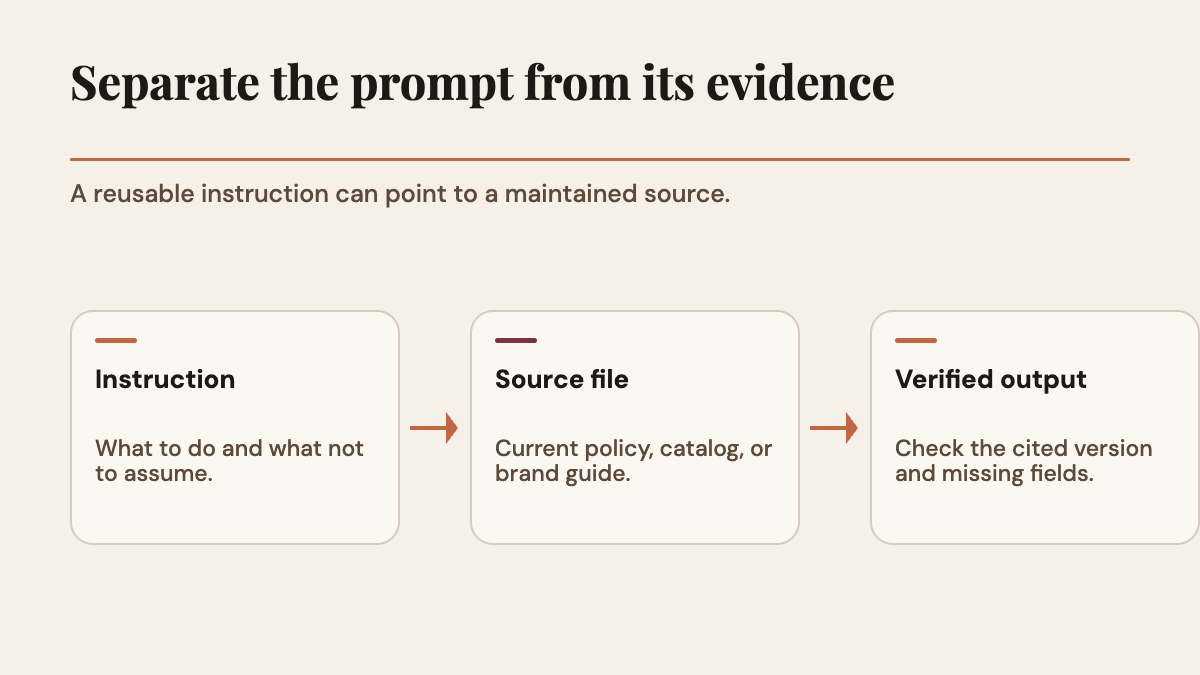
When a workflow also depends on a maintained record outside the assistant, our guide to a Notion system that stays connected to other tools shows one way to keep that source of truth separate. Keep instructions and reference material apart. The instruction says what to do: "Use my current rate sheet and quote the listed prices." The rate sheet is its own file. That way you can update the facts without rewriting the Skill. It also gives you an easy check later: is the Skill reading the right version?
Don't take a successful upload as proof that the Skill uses the file. A file can be attached and still be ignored, misnamed, or overridden by another instruction. Check that the answer actually reflects the file and follows its rules.
 View image detail
Write the test before you see the new Skill
Most people judge a new tool by whether the first answer sounds good. That's a weak test for something you'll reuse. An answer can read beautifully and still miss the one rule your Gem existed to enforce.
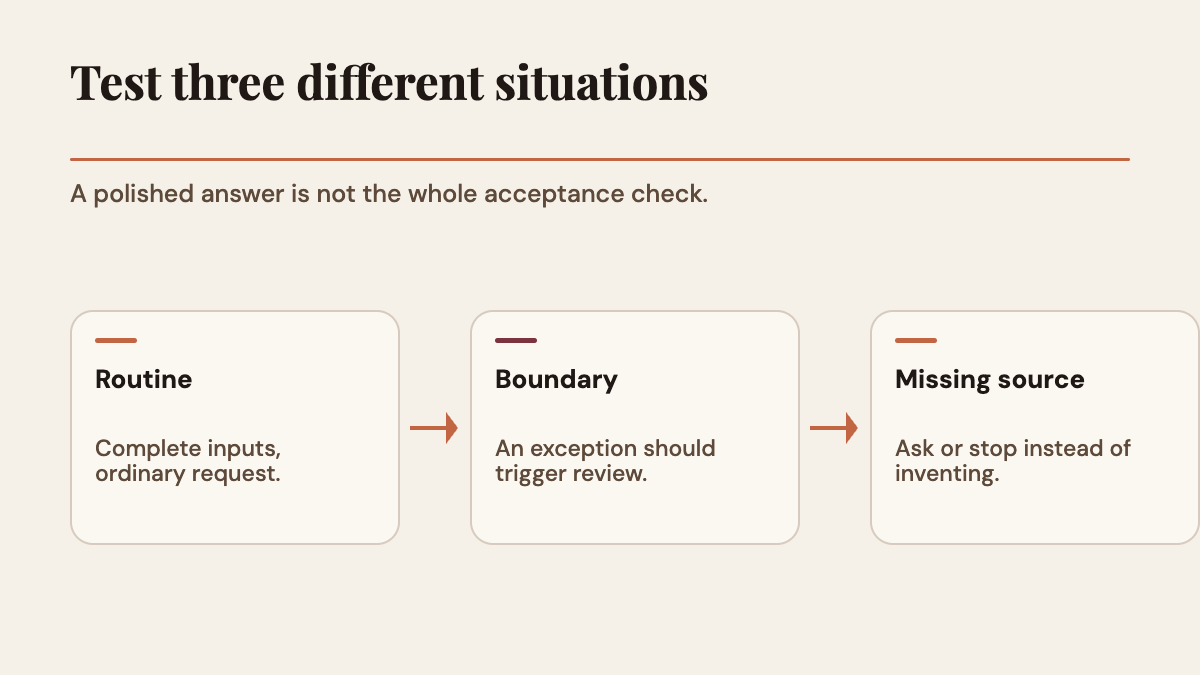
Writing pass criteria before seeing the migrated output keeps "it sounds fine" from standing in for "it does the job." Pick three small cases:
- Routine case: the ordinary task with complete, current inputs.
- Edge case: a less common request your Gem handled differently, or that should come back to you.
- Missing-source case: a needed file or fact isn't there, so the safe answer is to ask, flag it, or stop.
Before you run the Skill, write down what a passing answer must contain. For the weekly update example, that means the right week, each item placed in the right section, nothing marked done that isn't, and a clear note when a field is missing. If your Gem helped draft emails, the test might check that it used the facts you supplied, not just that it sounded friendly.
This doesn't need to be a formal benchmark. A saved prompt and a short checklist are plenty. You just need enough to tell an answer that reads smoothly from one that actually does the job. If a result fails, try to name the cause. It could be a missing file, a vague instruction, a second Skill pulling in another direction, missing context, or a limit of Skills themselves.
Save one or two good outputs from the old Gem if you like, but use them for comparison, not as the answer key. Your Gem may have made confident mistakes too. The aim isn't to reproduce every quirk. It's to keep what worked and fix what made the old setup break easily.
This is the same habit behind a practical test for what work to automate: name the task, define the result, and decide where your own review stays. The product will keep changing. Your task and your standard for a good result shouldn't get vaguer just because the tool changed.
 View image detail
Check how the Skill behaves in a real chat
When a Skill shows up in your account, first check its status. Google's Skills Help page says a Skill must be activated for Gemini to apply it automatically. If automatic use is part of your workflow, confirm activation before you blame the instructions.
Then call the Skill by name. Ask for a task that clearly belongs to it and confirm the answer follows your instructions. Next, if you plan to rely on Gemini picking the Skill up on its own, try an ordinary prompt without naming it. Note whether the Skill kicked in, whether you could tell, and what happened when your prompt was ambiguous. Google says Gemini may recognize when a Skill is relevant. It doesn't promise that every relevant prompt will trigger it.
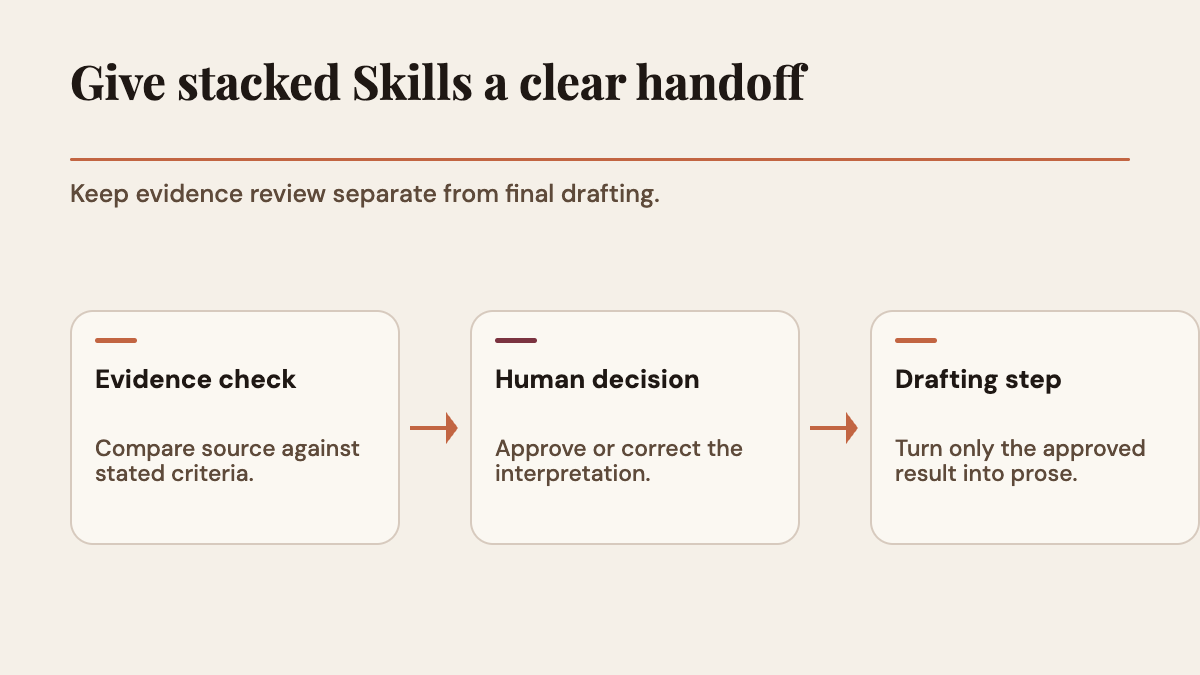
If you plan to combine Skills, start with two that have clearly separate jobs. One might check a draft against a list of facts you supplied. The other might turn the checked notes into a friendly message. The first shouldn't decide tone, and the second shouldn't add facts or change what the first one flagged. When their jobs don't overlap, it's easy to see what each one did.
Then test what happens when they clash. If two Skills ask for different formats or tones, can you tell which one won? If you can't, keep them separate for that task until you can. Being able to combine Skills is useful, but it doesn't mean conflicting instructions will sort themselves out.
Finally, check the features you depend on. As of October 2, 2026 UTC, Google's transition Help page lists Gemini features where Skills aren't currently supported. That list can change, so read the current version rather than relying on a summary. If your Gem depends on one of those features, don't assume a Skill can replace it just because the instructions carried over.
 View image detail
Decide: wait, pilot, keep a fallback, or retire
Not every Gem needs a Skill right away. Decide based on how much it would hurt to lose the Gem for a week, and on how well Skills fit the task.
Prepare and wait when the Gem works today and nothing about your timing is urgent. Fill in the inventory, save the files, and watch for the notice in your account. Google says Gems remain usable on November 17 after the Settings move, so waiting is reasonable if your own account has not transitioned.
Rebuild by hand and pilot when the workflow matters to you and Skills are already available in your account. Start with one low-stakes task. Don't overwrite your only copy of the instructions or files.
Keep a fallback when the Gem supports something with a real deadline, like a weekly client update or a recurring application. Write down how you'd do it without Gemini until the Skill has proven itself. That isn't resisting change. It's making sure the work still gets done.
Retire on purpose when you no longer use the Gem, its files are stale, or the task doesn't need custom instructions anymore. A migration isn't a reason to keep every old setup forever. Just make that choice deliberately, not by accident because a file went missing.
Your inventory should make the choice obvious. If a Gem is mostly reusable instructions and Skills support the task, a Skill is a natural fit. If it depends on a feature Skills don't support yet, work out what that feature was doing for you first. The answer might be a Skill plus a separate file or review step. Or it might be waiting until Google explains a clearer path.
 View image detail
Prepare one Gem in a single pass
You can prepare one Gem without turning it into a project.
First, open your Gems and pick the one you'd miss most. Write down its task, inputs and output. Copy its full instructions into a file you control, and download any knowledge files that matter. If it uses a connected app, note what it reads, but don't copy private data into the Skill.
Second, write the three test cases: normal, edge, missing source. For each, list what a good, safe answer includes. Keep them simple. If a test needs a 20-page rubric to explain, it's too broad for a first check.
Third, look at the current Google Help page and the notice inside your Gemini account. Write down the date, where you saw it, and exactly what it says. Then choose: wait, pilot, keep a fallback, or retire.
When the Skill appears, compare its name, instructions and files with your saved notes. Make sure it's turned on. Run all three tests, including the one where it shouldn't answer confidently. Keep your fallback until it passes.
Last, store your notes where you'll find them again. A Skill is easier to maintain when you know where its instructions, files and test live. Without those notes, the migration is a one-time copy that soon becomes another forgotten prompt.
What you're really protecting isn't the Gem's name or even its exact wording. It's how a task you repeat is meant to work: the right inputs, a trusted reference, the expected output, what happens when something is missing, and the point where you check the result. Skills may make that easier to reuse. They also change when and where it shows up. Save it now, test the replacement on real cases, and switch over once the new version proves itself.
Frequently asked questions
Will my Gems be deleted on November 17, 2026?
No. Google's September 30 announcement says Gems move into the Settings panel in the Gemini app on November 17, and remain usable that day.
When do personal Gemini accounts switch from Gems to Skills?
Google's Gemini Apps Help page says personal accounts begin transitioning in November 2026. The September 30 announcement projected an October 13 start for Gemini-app Skills, while the current Skills Help page says eligible personal accounts can use them now. Availability is gradual, so check your account and the current Help page. The transition Help page does not specify a final day.
Will my Gem's knowledge files move to the Skill?
Google says it will automatically transition Gems and supported files as the change reaches your account, with remaining Gems recreated as draft Skills. Review the migrated version and confirm it is active. If you rebuild by hand, its Help page describes downloading knowledge files individually and adding them to the new Skill. Either way, keep your own copy.
Can a Skill run a script that fetches data from the web?
Not according to Google's current Skills Help page. It says scripts that need the internet aren't supported and that scripts can't make external requests.
What we checked, and what we didn't
This article is based on Google's Workspace sources reviewed September 30, 2026, and the Gemini Apps Help pages on Skills and the transition rechecked October 2, 2026 UTC. The transition Help page now says eligible personal accounts can use Skills, while the September 30 announcement projects an October 13 rollout start; that difference is why the article directs you to check your own account. Workspace administrator dates apply to work and school accounts, not personal ones. Sarah Perez's September 28 TechCrunch report covered the planned migration and noted that existing Gems kept working ahead of the transition. Google's September 30 announcement provides the November 17 Settings-move date, while its current Help page names November for the personal-account transition.
We didn't test any of it. We didn't try any Gemini account, Gem migration, Skill upload, automatic triggering or rollout for this piece, and we have no data on how well migrated Skills perform. The checklist, test cases and decision guide are Rise Productive's recommendations, not Google's process. Product dates and feature lists can change, so recheck Google's pages and your in-app notice before you act on a specific date.
Sources
- Google Workspace Updates: Introducing skills in the Gemini app and Workspace, plus what's next for Gems, September 30, 2026.
- Google Gemini Apps Help: About the transition from Gems to skills, rechecked October 2, 2026 UTC.
- Google Gemini Apps Help: Create & manage skills for Gemini Apps.
- Google Gemini Apps Help: Use Gems in Gemini Apps.
- Google Workspace Help: About the transition from Gems to skills, updated September 30, 2026 (administrator guidance for work and school accounts).
- TechCrunch: Google is killing off Gemini's Gems in favor of 'skills', Sarah Perez, September 28, 2026.
Checked for this article
Sources
- Google, "Let skills in Gemini tackle your most repetitive tasks"Google
- Google Workspace Updates: Introducing skills in the Gemini app and Workspace, plus what's next for GemsGoogle
- Google Gemini Apps Help: About the transition from Gems to skillsGoogle
- Google Gemini Apps Help: Create & manage skills for Gemini AppsGoogle
- Google Gemini Apps Help: Use Gems in Gemini AppsGoogle
- Google Workspace Help: About the transition from Gems to skillsGoogle
- TechCrunch: Google is killing off Gemini's Gems in favor of "skills"TechCrunch
Keep going
Related notes.
AI in Practice
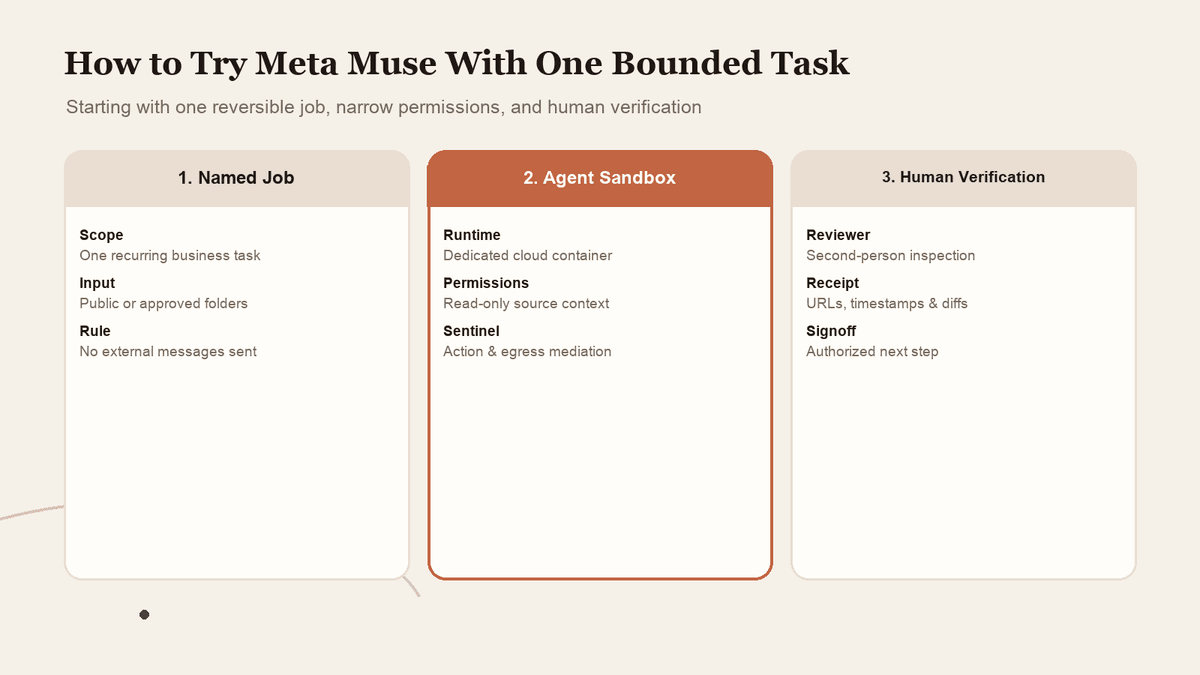
How to Try Meta Muse With One Bounded Task and Limited Access
A personal agent can look useful long before you know whether you should connect everything. Start with one reversible job, narrow permissions, and verified completion.
Read the article
AI in Practice
ChatGPT Sites and Connected Apps: Who Can See What?
A shared Site does not make every coworker\x27s source account the same. Map the separate controls, test a normal member\x27s path, and make access understandable before rollout.
Read the article
AI in Practice
ChatGPT Sites Plugins: How to Scope MCP Tools Before You Share
A ChatGPT Site can host a supported plugin, but the useful question is what its tools should be allowed to do. Here is a practical contract-and-test process before you share.
Read the article