
Creator Workflows
Adobe in Gemini: What Can You Create with Adobe AI Tools?
Adobe in Gemini connects Photoshop, Lightroom, and Express to conversational prompts. Here is how to test a bounded creative task and verify outputs.

On this page
- What Adobe in Gemini changes
- A chat entry point is not the same thing as an entire creative suite
- Choose one task before you connect anything
- Product-photo consistency
- Social variations from one approved asset
- Express-template personalization
- Set up a pilot that can teach you something
- What should the reviewer measure?
- Make the brief concrete enough to review
- Keep the human decision where it matters
- Where Gemini fits beside the Claude workflow
- A simple go, revise, or stop decision
- Sources and further reading
Adobe in Gemini puts selected Adobe photo, design, and asset workflows behind a conversational starting point. The useful question is whether one repeatable creative task becomes easier to hand off and review, not whether a chat window replaces Photoshop.
In brief: Adobe says its Gemini connection can help with product photos, social variations, Express templates, and Creative Cloud assets. To try it, a reader needs a Google Gemini account and an Adobe account, connects Adobe in Gemini's app settings, and can start a task with @Adobe. Adobe's September 25 help page says the feature is available globally except in trade-restricted regions and currently supports English. Those are product facts, not proof of speed, output quality, brand fidelity, or suitability for every account. The sensible first step is one small, reviewable pilot.
The decision: Give the connector a task with a stable input, a clear visual brief, and an easy-to-check output. Keep a person responsible for product truth, brand consistency, rights, and approval.
What Adobe in Gemini changes
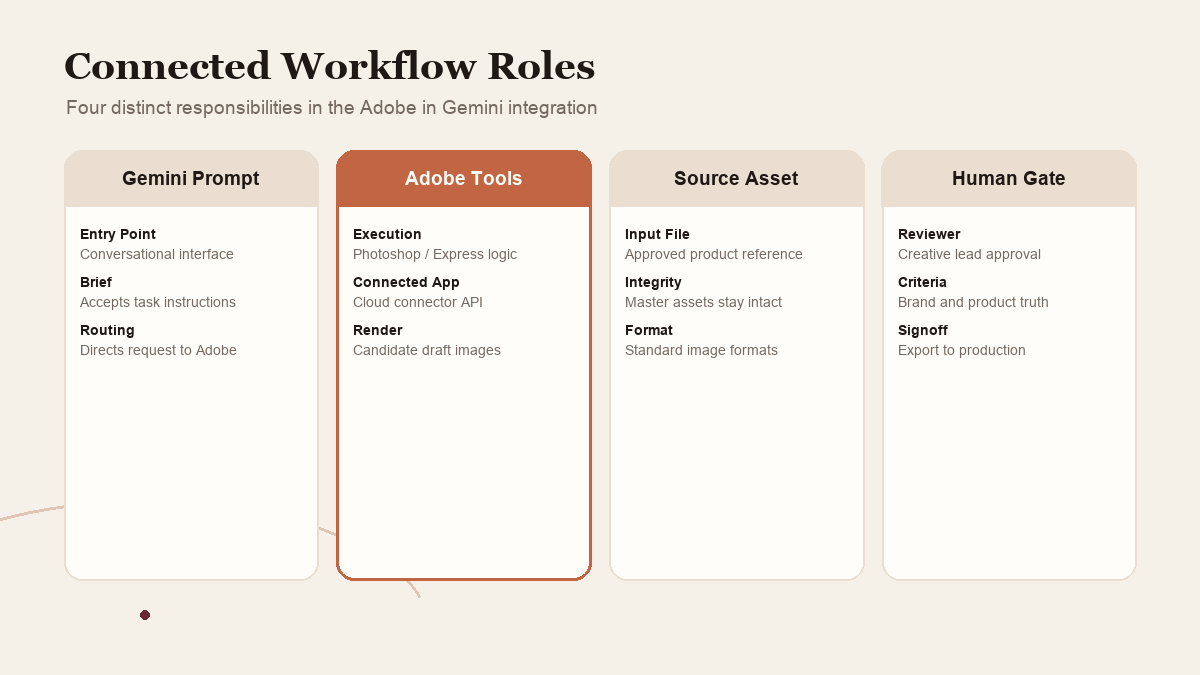
Creative work often begins with an instruction, an image, a deadline, and a person trying to remember which application contains the right control. The Adobe-Gemini connection changes the starting surface for certain jobs. Instead of opening an Adobe application first, a user can describe an outcome in Gemini and direct the conversation to Adobe's connected capabilities.
Adobe's September 24 announcement names Photoshop, Lightroom, Adobe Express, and Firefly for Adobe in Gemini. It describes three clear creative patterns: polishing a set of product photos, adapting an existing design for social channels, and customizing an Express template. Its help guide also documents searching, organizing, and summarizing Creative Cloud content.
Google's connected-apps announcement independently lists Adobe in Gemini's creativity category. That confirms the integration's place in Gemini's connected-app direction. It does not test whether a particular prompt produces an acceptable campaign asset.
The distinction matters. A connector can make a capability easier to reach without making the underlying creative decision easier. You still need to know what the image should communicate, which file is the approved source, what cannot change, and who has the authority to approve the result.
 View image detail
A chat entry point is not the same thing as an entire creative suite
It is tempting to read “Adobe tools inside Gemini” as “Photoshop, Lightroom, Express, and Firefly now work just like their full applications in a chat.” The available evidence is narrower. Adobe's help page lists specific workflows and says it is continuing to expand what users can create and edit. It does not claim every desktop control is available from Gemini.
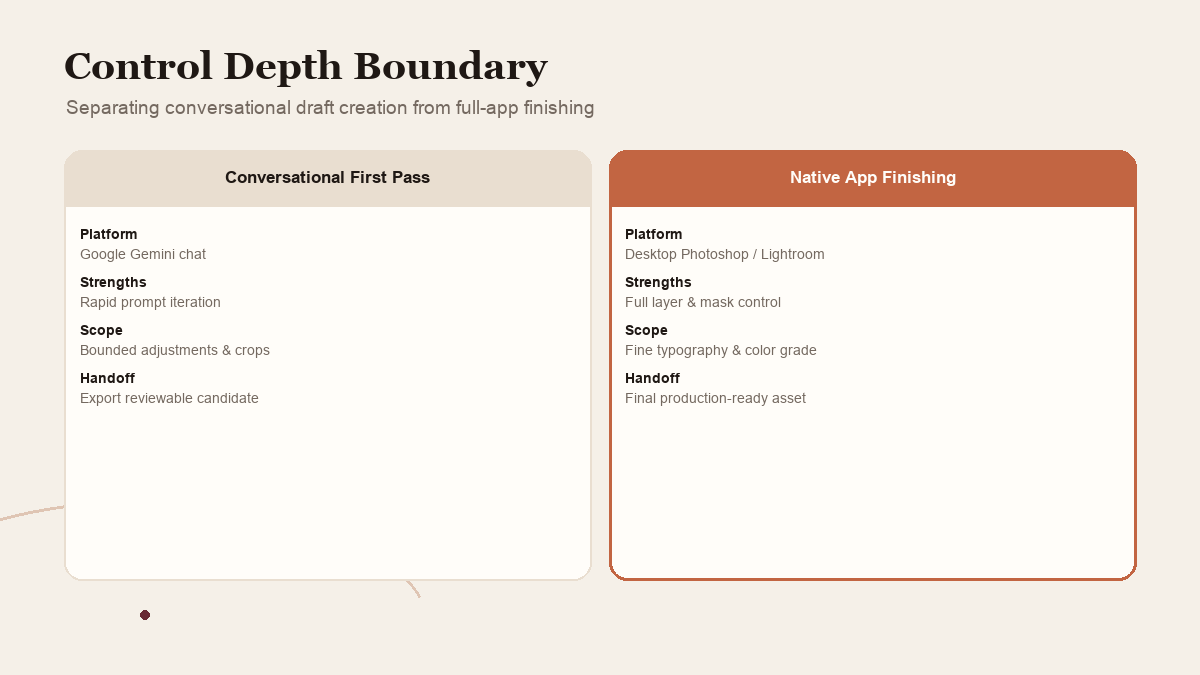
An independent Computerworld analysis describes the larger strategy as making Adobe available wherever users work, while noting that more complex functionality remains in the flagship applications. That is useful context from reporting and analyst interviews, not a performance test. It points toward a practical division: a conversational surface may be convenient for bounded operations, while the full application remains the place for detailed control and finishing work.
That division is not a defect. The wrong expectation is that every task should remain in one interface. A person may describe an outcome more quickly than they can navigate to a tool. They may still need the native app to inspect layers, adjust a difficult mask, review typography at full size, or preserve a precise color treatment.
Use Gemini as a way to start the bounded first pass. Return to the full application when the file needs controls the connected workflow does not expose, and judge the export against the original brief before it reaches a client.
 View image detail
Choose one task before you connect anything
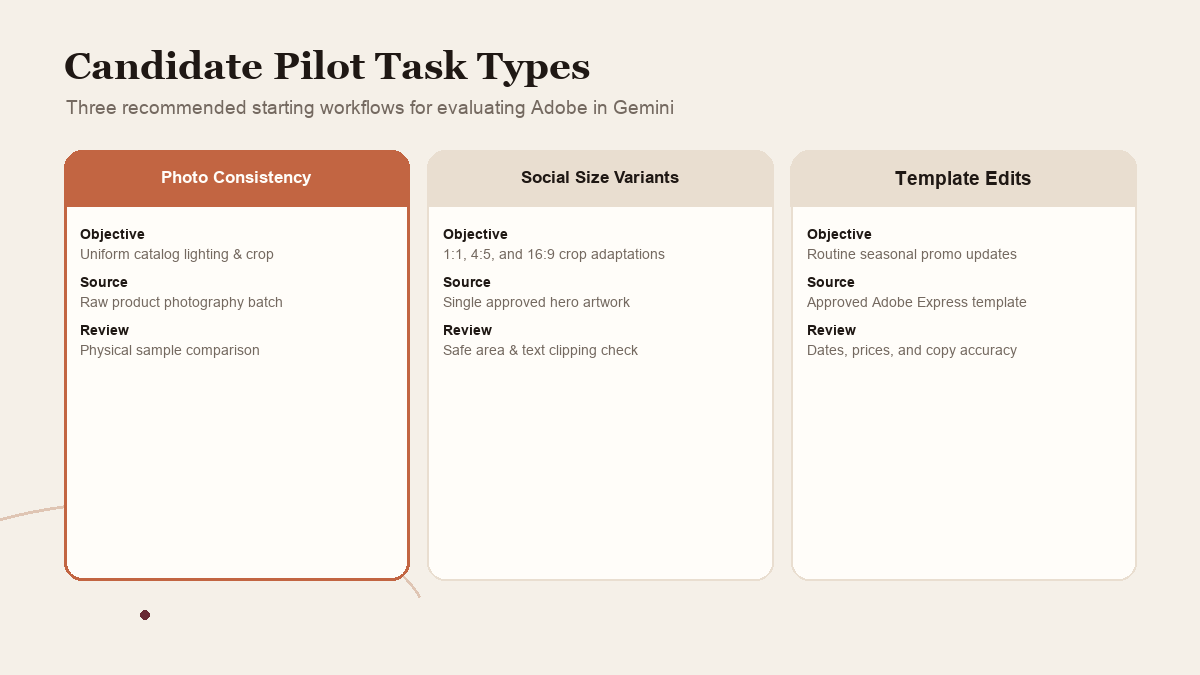
“Try Adobe in Gemini” is too vague to evaluate. Choose a job your team already does, and write down how a reviewer knows it is finished. Three common starting points make the decision easier.
Product-photo consistency
This is worth exploring when a small set of product photos needs a consistent crop, lighting treatment, or color balance. Adobe's documentation describes applying comparable adjustments across multiple images. A useful pilot begins with copies of existing images and a reference that shows the intended treatment. It ends with a reviewer comparing each output against the product itself, not with a prompt response that says “done.”
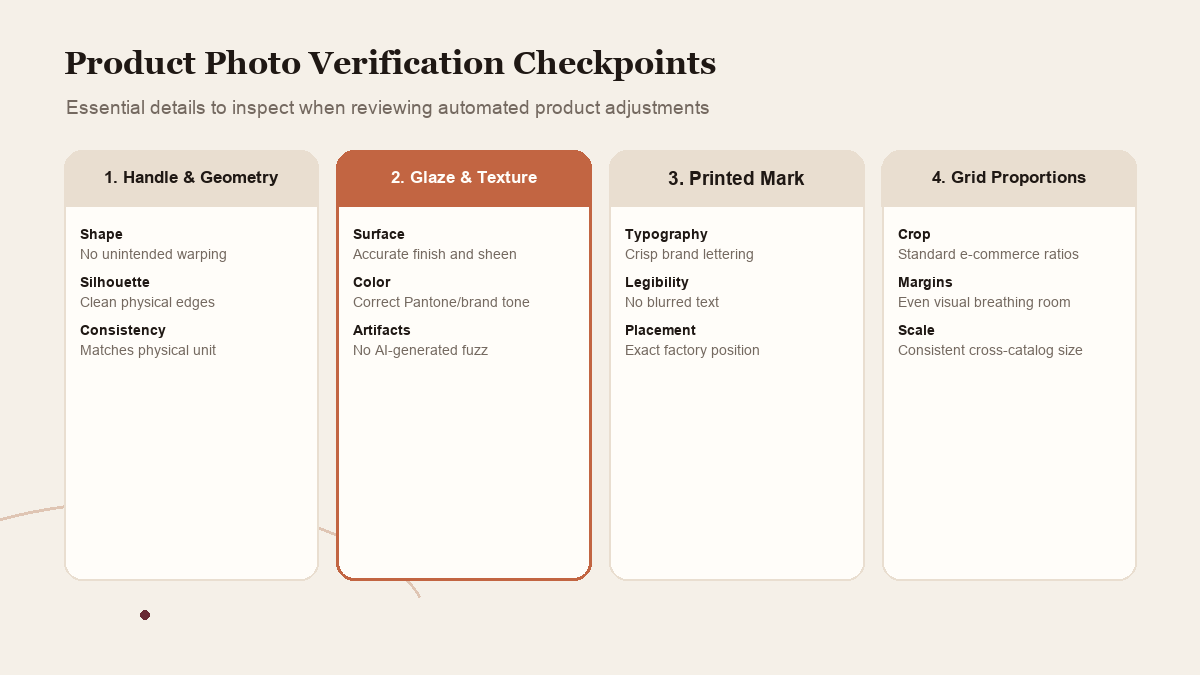
The reviewer should check whether logos, labels, product geometry, included accessories, and packaging details remain accurate. If the image will represent a real item for sale, a visually attractive edit that changes a product feature is a failure. Consistent lighting is useful; invented details are not.
For example, suppose a shop has six photographs of the same ceramic mug. The brief could ask for a neutral background, consistent framing, and a crop suitable for its product grid. The reviewer can compare the handle, glaze, printed mark, and proportions against the source. That makes it possible to catch an output that looks coherent as a set but quietly changes the object. The example is a proposed evaluation scenario, not a claim that Adobe in Gemini generated these images.
 View image detail
Social variations from one approved asset
If the source artwork is already approved and the repetitive part is fitting it to several channels, a conversational connector may be worth a contained test. Provide the approved source, the intended audience, the exact message that must stay intact, and the target dimensions. Then inspect text clipping, safe areas, accessibility, and whether each channel version still says the same thing.
An important limit: a resized file is not automatically a good social post. A square, portrait, and landscape crop can each change the visual hierarchy. Ask for variations, but treat them as drafts until the actual exported files are viewed at their intended sizes.
Express-template personalization
Templates help when the job is to start from an existing structure and replace content for a new campaign. Adobe describes selecting a template and adjusting its text, imagery, and colors. That can be a useful route for routine pieces such as an event reminder or a sale announcement, provided the brief makes the non-negotiable parts explicit.
Before using customer-facing materials, inspect names, dates, URLs, prices, disclaimers, and logo placement character by character. A design can look polished while containing the wrong offer. Visual confidence is not factual verification.
 View image detail
Set up a pilot that can teach you something
The most useful test is small enough to review and specific enough to produce a real decision. This is a proposed test, not one completed for this article.
First, select one task that repeats. Do not start with the most important launch of the quarter or a batch whose source files have unclear rights. Choose a job where an incorrect first pass is visible and reversible.
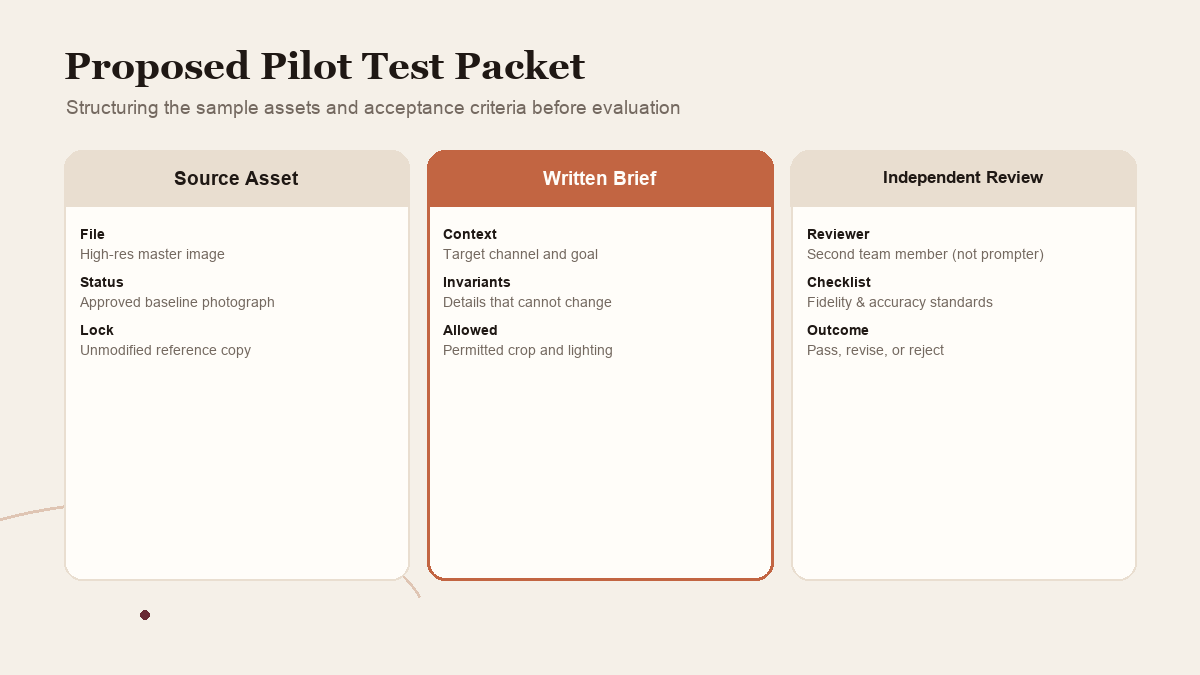
Second, create a clean sample packet. Include a copy of the source asset, a short brief, one approved reference, the output dimensions, and a list of what must not change. For a product-photo test, that list could include the product's printed name, packaging text, shape, color, and visible accessories. For a social variation, it might include the headline, offer terms, logo, campaign date, and destination URL. These examples describe a safe test plan, not an Adobe requirement.
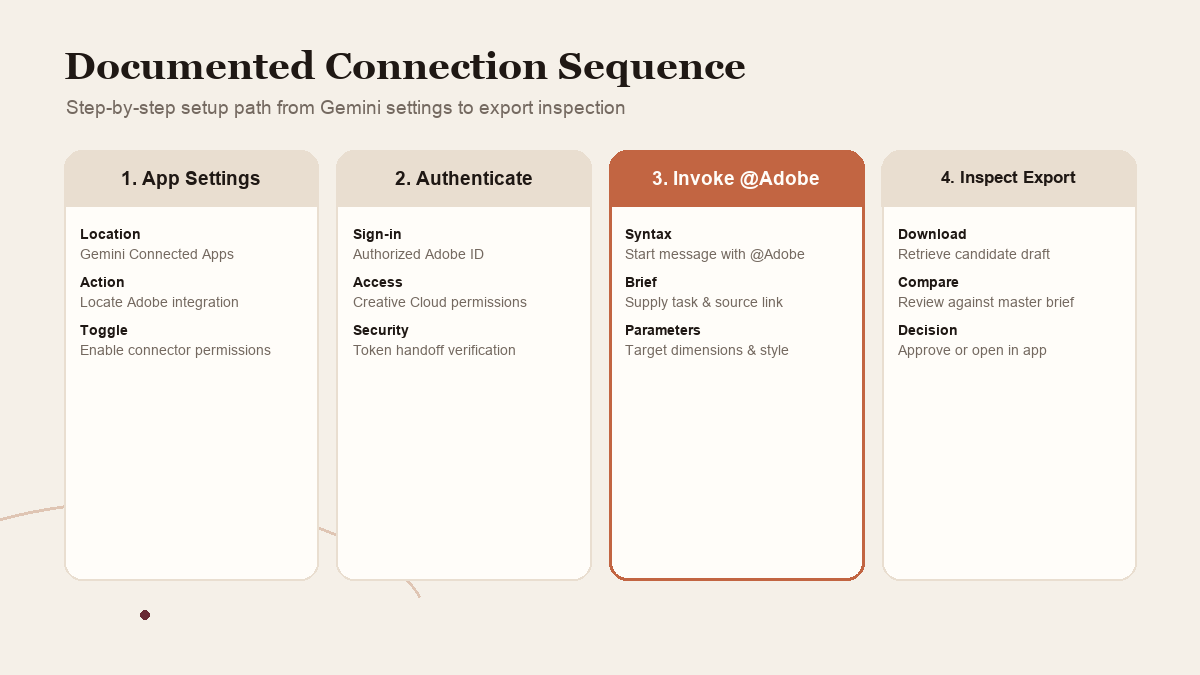
Third, connect accounts and run the same brief on a modest sample. Adobe's current Gemini setup documentation says a Google Gemini account and an Adobe account are required. It instructs people to find Adobe in Gemini's connected-app settings, turn on the connector, sign in to Adobe, and then use @Adobe to start a workflow. The guide states English support and regional trade restrictions. Check the actual account before planning a team rollout; a general launch statement cannot prove that the feature is enabled for a particular person.
 View image detail
Fourth, have someone other than the person who wrote the prompt inspect the files. This can reveal when a prompt writer has unconsciously judged the output against their own intentions rather than the actual brief. If the output will be customer-facing, route it through the existing brand or content approval process.
Fifth, record what happened. A short worksheet is enough: output count, number accepted, number needing corrections, type of correction, review time, and whether a native-app finishing step was needed. Do not call the integration “faster” based on one anecdote. Compare the same task and review standard in the existing workflow, and keep the sample modest.
If the current process already uses an Adobe action and a review checklist, preserve both in the comparison. Otherwise, it is easy to credit the connector for an improvement that came from clarifying the brief. Keep the old version, note what changed in the prompt, and repeat the same task with the same source assets. That will not create a controlled scientific benchmark, but it gives an operator a more honest operational comparison than a vague impression from one successful-looking image.
 View image detail
If this is one of several repeatable editorial or social tasks, your team may also need a clear home for idea status and publishing dates. Rise's Content Creator Workspace is a Notion template for organizing content ideas and publishing work. It is a separate planning product, not an Adobe connector or an endorsement of a particular image workflow. Teams that also need to manage draft status and approved assets may find the separation in Rise's live-updating Notion CMS and CRM guide useful.
What should the reviewer measure?
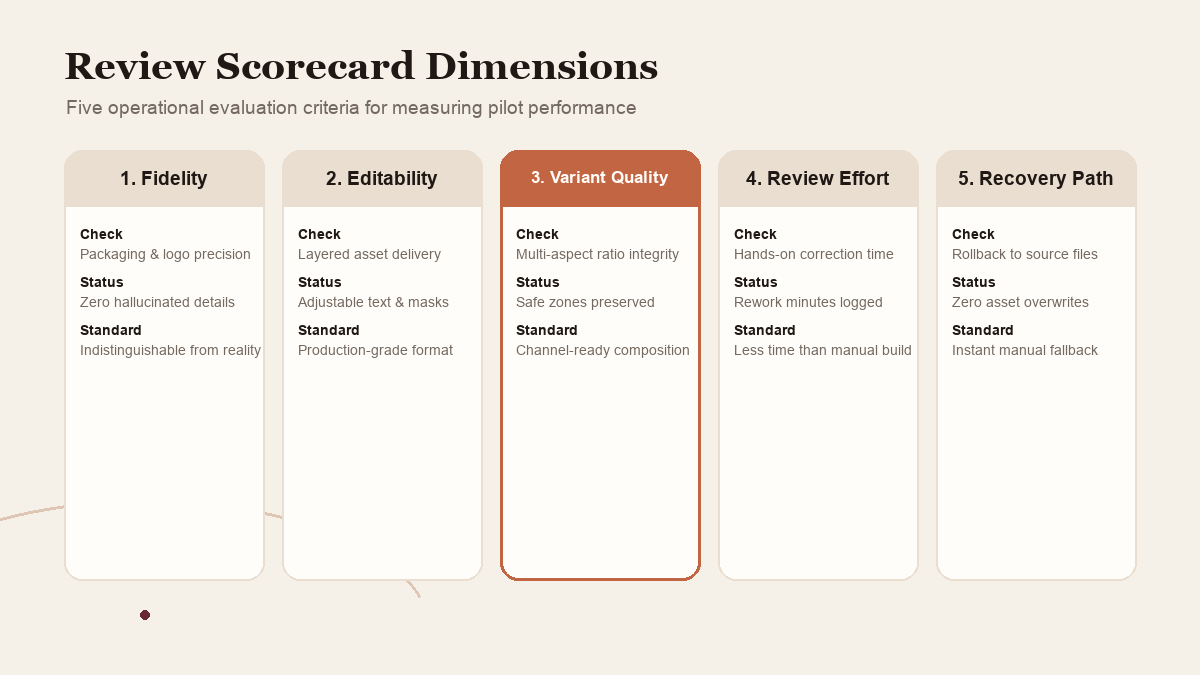
One “looks good” vote will not tell you whether a workflow is ready for regular use. Agree on a few checks before the test begins.
Fidelity: Did the output retain the required wording, packaging, brand elements, and product details? Record each correction rather than writing down only that the team liked it.
Editability: Can the next person revise the elements they need to change? Is the delivered result a usable file or only a flattened preview? The correct answer depends on the task, so write down the required output format before running the connector.
Variation quality: Do channel-specific assets respect each channel's format and preserve the same message? A set of three exports is not valuable if all three use the same crop or one loses the call to action.
Review work: How many factual corrections, layout repairs, and repeated prompts did the output require? Include the time needed to inspect and finish it. The person checking brand and product claims is part of the workflow, not invisible overhead.
Recovery: What happens when the first output is wrong? Can the operator adjust one element without regenerating everything? Does the process preserve the source file? If the work cannot be recovered cleanly, it may be a weak candidate for routine use.
Rights and data: Is the source material approved for use with the connected service? Does it include customer data, unreleased product details, or restricted material? Use a policy-approved sample. The launch announcement and tool availability do not substitute for your organization's privacy, security, or licensing review.
This scorecard helps a team learn about one job. It cannot establish universal product quality, guarantee time savings, or certify a whole creative department for a new operating model.
 View image detail
Make the brief concrete enough to review
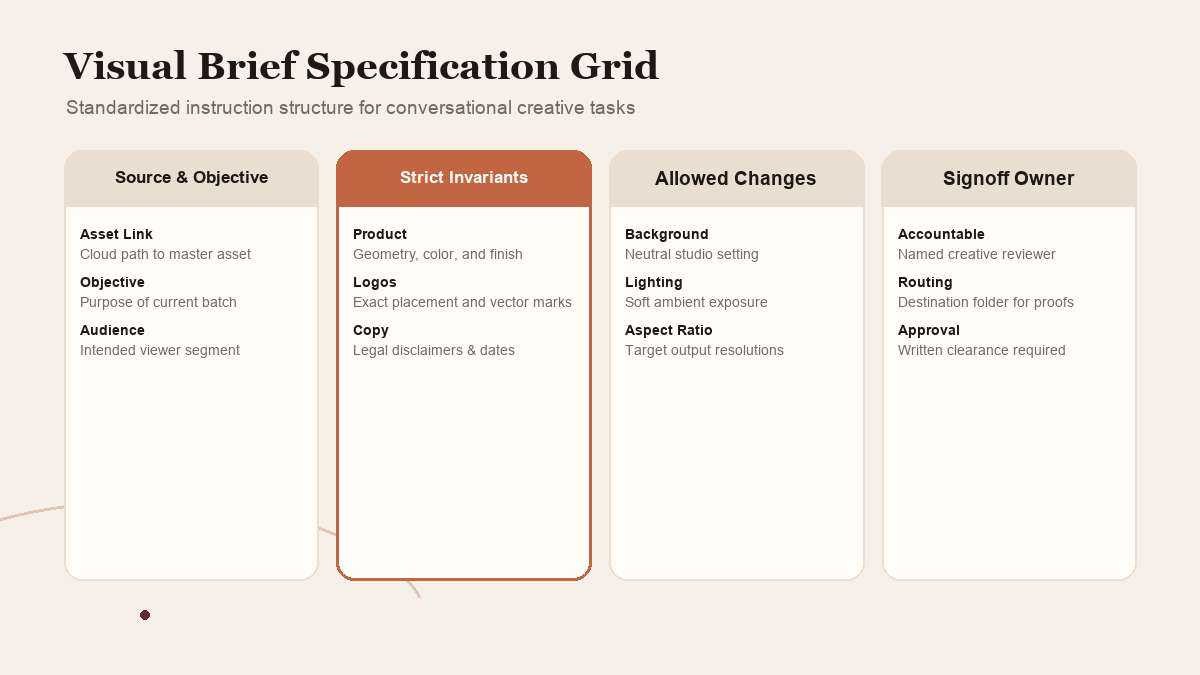
A useful visual brief has a few distinct parts. State the source file and what it represents. Describe the intended audience and where the result will appear. Name the elements that must remain exact. Then explain which edits are allowed and what the exported output must contain.
For a product image, that could mean preserving the product, label, color, and included accessories. Adjust only the background, lighting, and crop. Make one square and one landscape version, then provide files that can be inspected before publication. For a social card, the fixed fields might be the approved offer, date, logo, and URL, while the layout and crop may change. These are examples of brief structure, not a list of guaranteed connector settings.
The instruction should also say what to do when a requirement conflicts with the design. A good system should surface the conflict for a person instead of inventing a substitute price, rewriting the offer, or making a product image look more convenient than the actual item. If a detail is unknown, the brief can require a question instead of an assumption.
Finally, keep the output boundary explicit. Ask for a draft when a draft is what the team needs. Do not ask for “ready to publish” unless the process includes the person who can verify that claim. The language in the prompt should match the authority available to the tool.
 View image detail
Keep the human decision where it matters
Creative teams are often asked to move quickly, but “fast” and “approved” describe different things. A generated or adapted draft can be helpful while still requiring someone to decide whether it represents the brand and the product accurately.
That reviewer should check more than spelling. A price, product configuration, license claim, or customer promise can be wrong even when it is neatly aligned. For imagery, the person should check subject fidelity, crop, visual hierarchy, readable text, contrast, and whether an image appears to make a factual claim that the copy does not support.
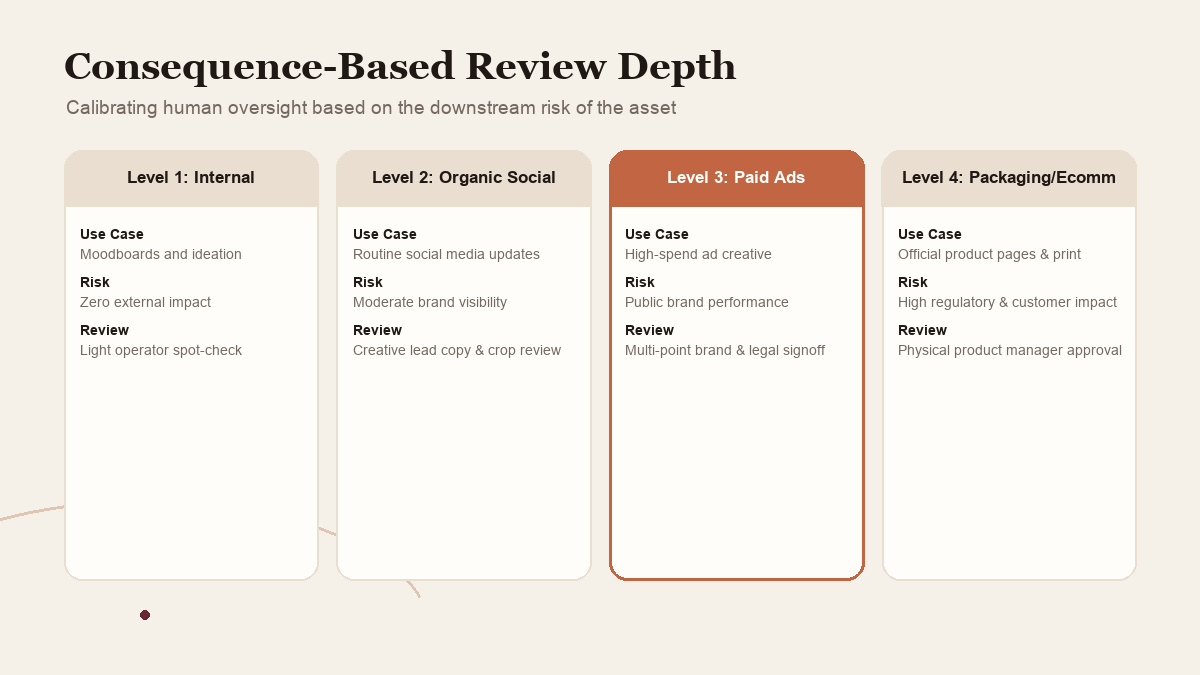
The approval rule should match the consequences of an error. A draft for an internal brainstorm can have a light review. A public product page, paid campaign, or regulated offer needs a stronger one. You can automate preparation without automating ownership.
This is the same question raised in Rise's practical test for what to automate: what repeats, what needs judgment, what happens when it fails, and who will maintain the process? An AI connection does not change those questions. It makes them easier to overlook because the new capability arrives inside a familiar chat interface.
 View image detail
Where Gemini fits beside the Claude workflow
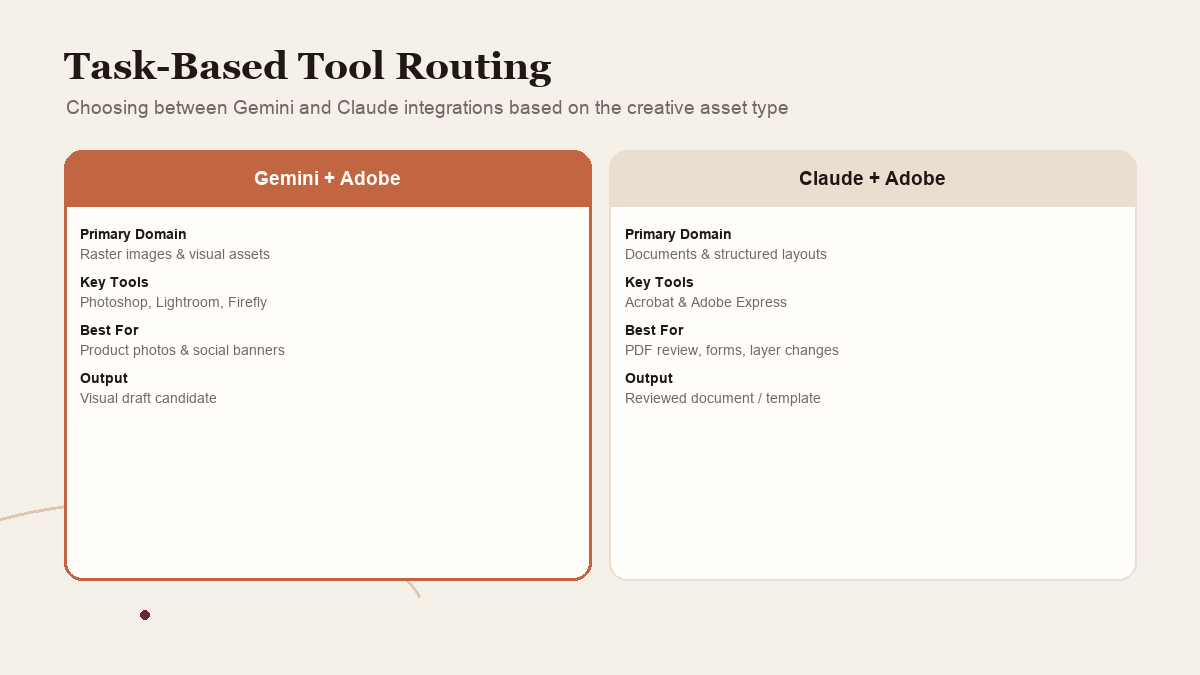
The September announcement joined two separate developments under one Adobe story. Gemini received Adobe creative workflows, while Claude's Adobe plugin added Acrobat tools and interactive editing of PDFs and Express designs. Those are different jobs and deserve different pilot criteria.
If the work starts from a photo or a creative template and the question is how to produce a reviewable visual draft, Gemini's documented examples are relevant. If the work starts from a PDF that needs page organization, redaction, comments, review, or a layer-level Express change, the separate Claude path may be more relevant. Neither comparison establishes that one assistant is better at creative reasoning or that outputs are equivalent. The workflows are not a model benchmark.
Computerworld's report also cautions against imagining that every Adobe function moves into an assistant. Its coverage describes an assistant as a new way to reach Adobe tools while complex capabilities remain in core applications. That is a useful mental model for a pilot: make the handoff easier where it is bounded, then return to the full application when the job requires more control.
 View image detail
A simple go, revise, or stop decision
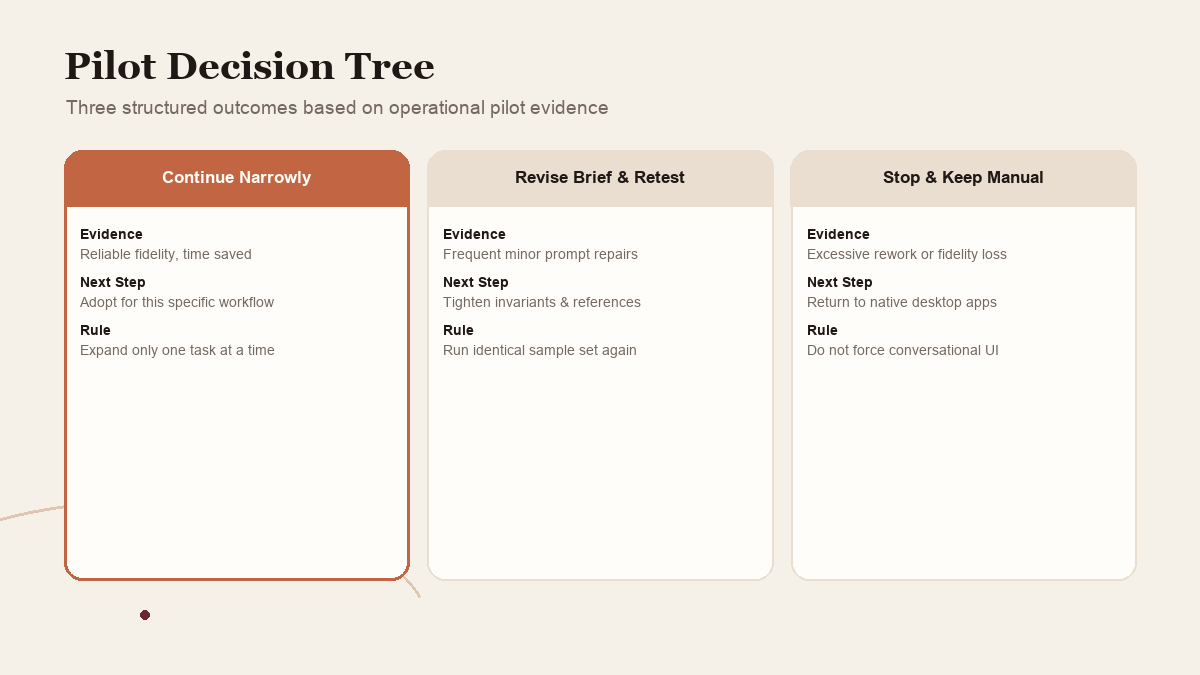
After the pilot, choose one of three outcomes.
Continue if the team can repeat the task, preserve the source, meet its review bar, and identify the person accountable for final approval. Expand to a second use case only after you have learned from the first one.
Revise if the output is useful but one part consistently needs repair. Improve the brief, the reference asset, the dimensions, or the reviewer checklist. Then run the same sample again and note what changed.
Stop if the task depends on detail that the connector does not expose, the review cost erases the apparent convenience, or the organization's account and data rules do not support the workflow. The right result of a pilot can be “keep using the current application.”
The Adobe-Gemini connection is interesting because it lets some visual work begin where a person is already describing what they need. Its long-term value will depend on the task, the account, the file, the review process, and how far the user needs to go beyond a first draft. Those answers belong to a bounded test, not a launch headline.
The practical move is modest: connect only after checking access, choose a low-risk recurring task, preserve the source, and make the exported file pass a human review. If that works, you have evidence for one workflow. If it does not, you have saved yourself from redesigning an entire process around a feature that was never the actual bottleneck.
 View image detail
Sources and further reading
- Adobe: Adobe comes to Gemini and expands what you can do in Claude, Sep 24, 2026.
- Google: A new wave of Connected Apps is rolling out to Gemini, Sep 23, 2026.
- Adobe Help: Adobe for Google Gemini, updated Sep 25, 2026.
- Computerworld: Adobe's next platform for Creative Cloud? Your AI assistant, Sep 25, 2026.
- Rise Productive: A practical test for what to automate.
- Rise Productive: Content Creator Workspace.
Checked for this article
Sources
Keep going
Related notes.
Creator Workflows
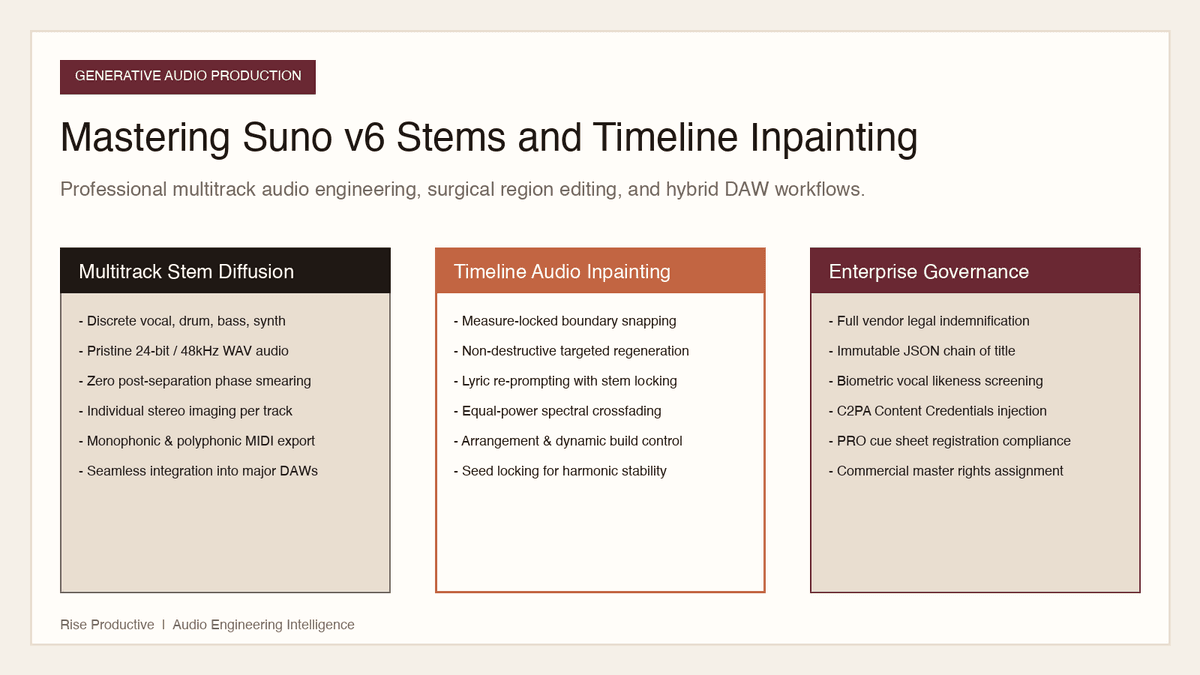
How to Master Suno v6 Stems: Targeted Song Edits and Inpainting
Generative music is no longer an all-or-nothing roll of the dice. Here is how to master Suno v6 stems, targeted timeline inpainting, and hybrid DAW workflows.
Read the article
Creator Workflows
Adobe for Claude: How to Review PDFs and Edit Express Designs
Adobe for Claude pairs Acrobat tools and Express layer editing with conversational reasoning. Here is how to maintain document integrity and signoff.
Read the article
Creator Workflows
Suno Speech Beta: How to Evaluate a Spoken Track With Music
Suno says Speech beta generates spoken voice and background music together. Here is a proposed way to brief and review a short track without mistaking an early draft for a finished asset.
Read the article