
Creator Workflows
Adobe for Claude: How to Review PDFs and Edit Express Designs
Adobe for Claude pairs Acrobat tools and Express layer editing with conversational reasoning. Here is how to maintain document integrity and signoff.

On this page
- What is new in Adobe for Claude?
- A PDF task has more than one kind of “done”
- Separate the original, the working copy, and the approved version
- Express editing is useful when the layer is the right unit of change
- Check account access before designing the workflow
- Adobe's integrations change the starting surface, not the creative responsibility
- Run a document pilot with an explicit stop rule
- When the full Adobe application is still the right choice
- The useful outcome is a cleaner handoff
- Sources and further reading
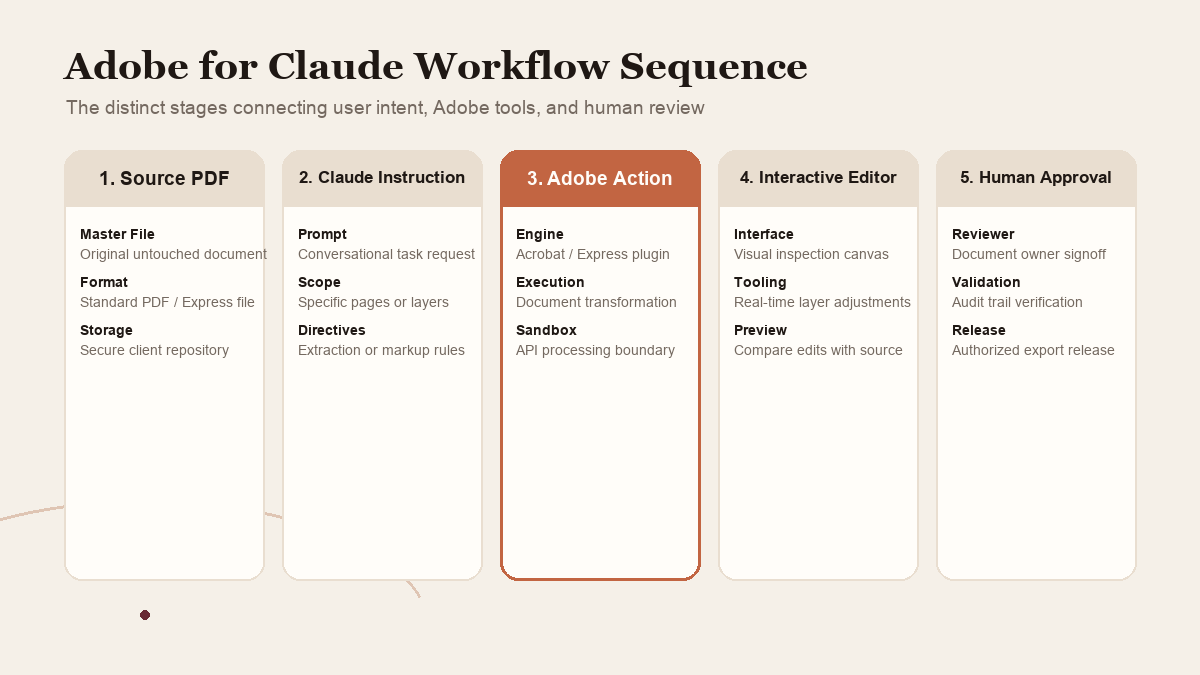
Adobe for Claude brings selected Acrobat and Express actions into a conversation, including interactive document and design editing. That can shorten the distance between noticing a problem and making a first correction. The final document still needs a clear owner, a comparison against the original, and an approval step before it is shared.
In brief: Adobe's Claude integration now brings Acrobat tools alongside its existing creative capabilities. Adobe documents PDF organization, redaction, conversion, comments, highlights, and interactive editing, plus layer-based changes to Adobe Express designs. Its current help guide says guests and free or paid Claude users can access Adobe for Claude. An Adobe account unlocks additional capability and continuity. The feature is English-optimized and available globally except in restricted regions. Adobe says it is not optimized for enterprise use, does not support EDU accounts, and does not offer Express capabilities to enterprise accounts. Treat the feature as assisted editing and review, not as document approval.
The decision: Use Claude and Adobe for a bounded, non-sensitive document task when the owner can inspect the exact result. Use the normal Adobe application and your established review process for high-stakes or access-restricted work.
What is new in Adobe for Claude?
Adobe and Anthropic have had a creative-tools connection before this announcement. The September 24 change did not invent the integration from scratch. Adobe says it added Acrobat tools to the existing plugin, bringing more document and productivity work alongside its creative actions. It also introduced interactive editing for PDFs and Adobe Express designs.
The Adobe announcement describes more than 80 tools across Acrobat, Express, Photoshop, Illustrator, Premiere, Lightroom, InDesign, Adobe Stock, and other products. It distinguishes describing an outcome for Adobe tools to handle from stepping into content for hands-on editing. Adobe's Claude help guide, updated September 25, provides practical task examples and access limitations.
This difference is worth understanding. A prompt can start a transformation, but a person may still need to inspect page order, text, comments, redactions, image placement, colors, and fonts. An interactive editor can make the result easier to adjust without turning the chat into a final approver.
An independent Computerworld report describes the change as another way to reach Adobe applications, while noting that more complex functionality remains in the applications themselves. The same reporting says Adobe did not provide daily or weekly usage statistics for the existing Claude integration. So the launch establishes that the integration exists and documents examples. It does not show how many teams use it, whether people finish faster, or whether a particular PDF can safely bypass its normal review.
 View image detail
A PDF task has more than one kind of “done”
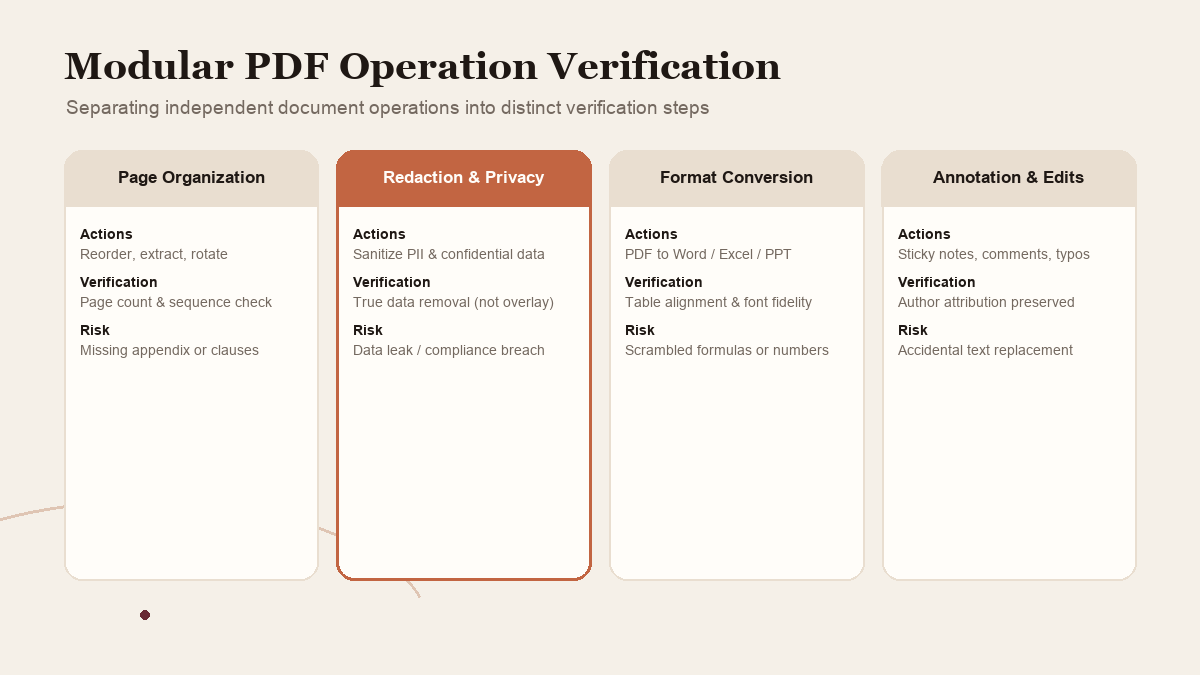
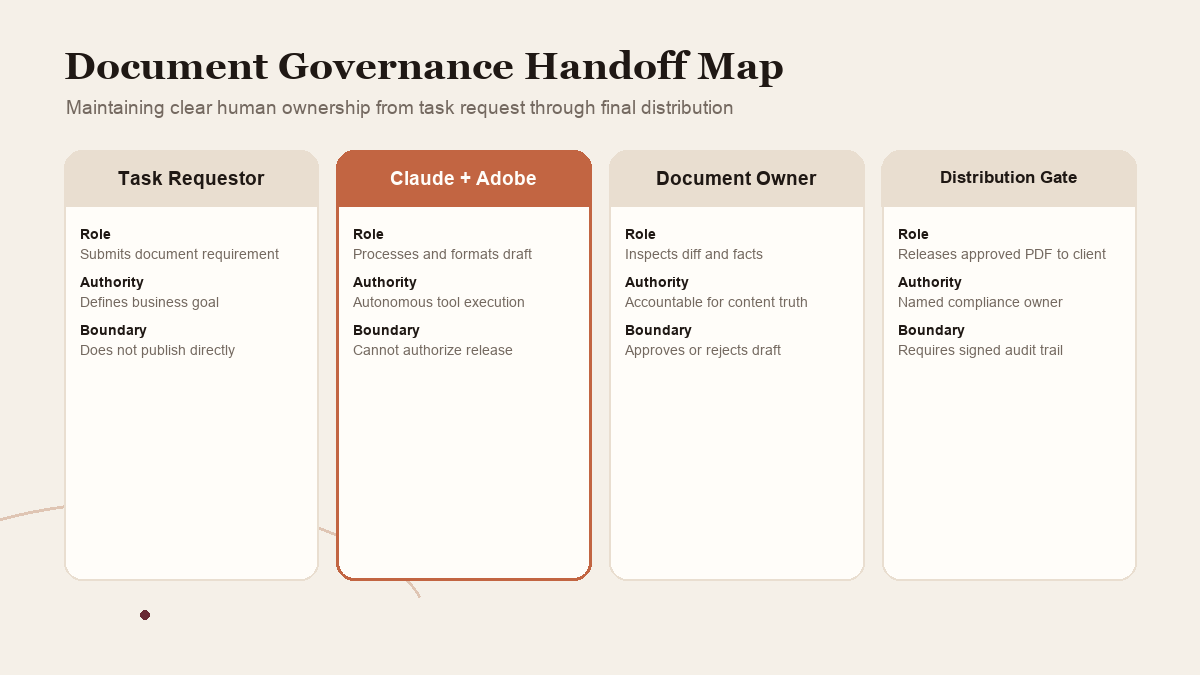
PDF work looks simple because the finished file is easy to send. Underneath, different operations carry different risks. Combining documents, rearranging pages, editing a sentence, marking a reviewer comment, and redacting private content should not be treated as one generic task.
Adobe lists Acrobat workflows such as deleting, combining, or splitting pages, redacting information, converting files, and exporting to other formats. Its interactive PDF editing examples include rearranging pages, editing text, and adding comments or highlights. The September 24 launch announcement describes using a Document Review skill to analyze a document and add recommendations and notations in the editor.
That creates a useful possibility: a reviewer might ask Claude to find missing information in a catalog, reorganize related material, or prepare annotations before a person signs off. “Analyze and add recommendations” is not the same as “certify that the document is complete.” The person who owns the work still has to confirm the facts and decide which recommendations are relevant. They also need to check that edits do not create a new inconsistency.
 View image detail
For example, a product catalog might have a missing product code, an outdated description, a price that conflicts with a current source, and a visual layout that separates a product from its terms. These issues require different evidence. A model may help surface a discrepancy, but the authoritative price still has to come from the system the organization uses for approved pricing.
Before running a document task, write down the outcome. “Review this PDF” is not a safe brief. A better instruction names the authoritative version and the pages or fields that matter. It says what issues to identify, whether the tool may edit or only recommend, and who will approve the revised file.
Separate the original, the working copy, and the approved version
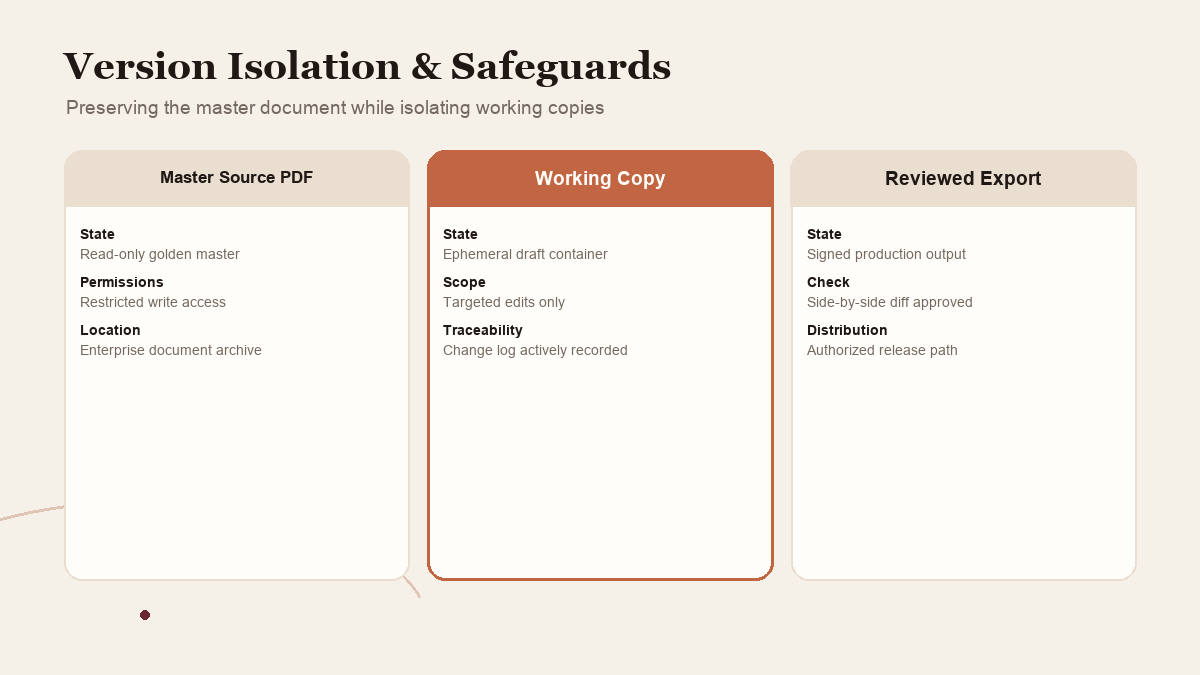
One of the easiest ways to create confusion is to let several files look final. Before using an AI-assisted PDF workflow, decide which document is the source of truth and how a reviewer will identify the output.
- Keep the source unchanged. Make a working copy of a document that is safe to process. For a first test, use synthetic information rather than a client file or confidential agreement.
- State the allowed operation. Tell Claude whether it may annotate, edit selected text, reorder pages, split a file, or only recommend a change. If a step could remove information, require a preview before it happens.
- Review each suggestion against a reference. Prices, names, dates, citations, contract language, and disclosure text need a trusted source. A plausible sentence is not evidence that it is correct.
- Inspect the actual edited file. Compare pages and layout at full size. Check that fonts render, links work, comments attach to the right section, and no content moved unexpectedly. If a real file requires redaction, verify the exported PDF under your organization's document-security process before distribution.
- Name the approver. A separate person should accept the output if the document affects customers, money, compliance, or a business commitment.
- Save and distribute deliberately. A file is not approved because it can be downloaded or appears in the conversation. Use the usual storage, version naming, permission, and distribution controls.
 View image detail
These steps are a proposed process for controlling document changes. They are not a claim that Adobe's connector automatically performs version control, access review, or approval logging. Your existing content system may already handle those functions. Rise's Notion CMS and CRM architecture guide explains why a workspace, sync layer, and front end should have distinct responsibilities. The same separation is useful when managing drafts, source files, and approved documents.
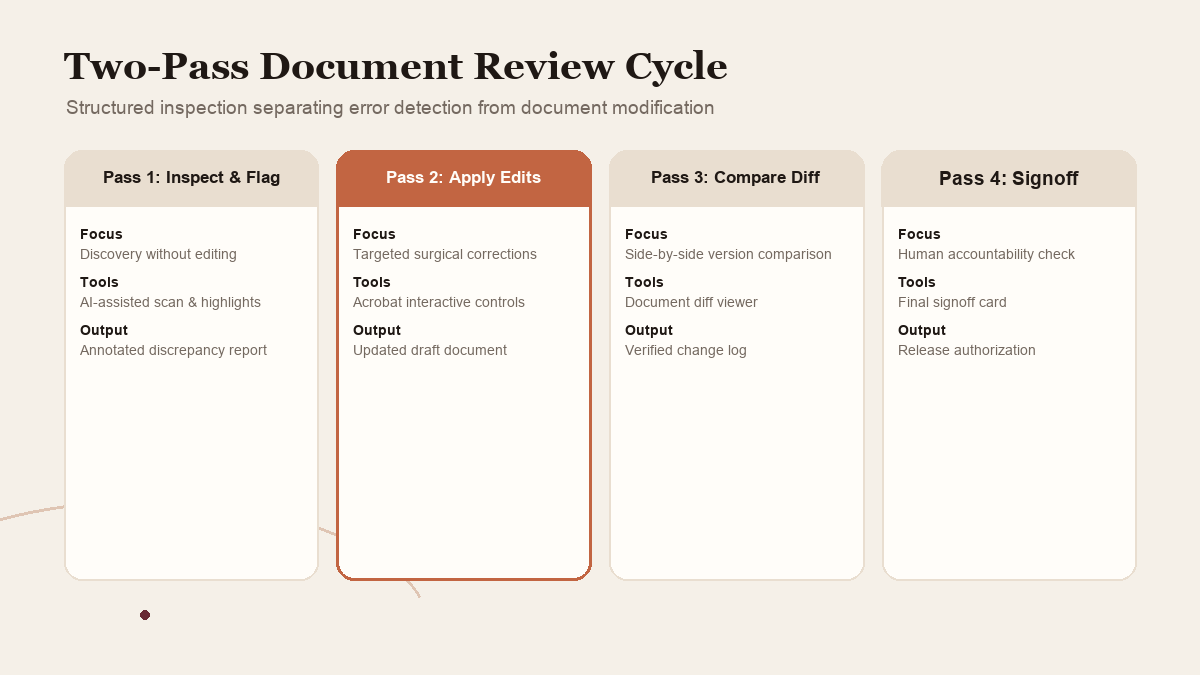
Here is a concrete hypothetical. A team has a seven-page event brochure with one outdated date, two pages in the wrong order, and a heading that needs a comment from the event owner. The team makes a copy, supplies the current approved event brief, and asks for the three specific changes. It then checks that the date matches the reference, the page order is correct, the comment is attached to the intended heading, and the original remains unchanged. If the copied file does not make those checks easy, the test has identified a process problem before any customer sees the document.
 View image detail
Express editing is useful when the layer is the right unit of change
Adobe says the Claude integration now supports an interactive editor for Adobe Express designs. A person can select an element and adjust images, copy, colors, or fonts rather than asking for an entirely regenerated design. That can be useful when the design is basically right and a few elements need focused adjustment.
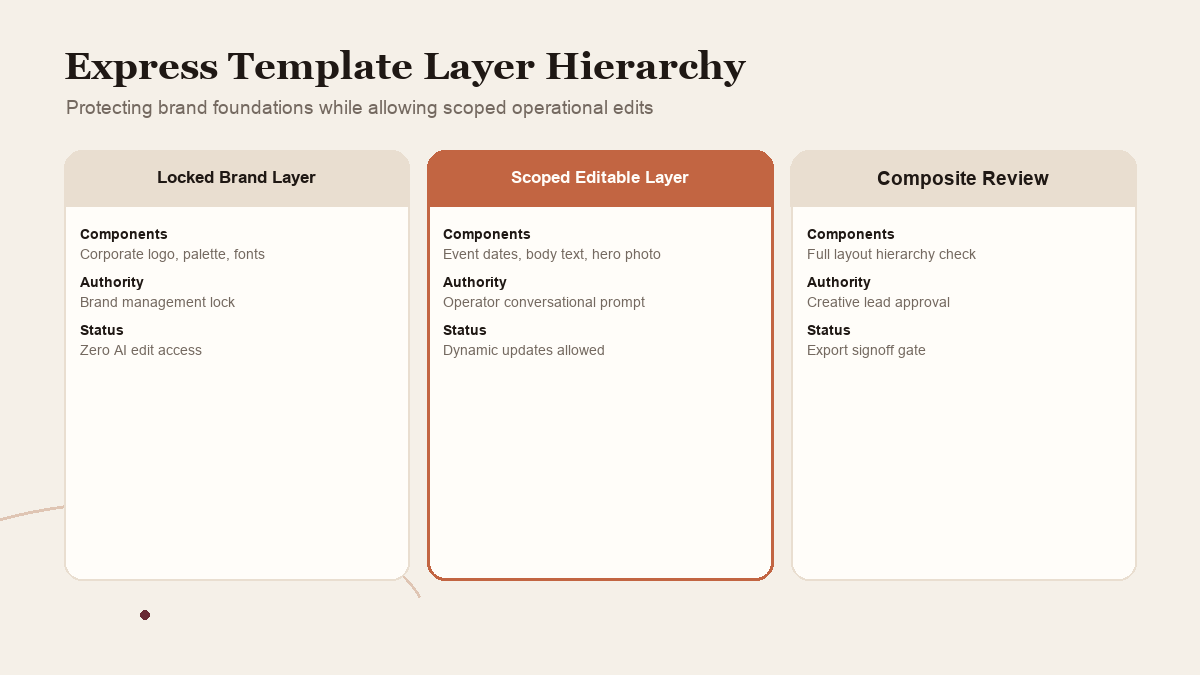
The right question is not whether a layer can be edited. It is whether the intended change maps cleanly to a layer and can be checked afterward. If a team has a campaign template, one operator might need to replace the date and image while keeping the logo, typography, and call to action fixed. A layer-based editor could make that targeted revision more direct than reconstructing the whole asset.
The review still needs to consider the composition as a whole. Replacing copy can cause wrapping. A new image can shift the focal point. A color change can reduce contrast. A font substitution can alter alignment. The instructions may affect one selected object, while the finished design is experienced as a complete page.
For a low-risk test, work from a copy of a template. Choose one approved reference and list the fields that may change. Have a reviewer compare every fixed element with the brief. Then examine the exported design at its real size, not only in a zoomed editor window. If the final asset will be cropped for different channels, check each version separately.
 View image detail
Check account access before designing the workflow
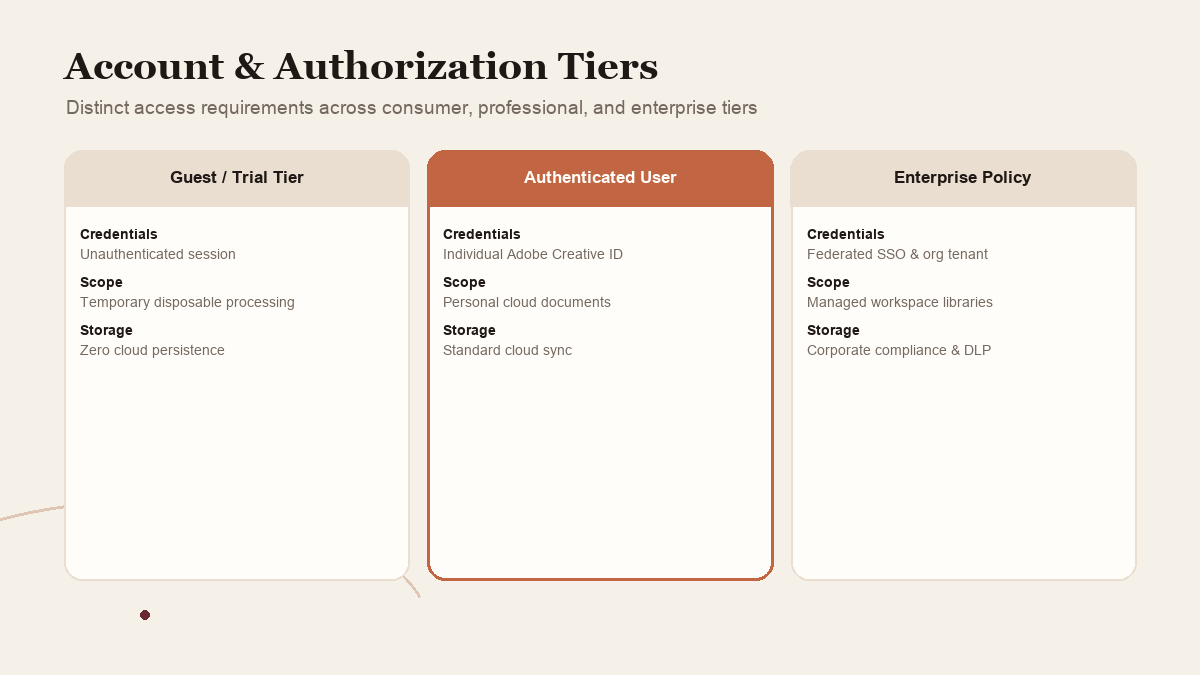
Feature availability is part of the product behavior. Adobe's current Claude help page says Claude guests and users on free or paid plans can access Adobe for Claude. Signing into an Adobe account provides more capabilities and continuity across sessions. The page also says the service is English-optimized, globally available except in restricted regions, not optimized for enterprise use, and does not support EDU accounts. Adobe Express capabilities are unavailable to enterprise accounts.
For a permitted test, Adobe's setup route starts in Claude's Customize area. Find the Adobe plugin under Plugins, connect it, then continue as a guest or sign in to Adobe. Type /Adobe to begin a conversation and attach the copy you intend to review. Those steps establish access to the connector; they do not establish which actions your account may use or whether your organization permits a particular file.
These conditions should shape the pilot before anyone moves real files. An enterprise user should not infer that every documented Adobe-for-Claude Express workflow is available to their account. An EDU user should not infer that the general page describes their access. A guest may have a smaller capability set than a user who signs in. The only reliable answer for a specific workflow is to check the relevant account, service policy, and current availability.
Some reporting summarizes access in plan-specific terms, and launch coverage may use simplified language. Keep the precise restriction close to the recommendation. “Available to users” does not mean “available to every user with every tool.” A paid plan is not proof of unlimited access unless current documentation says so for that account and feature.
For an organization, an individual being able to connect a tool is not the same as security approval. Before using sensitive material, confirm the data classification, service terms, identity setup, retention expectations, permissions, and the organization's rules for third-party applications. If those answers are not known, use a synthetic document or keep the workflow offline.
 View image detail
Adobe's integrations change the starting surface, not the creative responsibility
Analysts quoted by Computerworld see the integrations as a way for people who never mastered Adobe's tools to reach more of them. That possibility matters for operational teams that need routine edits but do not have a designer available for every small request. The publication also reports Adobe's view that assistants are another place to use its tools, not a replacement for the flagship apps.
I find that distinction more useful than the usual “AI will replace creative software” argument. The practical change is distribution: a user can start from a task description in Claude, then move into Adobe's tools for part of the work. The question is whether that reduces enough friction without hiding the steps that still need specialist judgment.
That question is not settled by launch timing or by an announced number of tools. A catalog of 80 tools describes breadth, not depth, reliability, or adoption. The integration can make an action reachable; it cannot tell a team which work deserves a designer, which file version is approved, or whether a public claim is accurate.
For high-volume work, the organization still needs a repeatable content system: naming rules, source-of-truth locations, brand references, approval responsibilities, and a place to record what is ready. For a small team, this can be a checklist and a shared folder. For larger teams, it may require a governed document workflow. Don't buy a new system simply because a connector launched. Fix the handoff you can actually observe.
 View image detail
Run a document pilot with an explicit stop rule
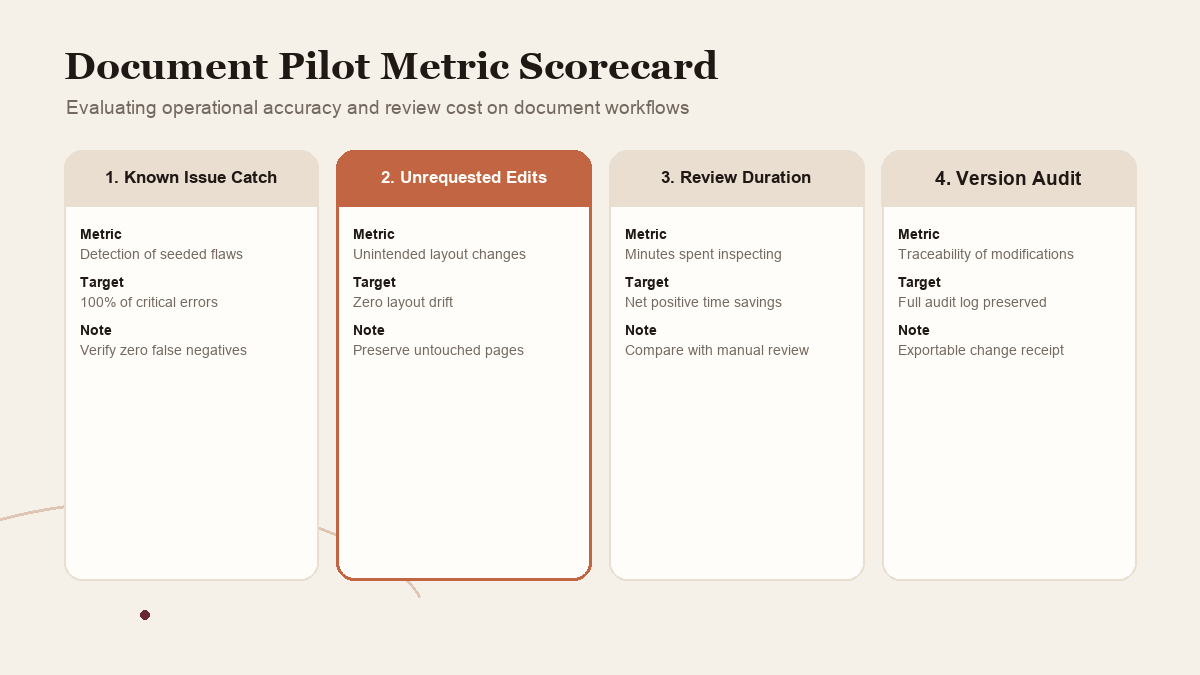
Here is a proposed way to test a bounded workflow. It has not been run for this article.
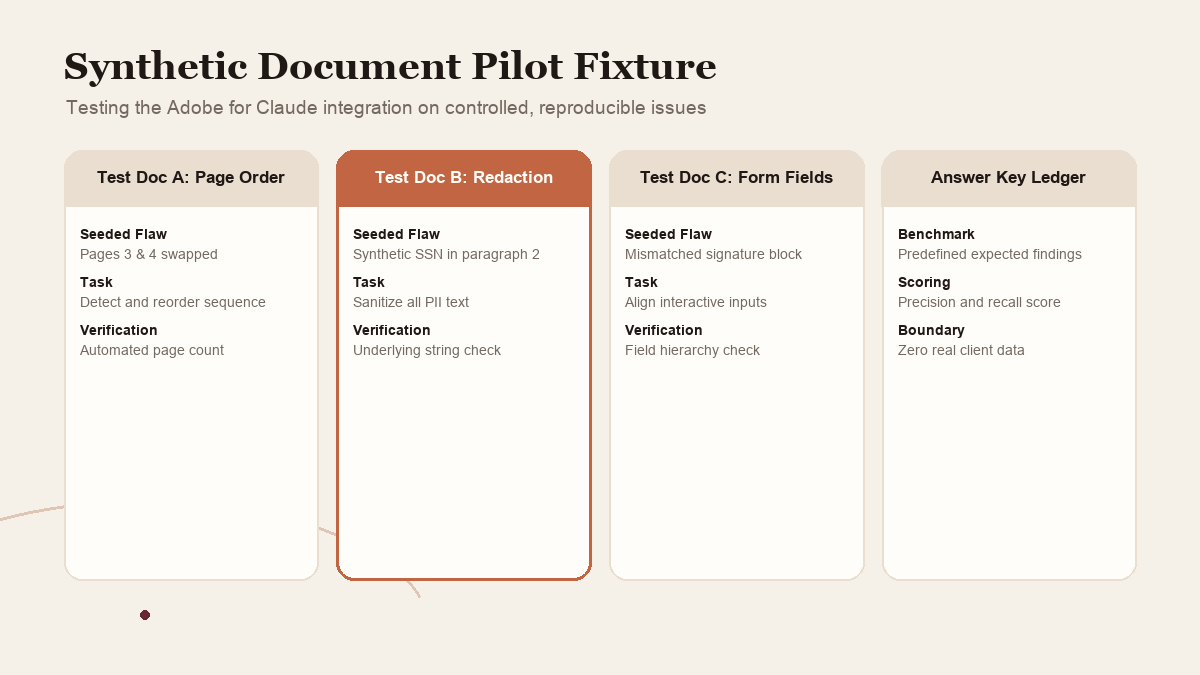
Choose one non-sensitive document type, such as an internal product catalog mockup or a one-page event handout. Prepare three synthetic files with known issues: one factual mismatch, one missing field, and one layout problem. Keep the answer key outside the file being reviewed.
 View image detail
Ask Claude and Adobe to identify the issues first. Have a reviewer compare its annotations against the answer key. Then, if the task merits it, allow one revision pass in the interactive editor. Compare the resulting document with the original and note any changes that were not requested.
Measure the parts that determine whether the workflow is useful:
- Were all seeded issues found, and were any unsupported issues introduced?
- Did the document keep its original page order, relevant copy, and working links?
- Were redactions, comments, or edits placed where the reviewer expected?
- Did the Express design retain its fixed brand elements after changing editable layers?
- How many additional corrections did the reviewer make?
- How much time did the operator and reviewer spend, including setup and repair?
- Could the file be reopened, versioned, and handed to the next person in the usual system?
Before testing, define the stop rule. Stop if the tool changes unapproved text, leaves a sensitive field exposed, cannot preserve the required format, or makes the source and output difficult to distinguish. The point is not to prove that the integration works. The point is to decide whether one narrow job is improved enough to be worth maintaining.
An answer key keeps the test fair. Write down the expected content and issues before sending the files through the workflow. Mark which changes are allowed and which are intentionally incorrect. Then compare the result with that record instead of relying on the memory of the person who prompted the tool. If a seeded issue is not detected, record it. If the system invents an issue or silently changes something outside scope, record that too. Both kinds of miss matter.
You can also compare two routes without claiming a product shootout: the current workflow and an Adobe-assisted workflow, using the same synthetic files, success rule, and reviewer. Track elapsed time as one observation, alongside correction time, review quality, and whether the output remains usable. If the assistant route starts faster but creates more repairs, the total process may not improve. If it merely moves a task to a different screen while preserving the same handoff, that can still be useful, but the team should know what actually changed.
 View image detail
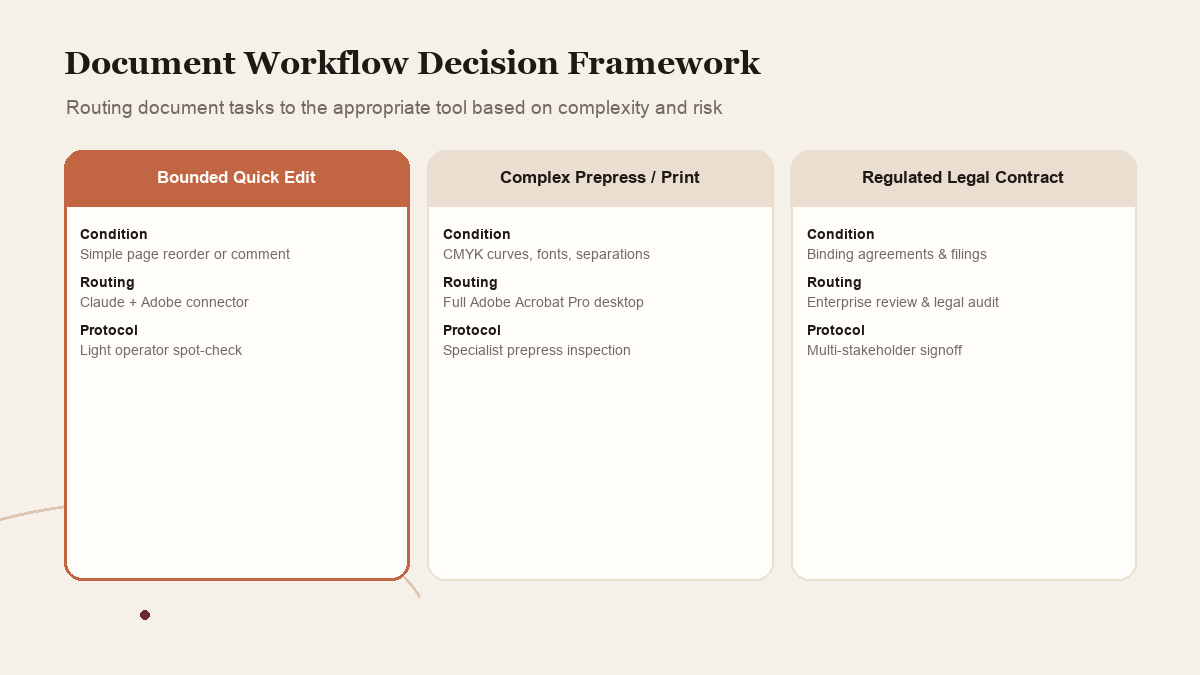
When the full Adobe application is still the right choice
Stay in the core application when a complex document needs precise control, extensive layout repair, or advanced image manipulation. Use it too when permissions are complicated or your organization has not approved chat-based tools. Adobe itself frames the assistant integrations as a new access route while leaving more complex functionality in the full applications, according to the Computerworld coverage.
Stay with your existing process when there are sensitive or regulated documents, uncertain rights, unapproved integrations, or no one available to perform the final review. The workflow is not a failure because it uses a regular Acrobat or Express session. Sometimes the correct optimization is to send a clear instruction to the specialist who already owns the document.
Use the assistant route for low-risk, reversible work when the operation is documented and the exported result is inspectable. Keep the original. Make one change at a time. Confirm the output in the interface where it will be used. If a capability is not present in the account, choose another route instead of quietly changing the requirement.
That is the same judgment behind Rise's practical test for what to automate. Frequent tasks with stable inputs and easy-to-catch failures are better pilot candidates. Rare, high-consequence work calls for a stronger check or a human-led process.
 View image detail
The useful outcome is a cleaner handoff
Adobe for Claude may make a few PDF and Express actions more accessible from the work conversation. Its value for an individual team depends on account access, the exact file, the kind of edit, and the amount of correction still required. None of the sources in this review establish that it is faster, more accurate, or safe for every workplace.
The first pilot should answer one narrow question: can the team move a specific document from a well-defined copy to a reviewable proposal? The process must preserve the source and make the approver clear. If yes, document the boundary and repeat the test. If not, keep the current process and fix the handoff instead.
The best version of this integration is not a document that changes itself while everyone assumes the other person checked it. A good handoff keeps the source identifiable and makes suggested edits visible. The reviewer can compare them, and the person who owns the final file decides when it is ready to leave the room.
Sources and further reading
- Adobe: Adobe comes to Gemini and expands what you can do in Claude, Sep 24, 2026.
- Adobe Help: Adobe for Claude, updated Sep 25, 2026.
- Computerworld: Adobe's next platform for Creative Cloud? Your AI assistant, Sep 25, 2026.
- Rise Productive: Turn Notion into a live-updating CMS, CRM, and database.
- Rise Productive: A practical test for what to automate.
Checked for this article
Sources
Keep going
Related notes.
Creator Workflows
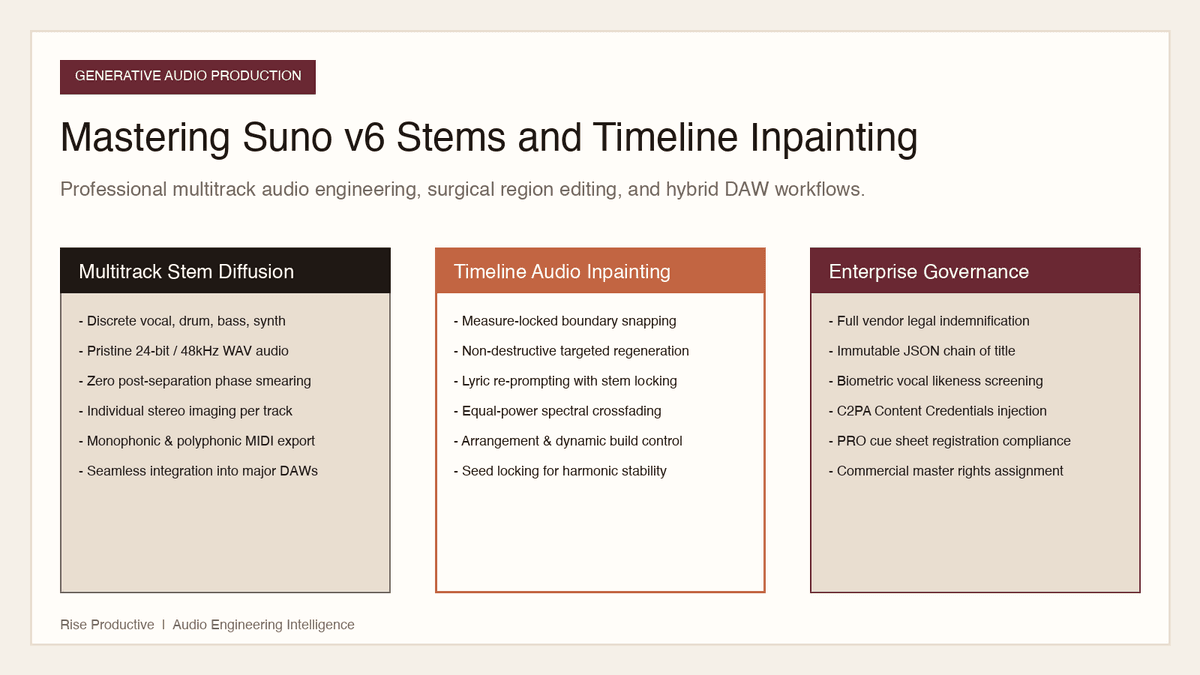
How to Master Suno v6 Stems: Targeted Song Edits and Inpainting
Generative music is no longer an all-or-nothing roll of the dice. Here is how to master Suno v6 stems, targeted timeline inpainting, and hybrid DAW workflows.
Read the article
Creator Workflows
Adobe in Gemini: What Can You Create with Adobe AI Tools?
Adobe in Gemini connects Photoshop, Lightroom, and Express to conversational prompts. Here is how to test a bounded creative task and verify outputs.
Read the article
Creator Workflows
Suno Speech Beta: How to Evaluate a Spoken Track With Music
Suno says Speech beta generates spoken voice and background music together. Here is a proposed way to brief and review a short track without mistaking an early draft for a finished asset.
Read the article