
Free Chrome extension
Steady Mic
A free Chrome extension that removes background noise and lifts a quiet mic to call loudness on Meet, Riverside and Zoom.

Opening Steady Mic.
Sample
The popup during a test call
Made by the same code as the tool
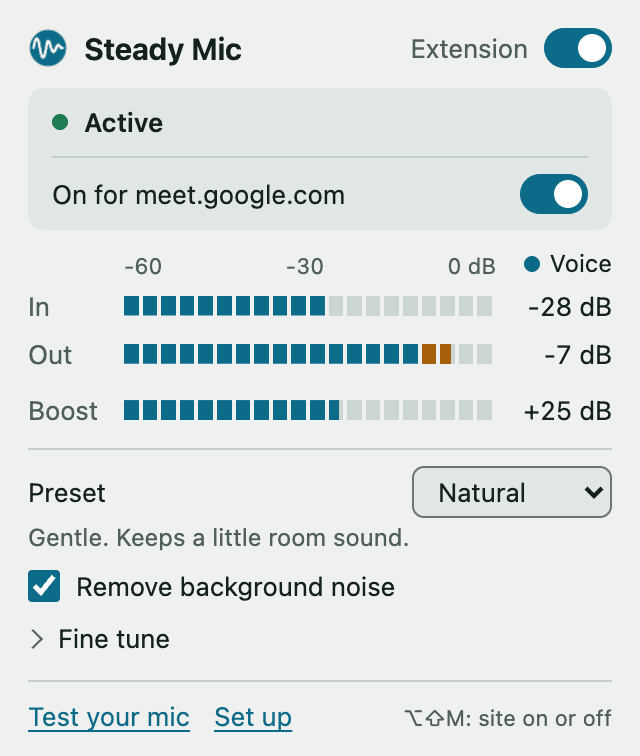
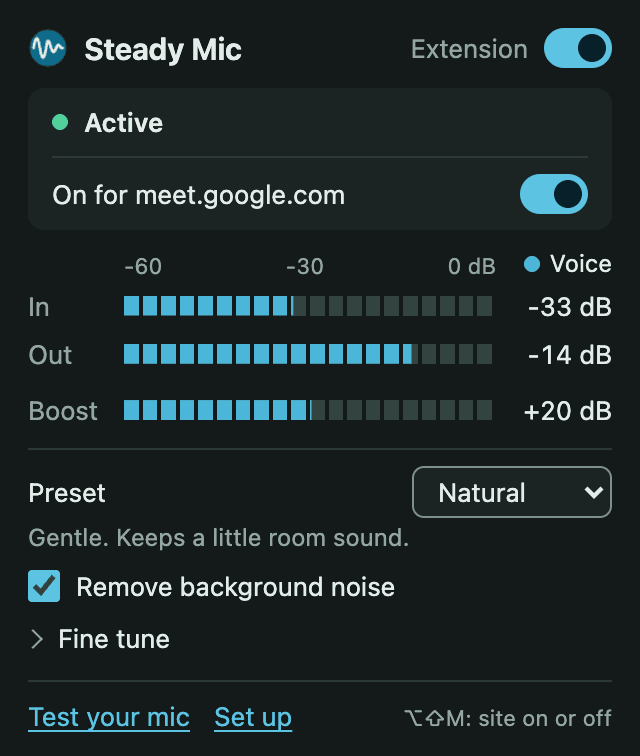
A quiet voice recording went into Chrome’s test mic at about -28 dB. Steady Mic sent the call -7 dB: a boost of 25 dB, with the gaps between sentences gated down. “Voice” next to the meters means the gate is open; “Quiet” means it is closed.
Click the icon on a call and you get the same popup: live meters, two presets (Natural and Broadcast), a switch for the current site, and a Fine tune section with sliders for loudness, max boost and the gate plus the Automatic gate switch. The footer opens the mic tester and the setup page, and Alt+Shift+M (Option+Shift+M on a Mac) turns it on or off for the site you are on. The popup follows your computer’s light or dark setting.
The toolbar icon shows where you stand: the teal logo while Steady Mic is on, a gray logo when it is off for the site, and an amber dot when the call has switched to your normal mic. When something needs you, the status line says what happened and what to do, such as “Off until you rejoin”. If processing fails, the call switches to your normal mic on its own. If Chrome stops its audio engine, the call may not hear you until it restarts; the popup says so and tells you to rejoin if it stays that way. An input you picked that turns out empty is handled too: that call uses Auto and the popup tells you.

Free, one email
Get Steady Mic
- The extension, version 0.1.4, free
- Step-by-step install for Chrome
- A two-minute first check with the built-in mic tester
- No account, no analytics, and no audio leaves your computer
Continuing subscribes the email on that account to Work Worth Doing, my newsletter, the same as the form below, and unlocks every free tool in this browser. We only receive your email address. Unsubscribe in one click.
Hear it
My voice, before and after
A 13 second excerpt of my own Shure MV7X into a Focusrite Scarlett 2i2. Neither clip was turned up or down afterwards, so you hear what a call would get with and without it.
After is about 29 dB louder than Before. Turn your volume down a little before you press play on it.
Before
As recorded, at my low recording gain
After
Through Steady Mic 0.1.4, Natural preset, noise removal on
Transcript (auto-transcribed, the same words in both clips)
You set up a Google Calendar connection, and then you’re like, “Hey, I am really busy this afternoon. Can you just like clear off my schedule?” And it’ll just remove all the different meetings, right? Whereas before, you couldn’t do that.
How it works
Seven steps between your mic and the call
The call asks Chrome for your mic. Steady Mic hands it a processed version instead, on Google Meet, Riverside, Zoom on the web. Your recording setup does not change.
High-pass filter
Cuts low rumble below 80 Hz.
Noise removal
RNNoise removes steady background noise. You can turn it off.
Channel pick
Uses the input your voice is on, so a two-input interface does not halve your voice or add hiss from the empty input. When the call sends both inputs, Fine tune also lets you pick Input 1 or Input 2.
Gate
Closes between sentences, so the room drops away when you stop talking. With Automatic gate on (the default), it measures the noise in your room and opens just above it, so a quiet mic is not cut off between words.
Leveler
Raises quiet speech toward -18 dBFS, by up to +40 dB in Natural (+45 in Broadcast, and you can set it up to +50). It only adapts while you speak, so silence is never boosted.
Compressor
Evens out loud and soft words.
Limiter
Keeps peaks under -1 dBFS, so loud moments do not clip.
Setup
Set up in 10 seconds
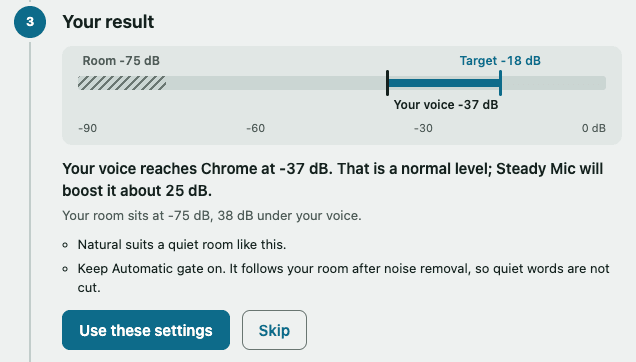
Right after you install it, Steady Mic opens a setup page once. Pick your mic and talk for 10 seconds the way you do on a call.
It listens the way a call opens the mic, then tells you in plain words how loud your voice and your room are and how much boost you need. It suggests a preset and a max boost, and Use these settings applies them. In a noisy room it keeps the automatic gate on and suggests moving closer to the mic or turning up your interface gain. If your voice is too quiet even at the full 50 dB of boost, it says so. You can open it again any time from Set up in the popup.
Mic tester
Hear the difference in 10 seconds
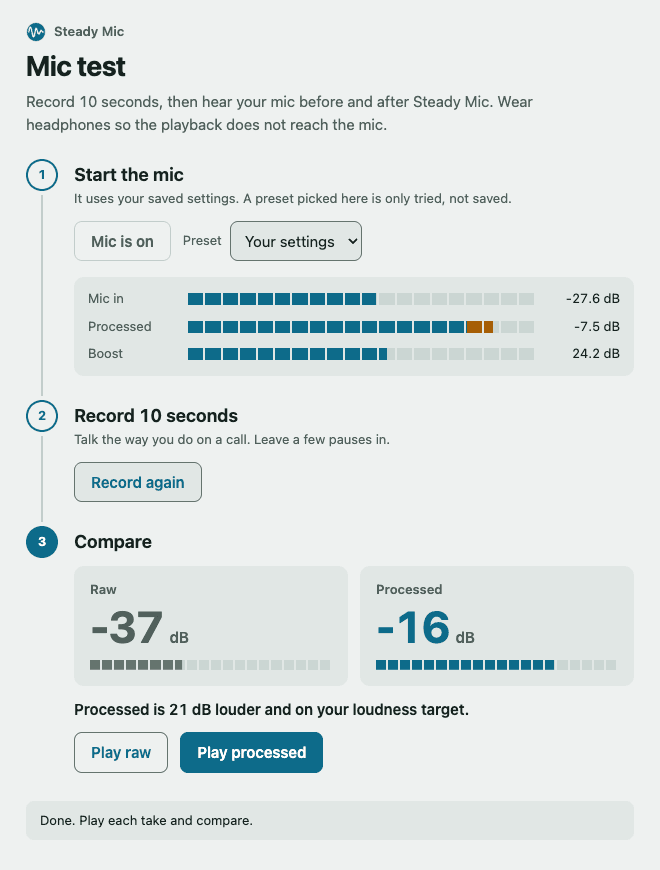
Open Test your mic from the popup. It takes three steps: start the mic, record 10 seconds the way you talk on a call, then compare.
It records the raw and processed audio at the same time, shows how loud each take is while you speak, and tells you in plain words whether the processed take is on your loudness target. Then play both back to hear it.
Why I built it
A safe recording level is too quiet for a call
I record on a Shure MV7X into a Focusrite Scarlett 2i2, with the interface gain kept low so a recording never clips. That level is right for a recording and too quiet on a call. Steady Mic raises the call to phone-call loudness without touching the recording setup.
The first version made a quiet voice swing between quiet and loud: the gate sat inside my speech and kept closing between words. Version 0.1.1 sets the gate from the noise in your room instead. On my own recording at -55 dBFS, the swing within a sentence fell from 12.9 dB to 6.5 dB, the largest sudden drop from 43 dB to 27 dB, and speech now lands at about -20 dBFS against the -18 target. Your own voice is never held down, and a quieter sound in the room is kept under your voice but never silenced. If you turn the interface gain down between calls, the level catches up within about two seconds.
Riverside records what Steady Mic sends. If you want the raw track in a Riverside recording, turn the site off in the popup. My other recording tools are in the Browser Recorder and the Creator Recording Kit.
Limits
What it does not do
- Browser calls only. The Zoom and Teams desktop apps and FaceTime are not covered.
- Chrome 120 or newer only.
- It only changes your mic. It does not clean up anyone else’s audio.
- Picking Input 1 or Input 2 only works when the call sends both inputs. Meet and Zoom turn on echo cancellation, and then Chrome mixes the two inputs of an interface into one, so on those sites leave the unused input empty with its gain at zero.
- On a Mac, Option+Shift+M normally types “”. If you need that character in Chrome, pick another shortcut at chrome://extensions/shortcuts.
- Processing after capture can weaken Chrome’s echo cancellation when you use speakers. On headphones it does not matter.
- It delays your voice a little: the processing adds about 5 ms, or about 26 ms with noise removal on, and Chrome’s audio routing adds some more. Turn noise removal off for the shortest delay.
Privacy
Your audio never leaves your computer
Steady Mic runs entirely on your computer. There is no account and no analytics, and no audio is sent anywhere. Its settings are stored only in Chrome’s local extension storage on this computer, so Chrome Sync does not upload them.
The same email opens these
More free tools
Download, 6 files
Creator Recording Kit
Time your script, set up your camera and mic, and run a clean first edit.
Runs in your browser
Teleprompter
Paste a script and read it full screen at your own pace, mirrored if you use a glass prompter.
Runs in your browser
Silence Cutter
Drop in a recording, find the dead air, and download a tighter take plus a cut list for your editor.