
AI in Practice
ChatGPT Sites and Connected Apps: Who Can See What?
A shared Site does not make every coworker\x27s source account the same. Map the separate controls, test a normal member\x27s path, and make access understandable before rollout.
On this page
- At a glance
- The same Site can lead to different answers
- Five controls that answer different questions
- Defaults are not the same setting
- Follow one visitor interaction
- “Read-only” is specific, not universal
- Public sharing and background work are different cases
- Assign the ownership before people depend on it
- A member-level test matrix
- Roll out in stages, then recheck
- Frequently asked questions
- If I share a Site, do coworkers inherit my connected-app access?
- Can a coworker see my connected app data just by opening the Site?
- Why do the admin docs show different defaults?
- Is this suitable for scheduled reports?
- Does read-only mean risk-free?
- The access question to answer
- Sources and further reading
Two coworkers open the same ChatGPT Site. One can find a project record through a connected app. The other sees an access prompt or no result. Is the Site broken, or is each person using their own source access? With ChatGPT Sites plugins, that distinction is central to understanding who can see what.
OpenAI's DevDay announcement describes a shared app experience in which coworkers bring their own connected data and permissions. The current Sites Help documentation adds boundaries: the visitor must be a workspace member, the Site must be private to that workspace, and the connected-app behavior in this flow is described as read-only and available during interaction, not as a scheduled background task. Meanwhile, plugin tools may be built to read data or make changes. That is why a shared Site is not a shared identity, and a plugin's capability is not the same thing as each visitor's authority. TechCrunch's coverage and Simon Willison's event notes provide independent launch context, not production access tests.
The useful question for a workspace owner is not “Is access on?” It is: which control is on, for whom, for what Site, through what tool, and with what source-account permissions? This guide maps those layers and gives you a member-level test plan. It is a practical interpretation of current product documentation, not a review of your tenant or a security certification. For the adjacent question of organizing shared workspace context, see our guide to ChatGPT Space and shared work.
The short answer: A shared Site can be the same for two coworkers while their connected-app results differ. Check Site membership, plugin settings, tenant connector access, each visitor's own source permissions, and the exact fields returned by the tool.
At a glance
- Site visibility, plugin availability, a visitor's connection, and source-record access are separate checks.
- Current admin and learning docs discuss different switches and defaults, so inspect the saved tenant values.
- The documented visitor-connected flow is private-workspace and interaction-time; it does not imply unattended background access.
The same Site can lead to different answers
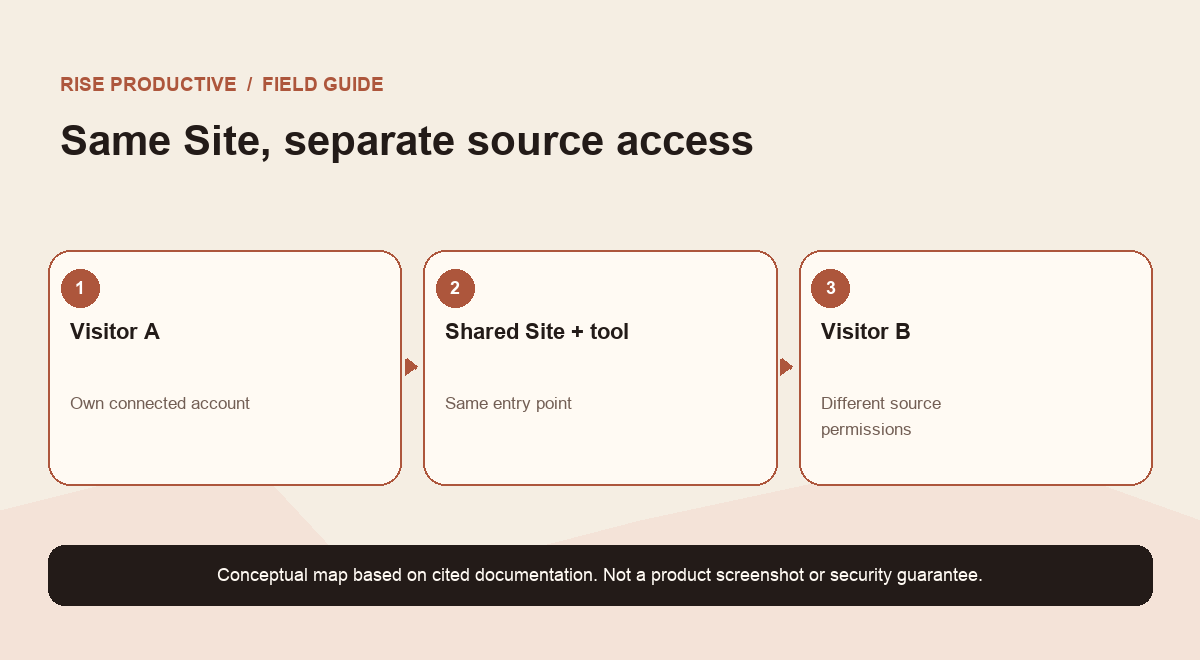
Imagine a team Site that helps employees look up project status. The Site is shared with the workspace. A project coordinator has connected the source app and can see the record. A new analyst belongs to the workspace but does not have source-app access to that project. The first person's answer may include the approved record. The second person's experience should follow the access available to that person's connection. Sharing the Site does not, by itself, grant the analyst a permission in the source system. This is the same kind of boundary to examine when a Notion agent uses MCP connections or when shared Perplexity agents use API connectors.
That model is easy to explain if the team keeps four things separate:
- Who may open the Site? This is governed by the Site's sharing and workspace membership rules.
- Which tools does the plugin offer? This is the integration's capability, such as search or draft creation.
- What source account is involved? In the visitor-scoped Sites flow described by OpenAI, each visitor's own connected access is used.
- What does that account permit? The source service still has its own permissions and records.
The official product description is an important starting point, but it is not a substitute for testing the exact Site and tenant. Features are in rollout and public beta, workspace administrators can control product settings, and source systems vary. Treat any statement about a default as a hypothesis to check in your own current admin UI.
 View image detail
Five controls that answer different questions
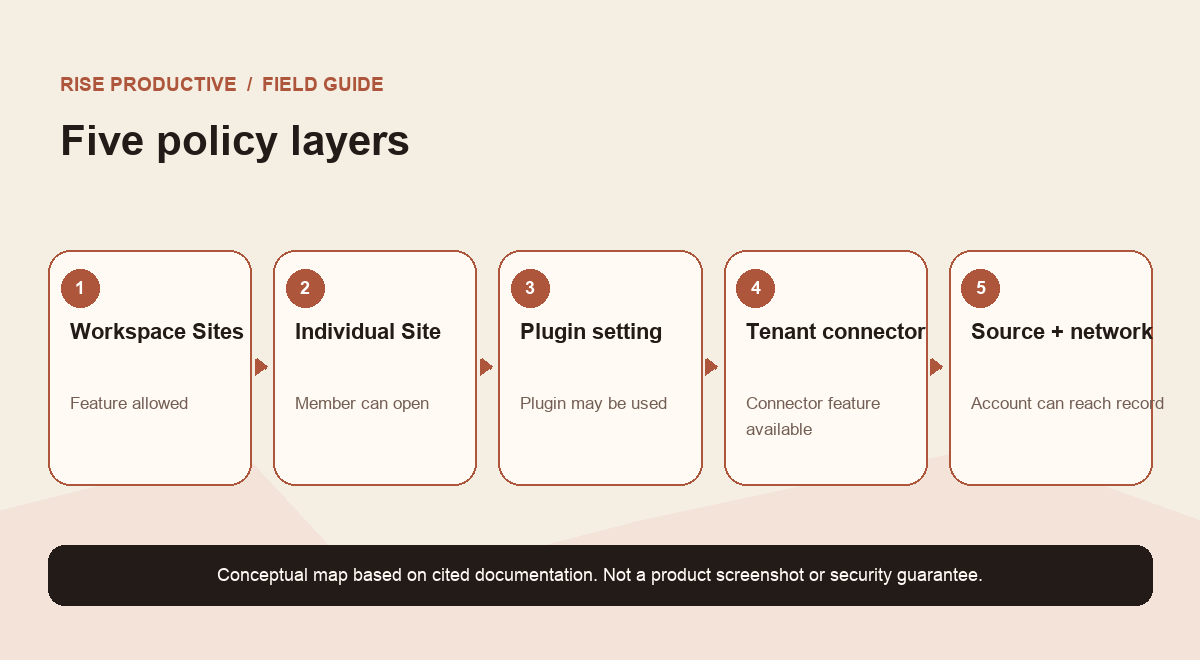
Teams often compress permissions into one toggle called “access.” In practice, current OpenAI documentation describes several independent layers. Their exact names and defaults may change, so use this model to guide inspection rather than as a screenshot-level configuration manual.
- Workspace Sites access: Question it answers: May people in this workspace use Sites?; What to verify: Is the feature available and allowed for this workspace?
- Individual Site sharing: Question it answers: Which workspace members may open this Site?; What to verify: Is the Site private to the workspace and shared with the intended group?
- Per-plugin setting: Question it answers: May this plugin be used through Sites in the workspace?; What to verify: What is the saved admin choice for this specific plugin?
- Tenant connected-app access: Question it answers: May the workspace use connected-app features in this preview?; What to verify: Is the connector feature enabled for the tenant, and for which apps?
- Source and network policy: Question it answers: May this person's account reach this record or action?; What to verify: Does the source service grant access, and does the environment allow the connection?
These controls are related, but a setting at one layer does not override every other layer. A Site can be available while a specific plugin is disabled. A plugin may be enabled while the visitor has no source account connection. The visitor may have the connector but lack permission to a particular record. A source service may allow a record while network policy blocks the request. When someone reports “it doesn't work,” identify which question is failing before changing broad access.
 View image detail
Defaults are not the same setting
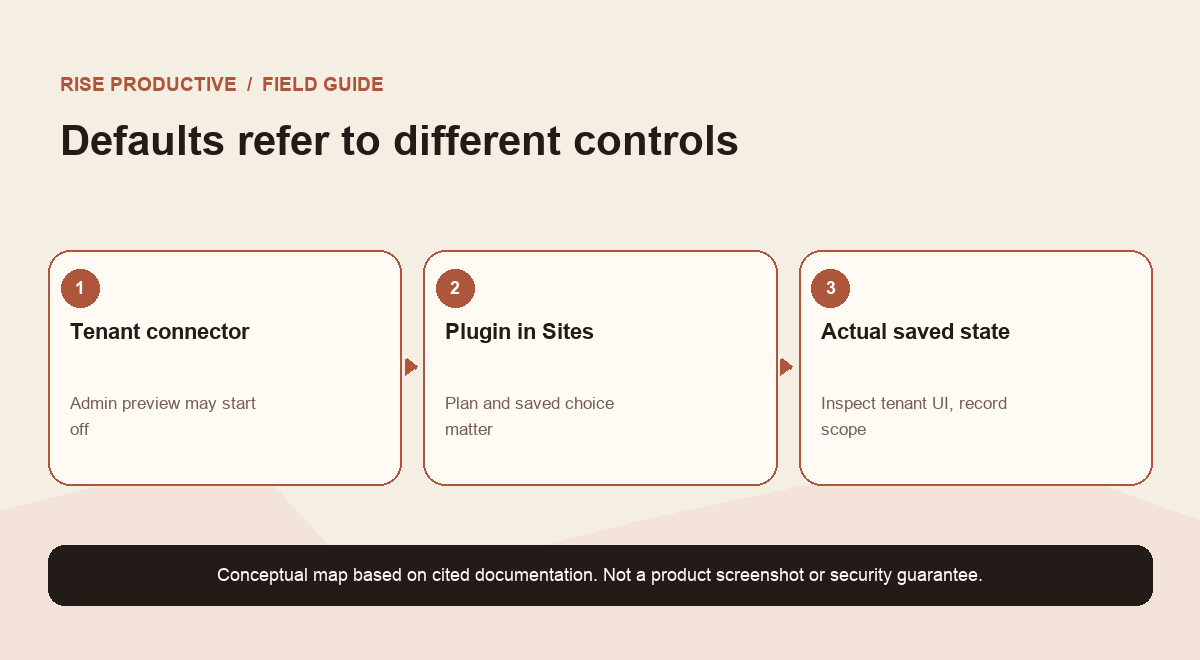
The default language in documentation can appear contradictory if settings from different layers are read as if they describe one switch. The workspace administrator Help documentation describes tenant-level connected-app access as off by default during an admin preview. The Sites learning documentation describes per-plugin Sites settings whose defaults vary by workspace plan and by whether an administrator has already saved a choice. These statements can both be true because they refer to different controls.
Do not take a default table from a guide and conclude that your workspace has that state. An administrator may have chosen a value earlier; a rollout can change availability; the plan can differ; and the UI may present a tenant-level connector setting separately from a plugin-specific Sites setting. Before a pilot, write down the control name, current value, scope, and where you observed it. If the interface or documentation is unclear, ask the workspace administrator or vendor support instead of interpreting a label by intuition.
This habit is useful beyond ChatGPT. In any product with a workspace feature, a shared object, an app connection, and a source account, settings usually apply at different scopes. A control can turn on the integration surface without granting access to every underlying record. Conversely, a source account may permit access while the workspace blocks the integration. A permissions map prevents teams from treating all of these conditions as one “on/off” state.
 View image detail
Follow one visitor interaction
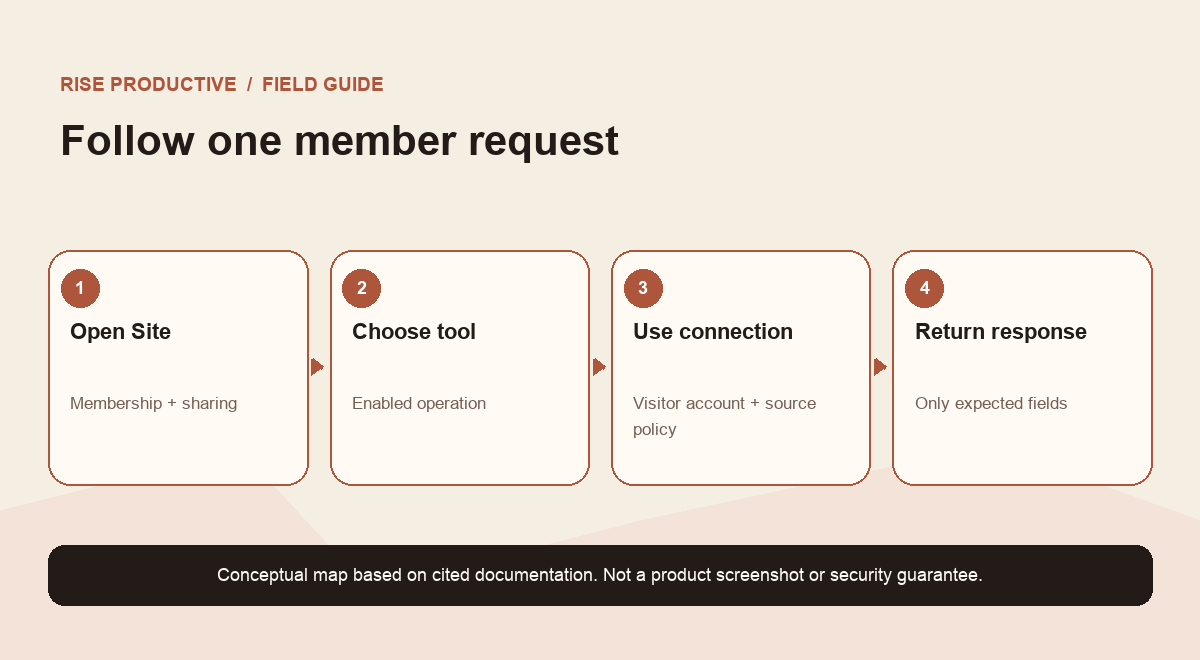
To understand who sees what, trace a single request from start to finish. First check that the person can open the Site and is a workspace member. Next determine which plugin tool is available for the request. Then establish what identity and connection the documented Sites flow uses. The tool makes a request to its source or returns a response. Finally, inspect what the model receives and what appears in the conversation.
At each step, ask an observable question:
- Site open: Observable question: Is this visitor a permitted member of the workspace Site?
- Tool available: Observable question: Is the plugin enabled for Sites, and is this tool part of it?
- Connection: Observable question: Is the visitor's own connected app set up, if that is required?
- Source decision: Observable question: Does the source system allow this account to access this record?
- Result shaping: Observable question: Are only necessary fields returned to the model?
- User response: Observable question: Can the visitor tell what was found, and where it came from?
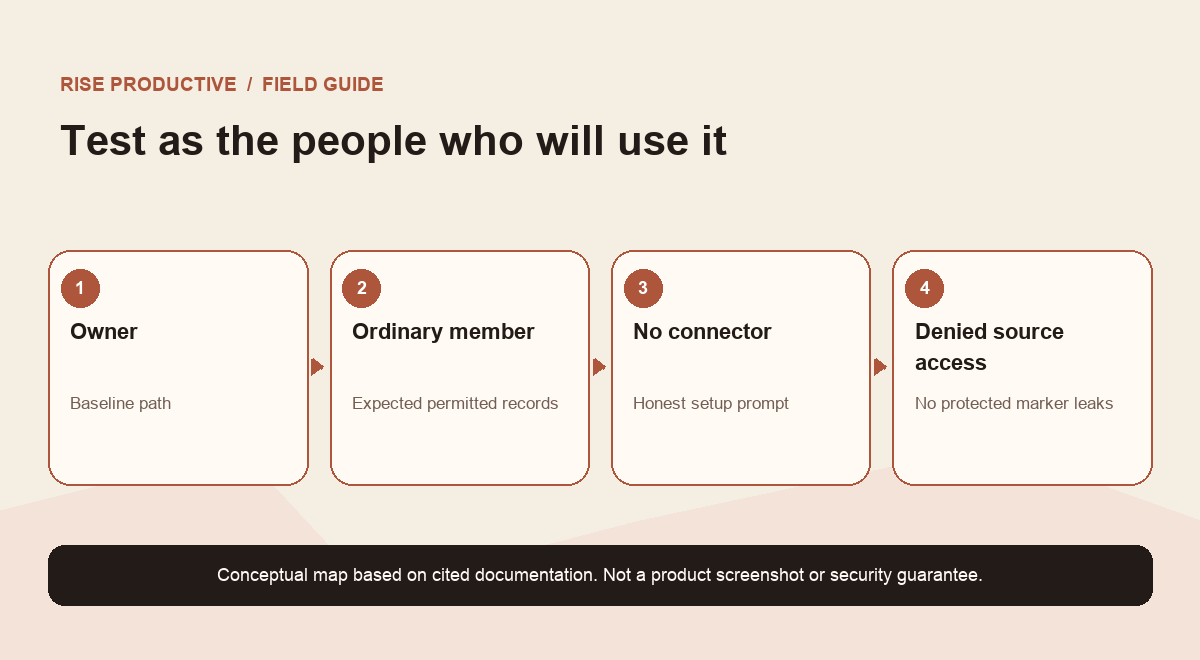
This trace is more informative than a screenshot of a successful owner session. Use an ordinary member account with ordinary source permissions, then compare the result with an account that should not see the test record. Use synthetic records whose names make mistakes obvious. If the denied account sees a marker it should not see, stop the rollout and investigate. If it gets a clear denial, note exactly which layer produced it rather than concluding that all data paths are covered.
 View image detail
“Read-only” is specific, not universal
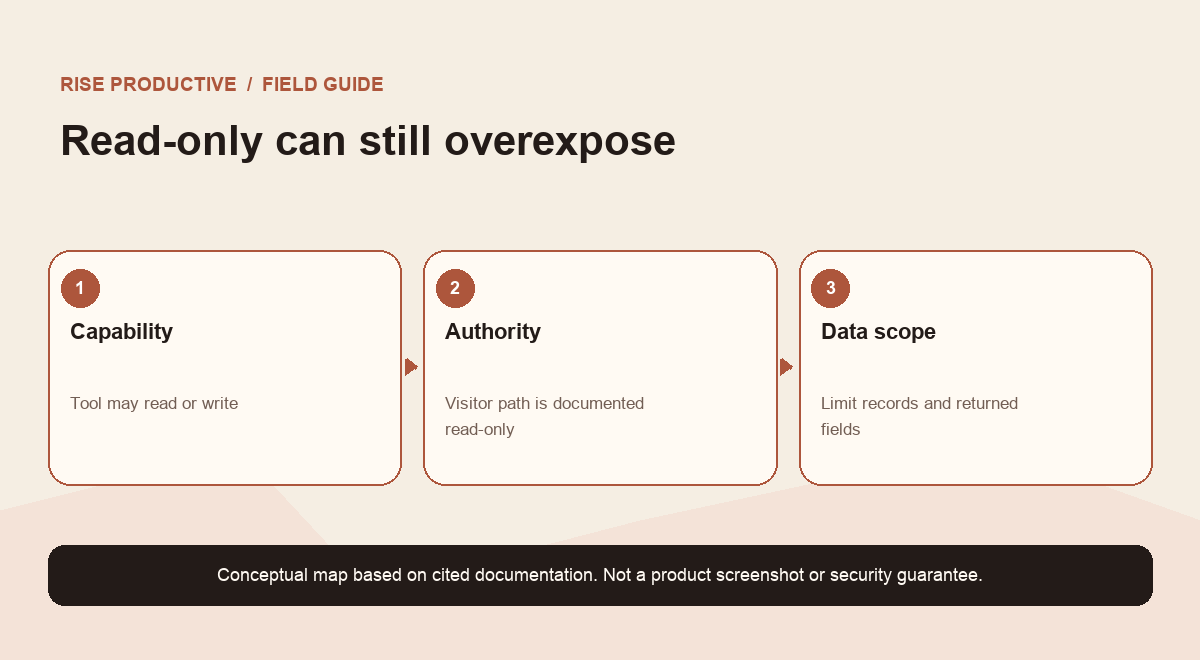
OpenAI's current Help article says the visitor's connected-app access in this Sites flow is read-only. It also explains that plugin tools can be designed to read data or make changes. These descriptions refer to different parts of the system. A plugin might offer an operation that can write to a service. A visitor's connected-app access path may have a narrower behavior. A different workflow, product version, or authentication pattern could have different rules, so do not turn one statement into a universal claim about MCP or all integrations.
For an administrator, the practical answer is to ask which credential or identity each operation uses and how the source service enforces it. Ask the tool owner to demonstrate what happens when a visitor lacks source access, when a connection is revoked, and when a request attempts an action beyond the intended capability. For a tool with writes, check the implementation and the service-side result, not just the generated wording.
The same care applies to “read-only.” Reading can still expose sensitive information. A search that returns 500 records in order to answer a question about one record may be technically read-only and still overbroad. A tool that reads a user's own account may still show data that the Site does not need. A useful review considers both the ability to change state and the scope of information returned.
 View image detail
Public sharing and background work are different cases
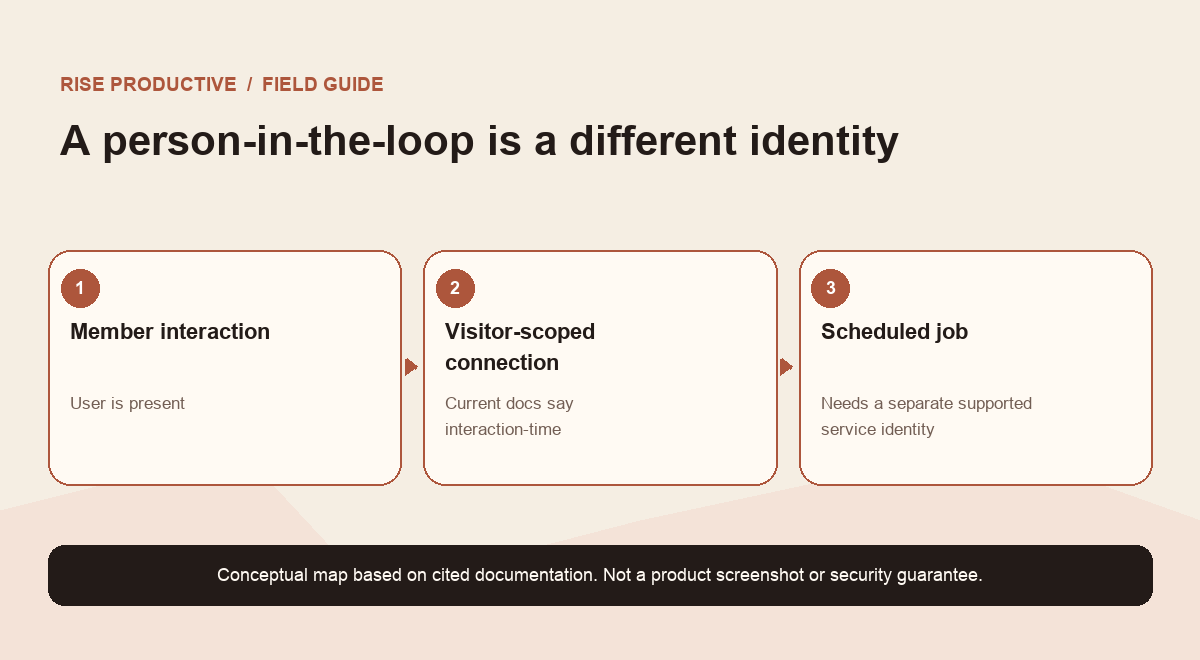
The current Sites Help page describes the connected-app feature as available when the Site is private to the workspace and the visitor is a workspace member. It also says the connection is used during interaction and is not for scheduled background tasks. That makes two rollout questions especially important: is the Site being kept inside the workspace, and does the desired workflow require a person to be present?
If the intended use is an employee asking a question and receiving information from their own connected app, the interaction-time model may fit. If the intended use is a recurring report that runs overnight for a group, do not assume that a Site's visitor connection can run it. Find a separate supported automation route with an explicit service identity, permissions, owner, schedule, and audit process. The two workflows may look similar to an end user, but they have different identity and accountability requirements.
Likewise, do not share a Site outside its documented scope and expect the same connected-app behavior. Public viewing, guest access, and workspace-member access are distinct cases. Confirm the current availability rules before promising a workflow to external partners or customers.
 View image detail
Assign the ownership before people depend on it
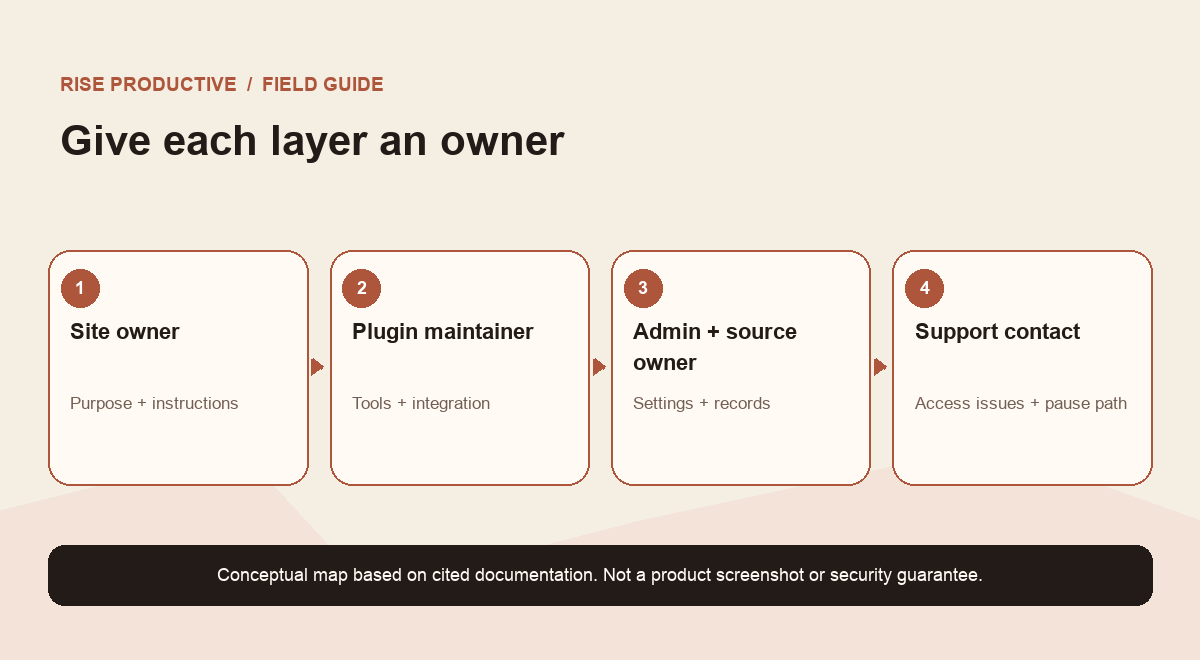
A shared Site needs more than an administrator who can flip a switch. Name the people responsible for the Site, plugin, source data, and help path. Those may be different roles. The Site owner explains the intended use and updates instructions. The plugin owner maintains tool definitions and source connections. The workspace administrator reviews feature settings. The source-data owner knows which records and actions are appropriate. A support contact handles reports of access errors or surprising output.
If one person owns every layer, document the fallback when that person is away. If ownership is split, decide who approves a change to the tool contract, who tests that change, and who can pause access if an unexpected result appears. Avoid vague responsibility such as “the AI team owns it.” A useful record identifies a named role and how the team reaches that person.
Also agree on what evidence to retain. A pilot record might capture the Site and plugin names, tool inventory version, settings checked, test accounts/roles, synthetic test cases, observed source-side effects, reviewer, date, unresolved limitations, and rollback contact. Do not record secrets or sensitive test data in a general document. Follow your organization's retention and security policies.
 View image detail
A member-level test matrix
Before a broader rollout, test the paths that answer the “who can see what?” question. Use synthetic data in a controlled source environment. Ask the workspace administrator to confirm the current product controls. Have both the owner and an ordinary member run the same cases. Include a user who should not access the Site, but only if the test environment can safely represent that case.
- Site owner: Test: Open Site and run allowed query; Expected evidence: Expected tool and expected synthetic record are returned.
- Ordinary member with source access: Test: Run same query; Expected evidence: Only records permitted to this member appear.
- Ordinary member without source access: Test: Query a protected synthetic record; Expected evidence: Clear denial or no result, no protected marker.
- Workspace non-member: Test: Attempt Site access in a controlled test; Expected evidence: Site is unavailable according to intended workspace boundary.
- Member with no connected app: Test: Try a request requiring the connector; Expected evidence: The interface explains the missing connection; it invents no source result.
- Member who denies consent: Test: Decline or revoke where supported; Expected evidence: The tool does not proceed using a different identity.
- Source service unavailable: Test: Simulate or safely observe failure; Expected evidence: Failure is honest; stale data is labeled or withheld.
- Write-capable tool: Test: Preview and cancel a synthetic write; Expected evidence: Source remains unchanged after cancellation.
- Repeat query: Test: Submit an allowed read more than once; Expected evidence: No unexpected duplicate side effect.
The exact controls available for a test vary by plan and current rollout. If you cannot simulate a state safely, record the limitation and ask the vendor or your security team how to verify it. Do not use a real employee's private account as a substitute for a test environment. Do not ask an administrator to broaden access temporarily without documenting how it will be restored.
 View image detail
Roll out in stages, then recheck
Start with a small group whose work fits the documented behavior. Before inviting them, confirm Site and workspace scope, the saved plugin and connector controls, source permissions, tool descriptions, and owner contacts. Share a short explanation of what the Site can do, which connected app is involved, what data it may return, and how users can report an unexpected result. The explanation should be understandable to a coworker who has not read the admin docs.
For the first week, ask participants to try a normal task and one clearly out-of-scope task using synthetic or approved low-risk data. Record unexpected results and confusion. If one person can see data another cannot, that may reflect intended source access, but verify it against the test plan. Do not infer cause from a single response. Compare the source account, the actual record permission, the plugin tool, and the product settings.
When the plugin changes, repeat the relevant test cases. When workspace settings change, record the new scope. When the source app changes its permission model, ask the owner to revalidate. A quarterly calendar reminder can help, but a material change should trigger a review immediately. Remove a Site or plugin from service if the team cannot identify its owner or explain a surprising access path.
The goal is not to make every workflow slow. It is to make the first few decisions explicit so coworkers do not have to guess why the same shared interface returned different results. Clear scopes and useful failure messages help adoption because users understand what they can rely on and where they need permission.
Frequently asked questions
If I share a Site, do coworkers inherit my connected-app access?
The OpenAI documentation describes coworkers using their own connected data and permissions in this Sites flow. Sharing a Site is not described as sharing the owner's source identity. Confirm current documentation and test with an ordinary member account before relying on this behavior.
Can a coworker see my connected app data just by opening the Site?
The Help documentation describes connected-app access as tied to the visitor's own access and interaction. It does not say that simply viewing a Site grants the visitor access to another person's connector. Still, test actual permissions and avoid placing sensitive data directly into Site instructions or content.
Why do the admin docs show different defaults?
They describe different controls. Tenant-level connected-app access and a per-plugin Sites setting are not the same toggle, and current docs say some per-plugin defaults vary by workspace plan or saved admin choice. Check the exact setting and scope in your tenant.
Is this suitable for scheduled reports?
The current Help article says this visitor-connected Sites path is used during interaction and is not for scheduled background tasks. Use a separately supported automation design if the job must run unattended, with an explicit service identity and owner.
Does read-only mean risk-free?
No. A read-only tool can still return too much information, expose data in an unexpected context, or produce an unhelpful answer. Review the fields, records, identity, logs, and failure behavior.
The access question to answer
Before inviting a team, be able to explain five things: who can open the Site, which plugin tools are enabled, whose connected account is used, what that account can reach in the source service, and what the user sees when any layer denies access. Test those answers with an ordinary member and synthetic records. Record the actual tenant settings instead of relying on default assumptions.
The promise of a shared Site is a shared way to work, not necessarily a shared data identity. When each layer is visible, a team can make the interface convenient while keeping the decision about access where it belongs: in a deliberate combination of workspace controls, Site sharing, plugin configuration, visitor connection, and source-service permission.
Sources and further reading
Checked for this article
Sources
Keep going
Related notes.
AI in Practice
How to Try Meta Muse With One Bounded Task and Limited Access
A personal agent can look useful long before you know whether you should connect everything. Start with one reversible job, narrow permissions, and verified completion.
Read the article
AI in Practice
ChatGPT Sites Plugins: How to Scope MCP Tools Before You Share
A ChatGPT Site can host a supported plugin, but the useful question is what its tools should be allowed to do. Here is a practical contract-and-test process before you share.
Read the article
AI in Practice
Cloudflare Auto Router: Is Cheaper Model Routing Worth the Trade-Off?
Cloudflare reports lower costs with trade-offs in task success. Read the benchmark limits and decide whether your workload merits a pilot.
Read the article