
AI in Practice
Claude Docs Sharing: What to Check Before You Send a Work Link
A pre-send checklist for Claude Docs links: verify recipient access, workspace policy, document version, export and mobile limits before sharing work.
On this page
- A link is not a permission model
- Check the plan and workspace before you prepare the handoff
- Know who can view, edit and export
- Confirm the artifact is the version you mean to share
- Comments, edits and review responsibility
- Mobile access is not the same as mobile editing
- A pre-send checklist for a work link
- If the intended sharing path is not available
- Keep the release small and reviewable
- Sources
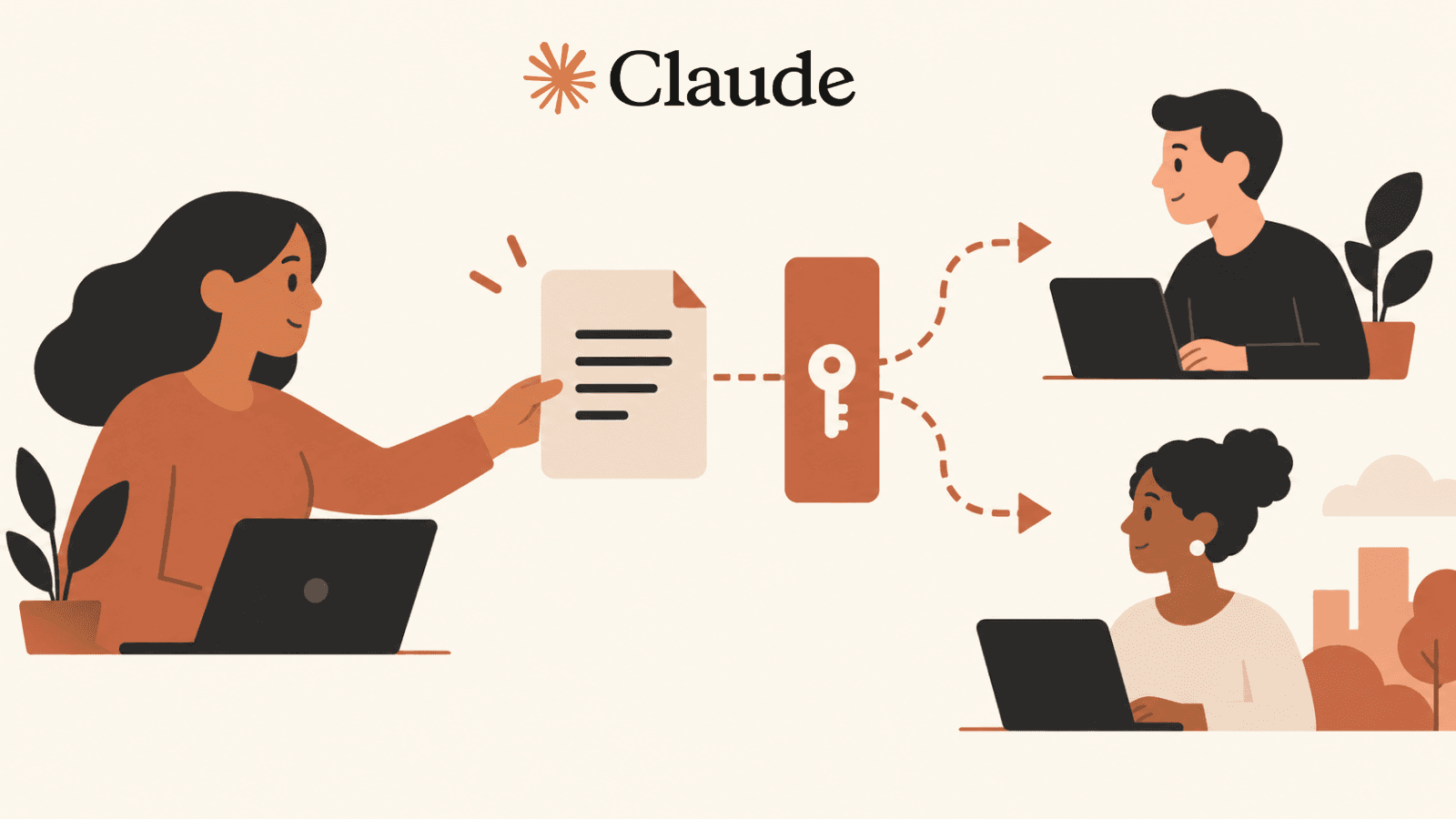
Before you send a Claude Doc or Slides link, check the recipient, the account plan, the workspace rules and the state of the artifact. A link that opens for you does not prove that it opens for the right colleague, that the colleague can edit the intended version, or that an external recipient is allowed to see it. Anthropic’s current Docs guidance describes different access behavior by plan and several limitations that matter before a document becomes part of a work process. (Claude Docs help)
The safest approach is to treat sharing as a small release. Confirm what information the file contains, who should receive it, what that person needs to do, and where the authoritative copy lives. Then verify the visible content and permissions from the point of view of the recipient. If the workflow depends on comments, version history, live charts, mobile editing or an external link, check that capability specifically. Feature descriptions change, and a general statement about Claude artifacts may not match the policy for Docs in your workspace.
This is a practical checklist, not a claim that Claude is unsafe or that every user will encounter the same restriction. The launch announcement and official help pages describe the product; the actual decision belongs to your account owner and organization. Check the current policy and configuration on the day you share.
Key takeaways
- Creator access does not prove that the intended recipient can open or use the artifact.
- Check plan, workspace and data policy against the recipient’s actual role and needed action.
- Verify source, version and export on the receiving device; pause or use an approved route when a required control is missing.
 View image detail
A link is not a permission model
People often treat “share” as one action, but sharing has several separate questions. Which identity is allowed to open the file? Can that person view, edit, comment, copy or export? Is the link restricted to an organization, available to anyone who receives it, or visible only to the owner? Can a recipient forward it? Does the file contain data that should not be shared outside a controlled system? A button or URL cannot answer these questions without the relevant plan and workspace policy.
Start with the reader’s real task. An executive may need to read a decision memo but not edit its wording. A teammate who owns the analysis may need to comment on the evidence or revise a section. A vendor may need only a final exported PDF. Those are different levels of access. Granting more power than the task requires increases the chance that someone changes or redistributes the wrong version. Granting too little can create a frustrating access request at the moment a decision is due.
Write down the intended action before selecting an access setting: “review and send comments,” “edit the draft,” or “read the approved export.” If the product does not support that exact distinction, pick an approved alternative rather than assuming a recipient will use a control in the way you intend. Current Docs help describes viewer and editor behavior and notes that there is no comment-only mode. That means “I want them to comment but not edit” may require another workflow, depending on the current product and workspace policy. (Claude Docs help)
 View image detail
Check the plan and workspace before you prepare the handoff
Claude’s unified experience and Docs do not necessarily share one availability rule. Anthropic describes the Cowork and chat transition as a gradual rollout. Its Docs and artifact help describe beta availability, plan requirements and administrator controls. Enterprise access may be controlled by an owner; some protected or regulated configurations may be unsupported. A feature that appears in one person’s account may not be enabled for the rest of a team. (Unified experience help; Docs help; Artifacts help)
Before creating an artifact for a planned review, check these items with the account or workspace owner if needed:
- Account plan: What to establish: Which plan and feature access apply to the creator and intended recipients?; Why it affects the handoff: Plan availability can differ, and rollout can be gradual.
- Administrator setting: What to establish: Is the feature enabled by the organization owner?; Why it affects the handoff: An enterprise user may not be able to enable a beta independently.
- Data policy: What to establish: May this source material be processed in this account?; Why it affects the handoff: Technical access does not equal permission to upload or share it.
- Recipient boundary: What to establish: Is the audience internal, external, or mixed?; Why it affects the handoff: Current Docs sharing rules distinguish these cases.
- Intended action: What to establish: Does the reader need view, edit, export or another workflow?; Why it affects the handoff: The available permissions may not match a requested comment-only review.
- Record location: What to establish: Where does the approved, durable copy belong?; Why it affects the handoff: A shared artifact may not replace the team’s system of record.
This table is a planning checklist, not a substitute for the exact workspace policy. Confirm the actual setting in the current account and record who owns the decision. If a recipient cannot access the feature, do not send a link that only works for the author. Export or move the approved material through a route your organization already supports.
 View image detail
 View image detail
Know who can view, edit and export
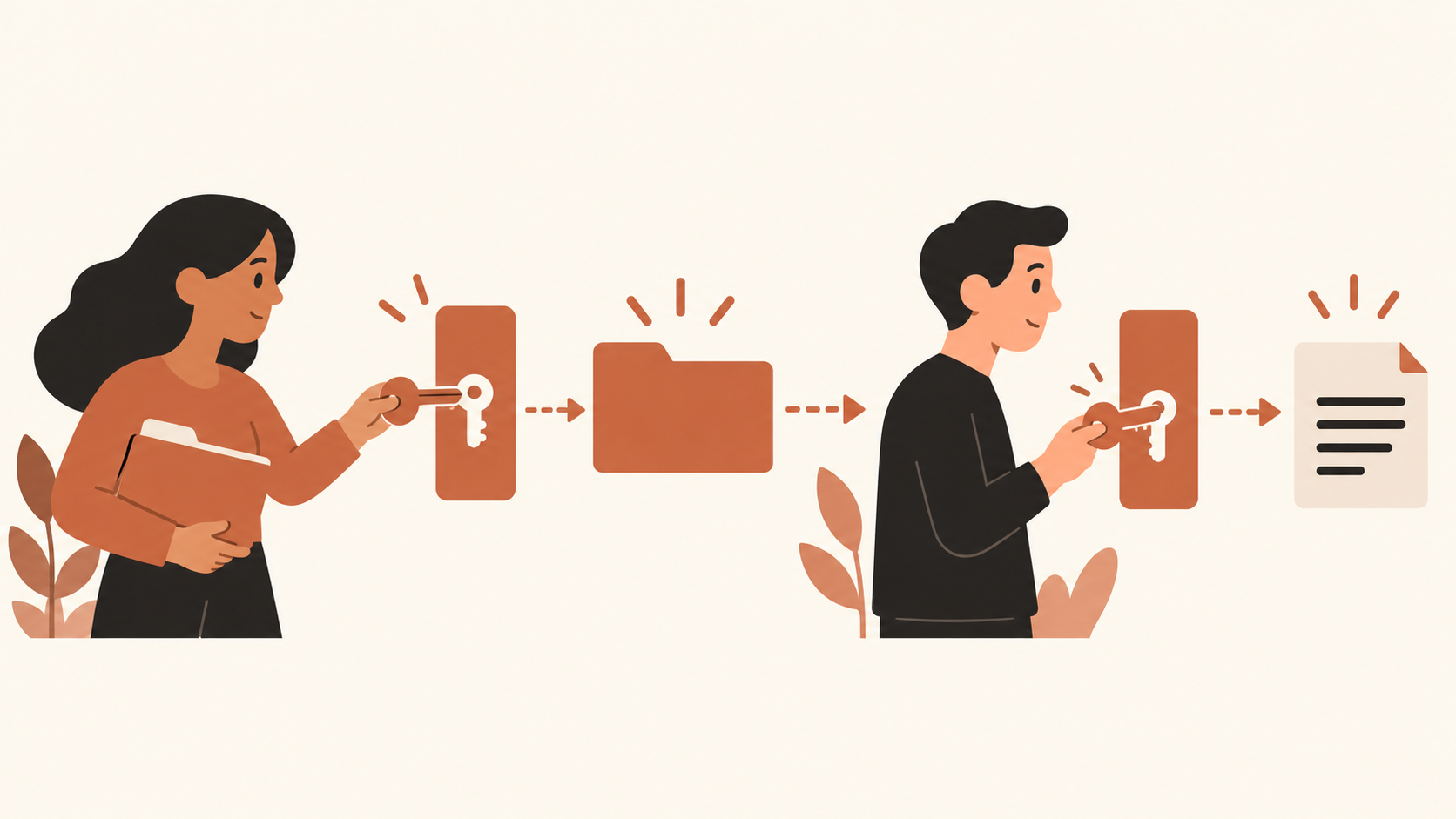
Permission labels sound simple, but map them to a concrete action. A viewer should be able to read what you intend them to see. An editor may change the artifact, so decide how you will recognize the approved copy afterward. If an export is permitted, confirm what format is available and whether the export retains the citations, notes, tables and layout your recipient needs. Anthropic’s Docs and artifact guides list export options and plan-specific behavior; use the current guide for the specific artifact rather than assuming every Claude share works the same way. (Claude Docs help; Artifacts help)
Test with an account that reflects the recipient’s situation. A link opened while you are logged in as its owner proves only that you can open it. It does not test a teammate’s role, a different organization, an external email address or a mobile session. If you cannot safely use a test identity, ask the workspace administrator to confirm the intended behavior. Avoid sending sensitive content to a personal account merely to see whether a link opens.
Also consider copying and forwarding. “Anyone with the link” means the URL itself becomes part of the access boundary. If a person forwards it, who might see it? Can the recipient download a copy? Does the exported file have the same access controls as the source artifact? A link restriction does not automatically protect a separately downloaded copy. Decide whether the intended audience can receive a file attachment or needs to use an approved repository with its own controls.
Current Anthropic documentation includes different rules by plan and workspace. For example, Docs access and external sharing are not identical across individual and organization plans; the current Docs guidance says Team and Enterprise users cannot share Docs externally. Recheck this detail against the official page and your organization’s settings before sharing, because plan and product policies can change. General artifact-sharing guidance should not override a more specific Docs rule. (Claude Docs help; Publish and share artifacts)
Confirm the artifact is the version you mean to share
An access check is incomplete if the file itself is not ready. Verify the title, owner, date, source set and audience. If the document is still a draft, label it as a draft and state what feedback you need. If it is approved, identify the approver and the approval date. Do not rely on a filename such as “final-v3” as the only version marker, particularly when a link may continue to open after an edit.
Current Claude Docs guidance lists no version history. That raises a practical question: how will your team know what changed and which copy was approved? If the artifact does not provide a history sufficient for the team’s control needs, preserve a dated export or store the approved version in the system your organization uses for records. Do not present that workaround as a built-in feature. It is a process choice that should be checked for policy fit. (Claude Docs help)
Review all tracked claims and calculations before sending. Ask: Does each number match its source? Do periods, units and definitions remain attached? Are estimates marked as estimates? Are recommendations clearly separated from observed facts? If a presentation includes charts, check the source, the axes, the dates and the footnotes. Anthropic’s current Docs help says charts do not automatically update in some circumstances. A chart copied from an earlier dataset can therefore become stale even if the surrounding prose changes. Put the refresh owner and source date near the chart or in the review record. (Claude Docs help)
 View image detail
The same applies to exported files. Open the actual PDF or PowerPoint you intend to distribute. Confirm that text is not clipped, charts are legible, source links work and notes are present when required. If recipients need to edit the exported file, confirm the elements remain editable. A successful “export” operation does not prove that the exported artifact preserves the content and controls your process needs.
 View image detail
Comments, edits and review responsibility
If the intended process is collaborative review, identify how feedback will be collected. Current Docs help says the permissions do not provide a comment-only mode, so a workflow that needs comments without edits may not map directly to the available roles. Decide whether editors can change the original, whether copies should be made, and who merges feedback. Keep a review owner responsible for deciding which changes are accepted.
Do not confuse edit permission with approval. Someone who can edit a draft may not be authorized to sign off on its claims. Conversely, an approver may only need a read-only export. Define the roles separately: author, fact reviewer, approver and recipient. When one person holds several roles, note that too. This makes it easier to notice when an important check has been skipped.
If an editor changes a key figure or conclusion, recheck the supporting source and any downstream slide that repeats it. A small edit in the report may invalidate the executive summary, a chart caption or a slide title. The person who sends the artifact should confirm that all versions share the same conclusion and date. For a recurring report, make this part of the release routine rather than relying on someone to remember it.
Where no version log exists, use a controlled document repository or an explicit dated handoff record if your organization approves it. The record can state which source file was shared, who reviewed it, which changes were made and where the final export lives. Keep only the information necessary for the work and avoid creating a shadow archive that conflicts with retention policy.
If your workflow needs an explicit publishing record, Rise’s guide to using Notion as a CMS and database explains a separate place to organize approved material. Choose the repository your team already permits.
Mobile access is not the same as mobile editing
If a reviewer will open the document on a phone, test that exact path. Current Claude Docs documentation says mobile users can view but cannot start from a template, edit or change sharing settings. That distinction matters when a person expects to fix an urgent line or invite another reviewer from the road. A link that is readable on mobile may still require a desktop session for editing or permission management. (Claude Docs help)
Plan an alternate action before sending. If the recipient only needs to read, provide an approved format that remains legible on a small screen. If edits are necessary, tell the reviewer which supported device and route to use. If permission changes are likely, assign that task to someone with the required account access. Never assume that a visual preview on a phone indicates every control is available there.
Check the exported format on the actual screen size. A wide slide may be difficult to read even if it renders correctly. A table that is understandable on a desktop can become a tiny image on a phone. Include the text summary of a key chart, use meaningful labels and make the decision visible without requiring a pinch-and-zoom tour of every slide. Accessibility and clear communication are part of the handoff, not cosmetic extras.
 View image detail
 View image detail
A pre-send checklist for a work link
Use this checklist immediately before you share. For a high-impact or sensitive deliverable, follow your organization’s formal review and release process as well.
Recipient and data
- Is each recipient named or otherwise clearly within the permitted audience?
- Does the file contain confidential, personal, customer or regulated information?
- Is Claude and this particular workspace approved for that data?
- If external recipients are involved, does the current plan and policy permit external Docs sharing?
Permissions
- Have you confirmed the current view, edit and export behavior in the actual account?
- Does every person have only the access needed for the task?
- If you need comments without editing, does the current product support that role? If not, what approved route will collect review?
- Does a forwarded link preserve the intended access boundary?
Content and version
- Is the draft or approved state clear?
- Are the source date, document date and owner correct?
- Do key claims, figures, chart scales and recommendations match their evidence?
- Is the review and approval owner named?
- Does the team have a version or record process that meets its needs?
Device and export
- Does the recipient need to read, edit, export or present the file?
- Have you opened the exact exported file and checked its links and layout?
- Will the intended device support the action you expect?
- Are charts current, and is someone responsible for updating them?
If any important answer remains unknown, pause the handoff. The person sharing the artifact can usually resolve a simple uncertainty by checking the account settings, asking an administrator or producing an approved export. If the policy is unclear, do not infer permission from product availability.
 View image detail
If the intended sharing path is not available
The useful response to a limitation is to choose a supported path, not to work around the control. If a team plan does not allow external Docs sharing, ask the workspace administrator about an approved alternative. That might be a reviewed export placed in an organization-approved repository, a document moved to the established office suite, or an internal-only review followed by a separately approved external deliverable. The correct route depends on your organization’s data rules; this article cannot grant permission.
If the artifact cannot provide the collaboration record you need, use a repository with the required version control or change log. If charts need to stay live, maintain them in the approved source system and link or reproduce the figures with a clear update date. If mobile editing is necessary, choose a tool and workflow that supports the action on the device. If a feature is still rolling out to a subset of users, wait for your administrator to confirm access before changing team instructions.
Suppose a client only needs to read an approved recommendation. A reviewed export in an approved repository may fit better than granting edit access to the working document, especially when the artifact does not offer the exact review role you need. If the larger workflow is still unclear, Rise Productive’s five-part test for deciding what work is worth doing can help you decide which parts to automate and where a person should keep responsibility.
Keep the release small and reviewable
The launch of Claude Docs and Slides makes it easier to consider an end-to-end path from conversation to artifact. It does not collapse the separate decisions involved in access, approval and recordkeeping. Before you send a work link, confirm the recipient, workspace plan, permission level, source evidence, version, export and device. Recheck the official guidance because rollout and feature behavior can change.
For a low-risk internal note, a short pre-send check may be enough. For a client, financial or sensitive report, follow the organization’s full release controls. Record who approved the content and which file they saw. If the current artifact cannot meet a requirement such as external access, comment-only review or version history, use an approved alternative instead of assuming the link will behave as needed.
The helpful question is not just “Can I share this?” It is “Can the right person safely do the right thing with the right version?” When the answer is clear and tested, send the artifact through the approved route. When it is not, pause and resolve the access or content issue first.
Sources
- Anthropic Help: Get started with Claude Docs, checked October 2, 2026.
- Anthropic Help: Claude Cowork and Chat are one Claude, checked October 2, 2026.
- Anthropic Help: What are Artifacts and how do I use them?, checked October 2, 2026.
- Anthropic Help: Publish and share artifacts, checked October 2, 2026.
- Anthropic: Cowork is now Claude, September 16, 2026.
- Computerworld: Anthropic tries to make Claude stickier with launch of Docs and Slides, September 17, 2026.
Checked for this article
Sources
- Anthropic Help: Get started with Claude Docs
- Anthropic Help: Claude Cowork and Chat are one Claude
- Anthropic Help: What are Artifacts and how do I use them?
- Anthropic Help: Publish and share artifacts
- Anthropic: Cowork is now Claude
- Computerworld: Anthropic tries to make Claude stickier with launch of Docs and Slides
Keep going
Related notes.

AI in Practice
Claude Docs and Slides: When Does One Conversation Help With a Report?
A practical pilot for deciding whether Claude Docs and Slides improves a report-to-presentation workflow, with source checks, baseline comparison and review criteria.
Read the article
AI in Practice
Qwen Image 2.1 License: What to Check Before Commercial Use
Publicly downloadable weights are not a commercial-use grant. A team needs to establish permission for its intended workflow, then evaluate the complete operating path and accepted-output cost.
Read the article
AI in Practice
Holo4 for Business: Check Licenses, API Data Terms, and Self-Hosting
Holo4's downloadable checkpoints have different weight licenses, while its hosted API has separate account terms. Learn what to check before choosing a route.
Read the article