
Automation and Agents
Grok Team Bots Security: Context, Connectors & Approvals
A Team Bot crosses several access boundaries. Map each one, test shared chats separately, and keep credentials and high-impact actions narrowly scoped.

On this page
- Treat a Team Bot as several access boundaries at once
- Separate shared setup from each person's identity
- Inventory the context before adding integrations
- Review connector scopes, not just the app name
- Model Slack as a second sharing decision
- Understand the approval caveat in shared chats
- Confirm plan and admin controls in the actual account
- Interpret computer isolation at the correct level
- Use a safe rehearsal before real data
- Keep a simple control matrix and an owner
- Decide whether to proceed, narrow or stop
- Questions to settle with an admin
- Final recommendation: verify the exact path, not the feature list
- Sources and further reading
Before enabling Grok Team Bots for real work, map the shared files, skills, plugins and secrets. Test each user and shared-channel path separately. Confirm which controls your plan includes. Limit credentials to the task. If an action can affect customers, money, production systems or legal commitments, name the approver. A launch story or vendor description is not a review of your deployment.
This is a source-based administration checklist, not a security certification. Rise did not configure a Team Bot, connect an account, install the Slack app or test a control. Current xAI docs describe both per-user and shared-team behavior. The docs also distinguish plans and chat types. A control that exists in one tier may not apply to every member or shared-channel path. Recheck the current docs and your admin console before rollout.
About the author: Demetri Panici writes about practical AI use and productivity systems. This is source-based administration guidance, not a Rise security review.
At a glance: Map shared context, user identity, connector scopes, secrets, runtime, chat surface and approval rules. Mark each item as documented, active in your account or verified in a test. Use synthetic data for rehearsal. Keep any action outside a confirmed approval boundary out of scope.
Treat a Team Bot as several access boundaries at once
An access boundary is a point where identity, data or permission changes. A connector scope is a list of what an app can read or do. A shared secret is a key the owner gives the Bot for a connected service. xAI says teammates cannot see the key, but the Bot can use it in their chats. These terms describe the product docs. They do not confirm your account settings.
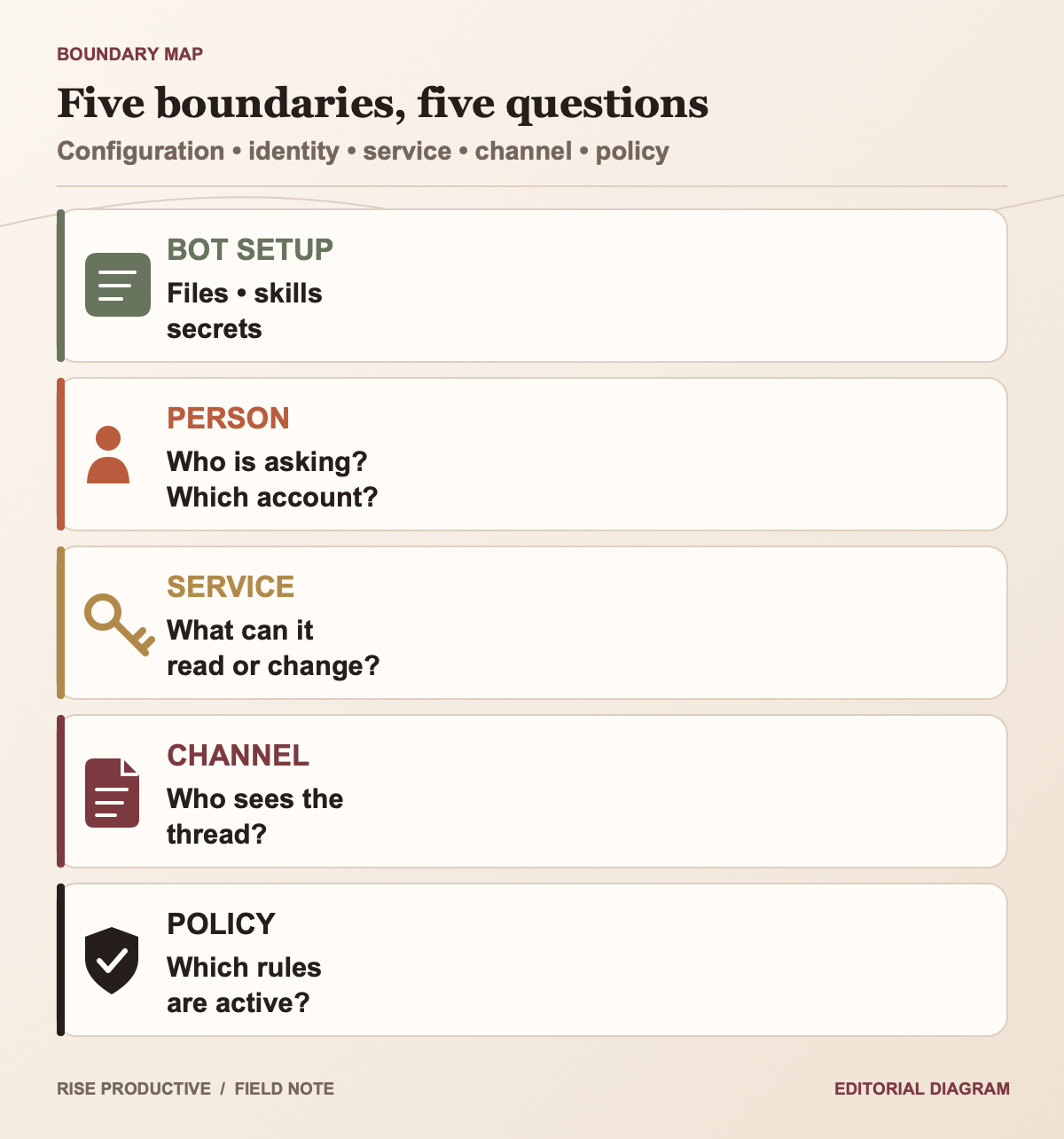
“Team Bot” may sound like one tool with one permission setting. In practice, a task can involve the shared Bot, a member's identity, connected apps, saved keys, a Slack workspace, a cloud computer and an approval rule. Admins need to check each part. Who can edit the Bot? What shared data can it read? Which account does a plugin use? Where does the task run? Who sees the reply? What do the logs show?
The current Team Bots guide says an owner's files, plugins, skills and secrets are shared in each member's chat. Each member has a separate chat and personal memory. That does not mean “everything is private” or “everything is shared.” Team setup and memory can affect everyone. Personal chats remain separate, according to xAI. Admins should know where each piece of information lives.
The Grok Bot admin guide adds plan-specific controls, a connector policy, Auto-review, network policy and computer run settings. Those controls do not all apply at every tier. A deployment checklist should therefore start from the exact use case and account plan, then verify the actual settings in the admin console. A feature table is not proof that a control is active in a particular organization.
 View image detail
Separate shared setup from each person's identity
The owner sets up shared files, skills, plugins and secrets. Each teammate then uses the Bot in a personal chat. xAI says the owner cannot read those chats and teammates cannot read one another's. Team memory works differently. A fact saved for the team can appear across members' chats. These are product claims. Check the behavior and data handling your policy requires before relying on them.
The distinction affects daily use. An instruction such as “use this approved brand guide” can be common to the team. A personal note about one user's customer call may not be. A shared memory update can influence later answers, so a team should decide what qualifies as common knowledge and who is allowed to correct it. Do not assume that a teammate's private chat remains private if they deliberately ask the Bot to retain a fact for the team.
The same care applies to connected accounts. Current docs say that a plugin requiring sign-in uses the account of the person talking to the Bot. A Team Bot does not lend one person's access to another. Shared chat types can change how connectors and approvals work. The Bot's common instructions and secrets are still shared across team interactions. An admin should test the exact plugin and chat type planned for use.
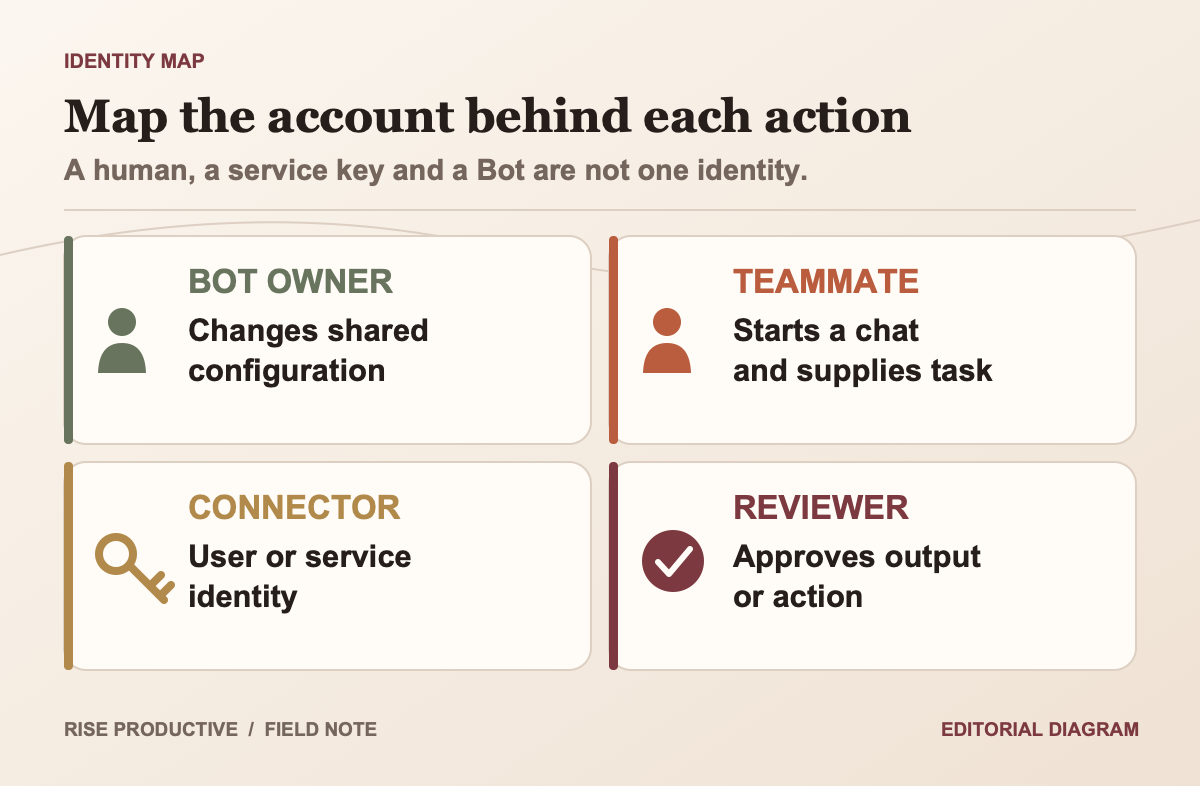
Create an identity map before setup. List the Bot owner, team members, workspace admins, connector accounts, service accounts and reviewers. For each connection, write what it can read and do. If the answer is “whatever the employee can access,” narrow its scope before adding the team. CISA's least-privilege guidance provides a general access principle; it is not a finding about Grok Bot.
 View image detail
Inventory the context before adding integrations
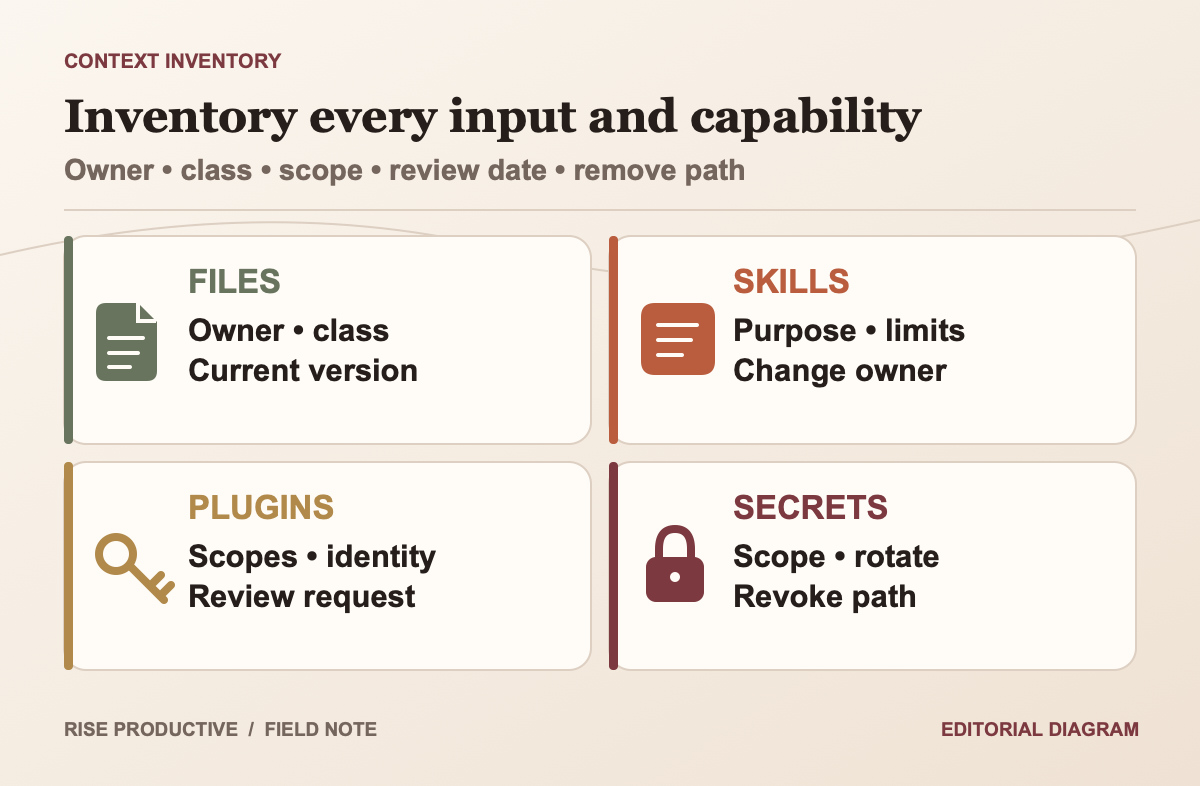
Begin with the information the Bot needs, not with the list of integrations available. Inventory every file, skill, plugin and secret that the owner plans to add. For a file, identify its business owner, data class, update cadence, authoritative version and removal process. For a skill, name the process it enables and the actions it should not take. For a plugin, record its requested scopes and the user or service identity behind the connection. For a secret, identify who can use it, what it authenticates to and how it will be rotated or revoked.
This inventory prevents two different mistakes. The first is adding a source because it might be useful, even when the task does not require it. The second is confusing encryption at rest with narrow access. The Team Bots docs say secret values are encrypted and hidden from teammates, but also say the Bot can use every secret in any teammate's chat. That means a secret's value can be protected from direct viewing while its capability is still broadly usable through the Bot. The scope of the key and the Bot's possible actions remain important.
xAI recommends scoped, read-only service-account keys instead of personal credentials. Follow that principle where an external system supports it. A key that can only read one project is easier to reason about than a personal credential that inherits broad access. If write access is essential, isolate it from the first pilot and document what it can change. Do not put credentials in prompts, files, shell arguments or sample task cards.
Keep the initial source set small and clear. A Bot answering routine policy questions may need one maintained procedure, a contact path, and an exception guide. It probably does not need every customer folder or every chat in the workspace. That is an example of minimization, not a claim that the product can enforce the intended restriction by itself. Ask the system admin to verify the connector boundary and test what the Bot can retrieve.
 View image detail
Review connector scopes, not just the app name
A connector label tells an admin which service is involved; it does not spell out the permission set. Slack's security guidance explains that app scopes decide what information an app can access and what it can do. Workspace owners can enable app approval and inspect requested permissions before approving an app. If the Team Bot is connected to Slack, review the exact app installation, scopes, workspace policy and channel membership path. Approval of an app is a decision about its requested permissions, not a blanket statement that all uses are right.
The Slack app-approval guidance is independent platform documentation. For a Rise example of an app and channel review, see the GitHub Copilot in Slack and Teams admin guide. Its controls are GitHub-specific and do not establish Grok behavior. Slack's guidance applies to Slack integrations generally. It does not certify the Grok Team Bot app or describe what an xAI-managed Bot can access in another connected tool. Slack documents its workspace approval model. xAI documents its Bot behavior. The organization's admin confirms the installed setup.
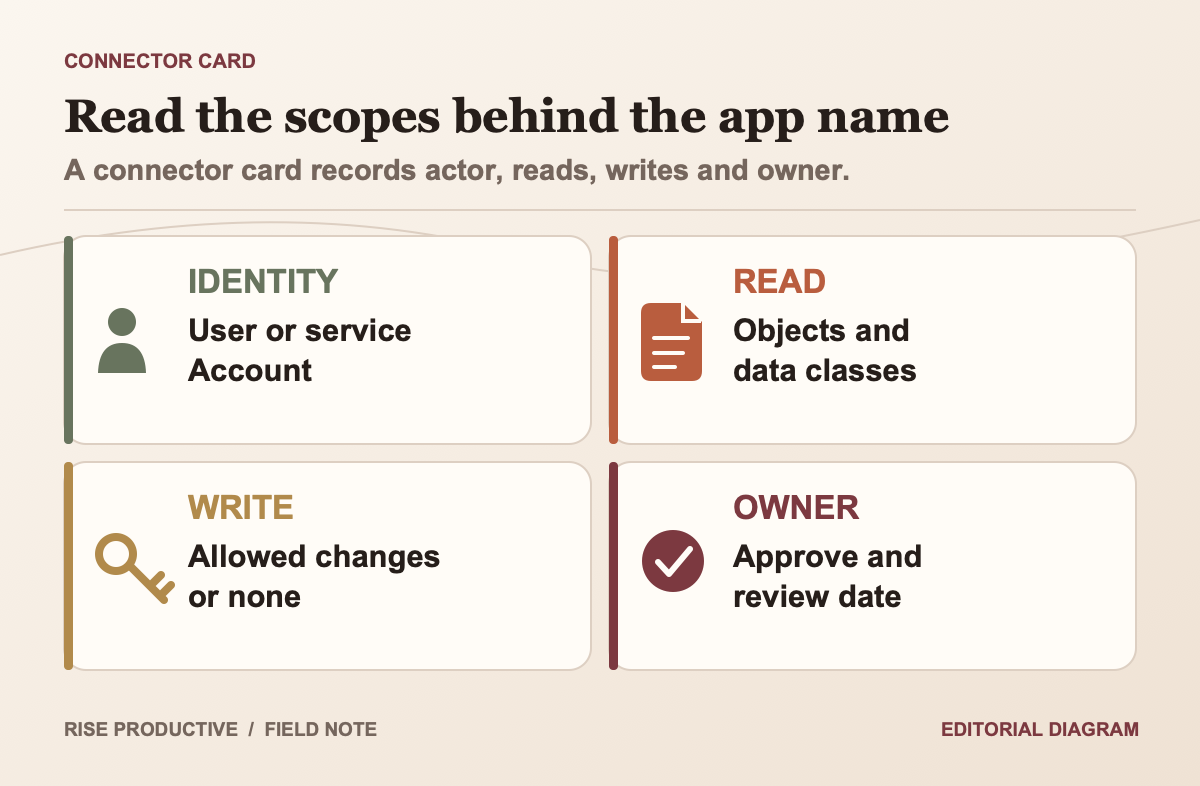
For each connector, make a simple permission card: identity, scopes, readable objects, writable objects, approval owner, reason the workflow needs it, and date to review. If the task only needs to search a knowledge base, write access to that base may not be needed. If a plugin can create tickets or edit records, decide whether the first trial should stop at a draft. A narrow pilot can test usefulness before granting more access.
The admin should also ask what happens when a teammate adds a personal connector. The Team Bots guide says a person may add a connector in their own chat; in a shared chat, the Bot asks before using that person's connector. This is different from plugins the owner adds to the Bot, which do not use the same user approval prompt. Test the precise chat mode rather than generalizing from one successful direct message.
 View image detail
Model Slack as a second sharing decision
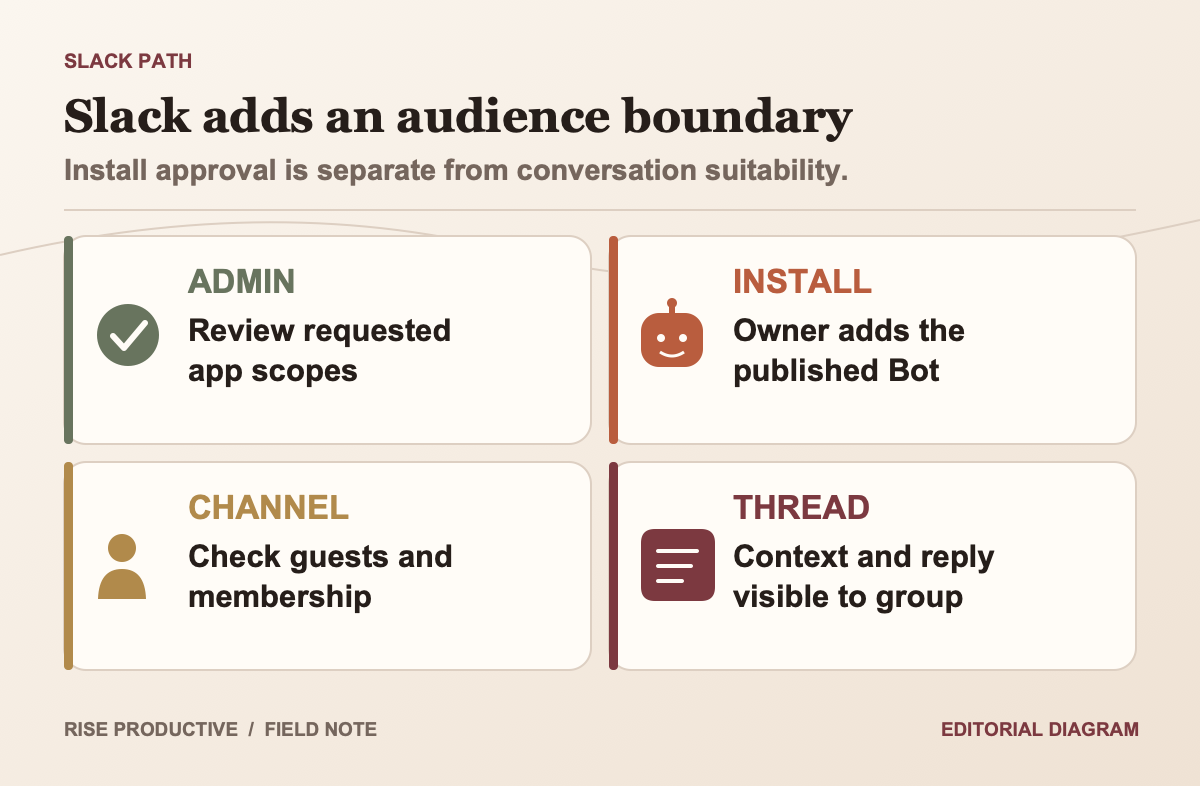
Publishing a Bot for a team and adding it to Slack are separate choices. xAI says a Team Bot can have its own Slack app and reply in channels when mentioned. The guide also notes that channel threads and group chats use a shared computer for that Bot, separate from the owner and teammates' personal computers. The distinction affects where work runs and what information is visible to the channel. The team must choose where to invite the Bot and which channels are suitable.
Before installation, decide whether workspace policy requires approval for new apps. Slack explains that owners can approve or restrict apps and review their scopes. The Team Bots docs describe an installation that may wait for Slack admin approval. That is a useful checkpoint: identify the workspace owner, submit the request through the official path, and wait for an explicit decision rather than asking employees to bypass policy.
Channel membership is an information-sharing boundary. A bot invited to a channel can be mentioned in threads and respond there; channel participants may see replies. xAI's guidance warns that a shared channel computer is not the same as a member's personal computer. Don't place content in a channel if it should not be visible to everyone who can view that channel. A channel with guests, cross-functional membership or external partners may not be suitable for the first test.
Use a private test channel with a small, approved group. Do not copy customer data or keys into it. Check who can mention the Bot and what it can see. Check who can read the reply, which account a personal connector uses, and where the task runs. Record the settings and outcomes. Do not save message content if your policy forbids it.
 View image detail
Understand the approval caveat in shared chats
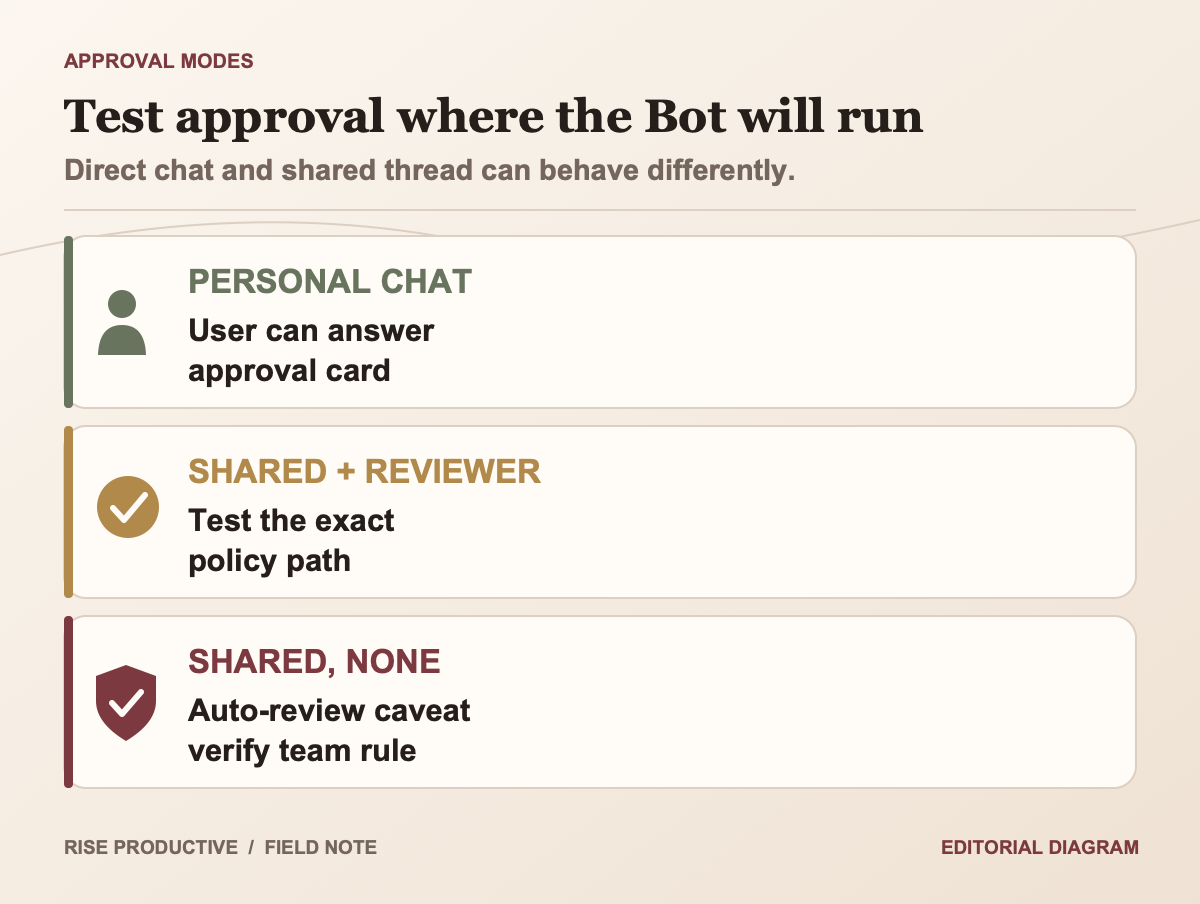
Approval works only if a person can respond when the Bot asks. The Team Bots guide describes an important caveat. In a chat where no one can answer an approval card, the Bot runs without Auto-review. It stays within its configured permissions unless the team requires Auto-review. Admins should test this condition in Slack and other shared chats.
An approval feature does not always block an action. Identify the route for each risky action. Can a person approve it in direct chat? Can anyone respond in the Slack thread? Does the plan enforce a team-wide rule? Does the action stop, or proceed within the Bot's access rules? The docs describe settings and behavior, but only a controlled test in the organization's setup can establish what happens for the related task.
The admin guide says Enterprise includes controls such as Enforce Auto-review and configurable team Auto-review rules. It marks these as Enterprise-only. If the organization's plan lacks a required control, a member's personal setting is not an equivalent guarantee. Choose a workflow that does not need that control, create a human review path, or wait until an admin can establish a suitable boundary.
Write a rule table for the actual task. “Ask first before sending an external message” is more testable than “be careful.” “Never write to production records during this pilot” is clearer than “use judgment.” Keep automatic allowances narrow. For actions with financial, legal, customer or production impact, the recommended default is to prepare a draft and let an authorized person decide whether to act.
 View image detail
Confirm plan and admin controls in the actual account
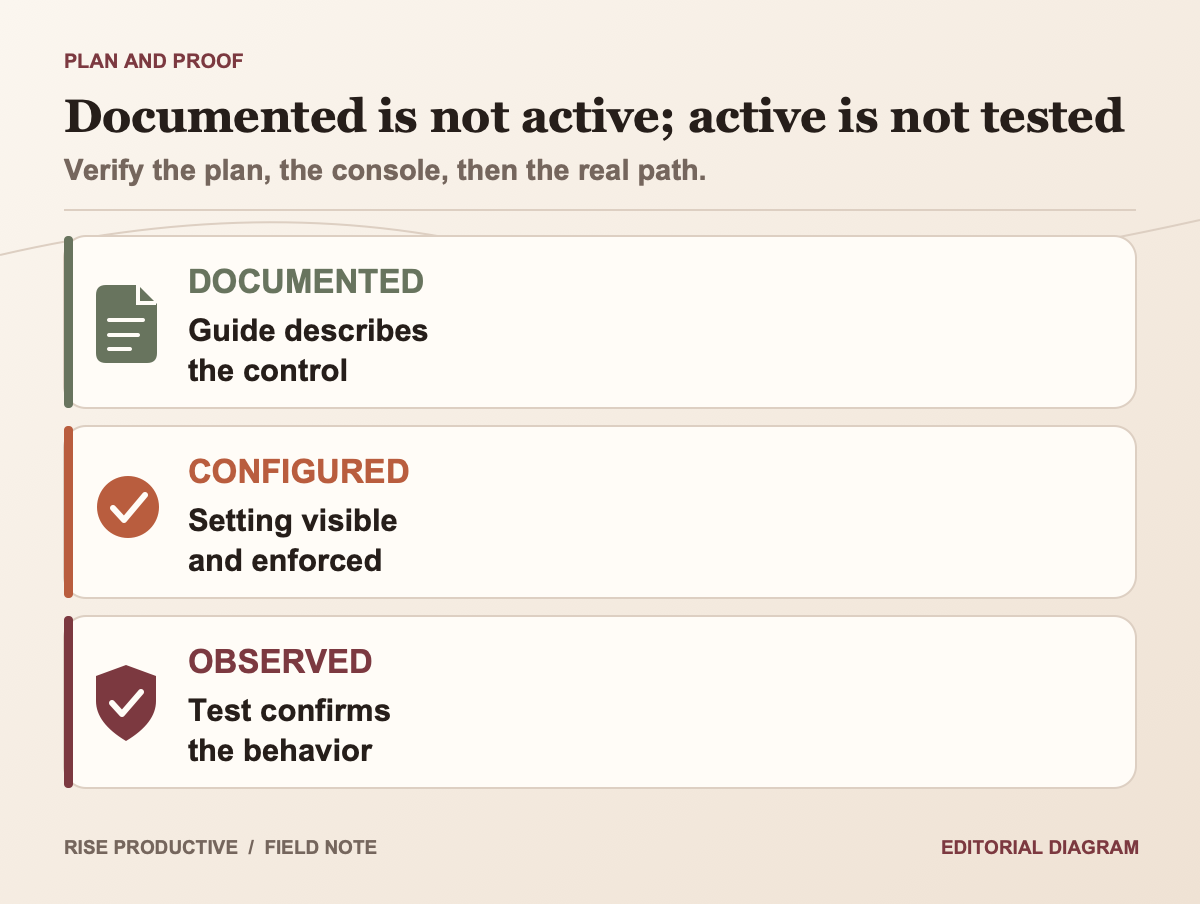
Product pages may list features your plan lacks. The current Grok Bot teams and enterprise guide says that Grok Bot access and admin controls differ across plans. It lists some controls, including organization-wide enablement, network controls, enforced Auto-review, setup scripts, team secrets and certain audit options, as Enterprise-only. The Team Bot documentation also notes that Enterprise audit logs cover specific events such as creation, publication, deletion, skill changes and Slack account links.
That description is not a promise that every event, prompt, connector call or data access is logged. The docs identify certain audit events, so the safe interpretation is limited to those listed events. Ask the vendor and your admin about retention, export, access to logs, incident response, and any required audit evidence before a regulated or sensitive deployment. Do not infer completeness from the phrase “audit logs.”
Use a readiness sheet with three columns: listed in the plan guide, active in the admin console, and tested in the workflow. For example, Enterprise docs may list network controls. The admin should check whether the company has that setting, how it works, and what the test account can reach. “The docs say it exists” is not the same status as “it is enforced here.”
The same caution applies to public beta access. The docs say that members can access a Team Bot if their account is eligible and otherwise may see an unavailable notice. Verify current eligibility for the specific team and region. Avoid making a rollout schedule based on the fact that a launch post exists.
 View image detail
Interpret computer isolation at the correct level
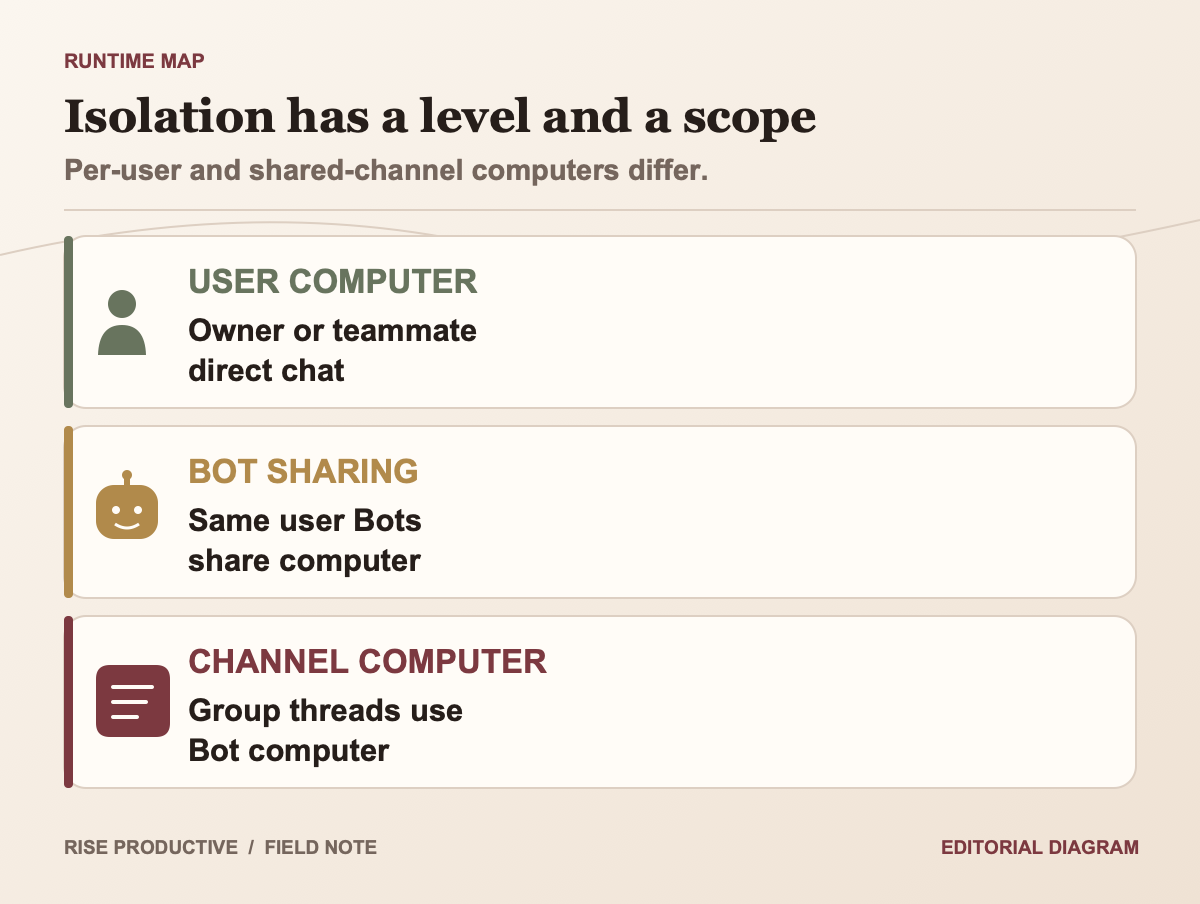
The admin guide describes per-user Firecracker microVMs. It says one user cannot reach another user's computer. A microVM is a small isolated computer for running work. It also distinguishes isolation between users from separation between one user's Bots: that user's Bots share one computer. The Team Bots guide says that direct chats use the owner's or teammate's own computer, while Slack channels, group DMs and threads use one shared computer for the Bot. These are useful facts about the vendor-described run model, but they answer only part of the security question.
Isolation can reduce some risks. It does not limit what data or accounts the Bot should use. If an employee signs a browser into a system that the Bot no longer needs, a persistent session may create ongoing exposure. For shared channels, learn what files and task state remain on the shared computer. xAI's admin guide advises treating a user's logged-in account or file as accessible to every Bot that user runs and signing out when no longer needed.
Before a pilot, identify which computer handles each task. Check what files remain, which browser sessions stay signed in, and how the owner removes access afterward. If a job needs a separate computer or credential set, the docs recommend giving it a separate Cursor user. That may carry account and administration costs; verify those details rather than assuming the separation is free or automatic.
Do not use a cloud microVM as a substitute for task-level boundaries. A secured runtime does not decide whether the Bot should have access to a broad CRM, whether a Slack channel contains confidential discussion, or who approves an external email. Runtime controls and business authorization solve different parts of the problem.
 View image detail
Use a safe rehearsal before real data
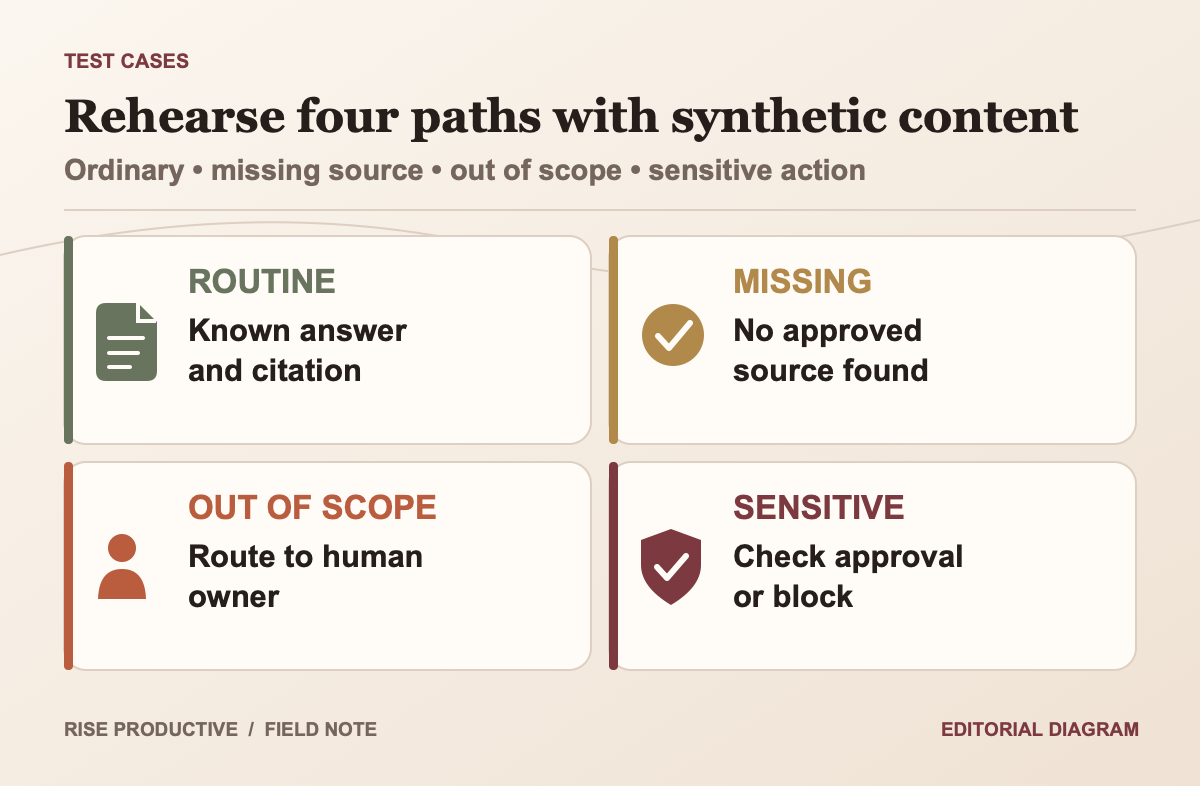
A good rehearsal tests the rules, not just the Bot's reply. Use an approved test group, a private Slack channel and made-up data. If needed, connect a read-only account with narrow access. Before the test, define how the Bot should handle a normal request, missing information, an unapproved source and a high-impact action.
- Member's direct chat: Evidence to capture: Account identity and source used; Stop if: Data appears outside the approved scope
- Shared Slack thread: Evidence to capture: Channel audience, runtime and approval behavior; Stop if: The audience or run path is unclear
- Personal connector: Evidence to capture: Consent prompt and account used; Stop if: The connection acts as another person's identity
- Bot-level plugin: Evidence to capture: Requested scope and permitted action; Stop if: Scope exceeds the task
- Private action: Evidence to capture: Whether the action pauses, blocks or proceeds; Stop if: Required review is absent or cannot be tested
This matrix turns a demo into checks people can observe. A team may not be able to test every control. Mark those items unverified and keep the related action out of scope.
Have two people observe different parts of the test. The workflow owner checks the answer and its source. The admin checks account identity, app scope, channel visibility, approvals and logs. One person may fill both roles in a small team, but keep the checks separate. A good answer does not prove that an app has narrow access. A working install does not prove the task is useful.
Test direct chat and shared channels separately. xAI describes different computer paths and approval rules. Ask a member to use a personal connector in an approved test thread. Check that the permission prompt matches the guide. For each action that needs approval, confirm it stops until a person approves it or the policy rejects it. If you cannot test it safely, keep it out of the live workflow.
Capture only the evidence the organization is allowed to retain: plan and settings names, test case IDs, observed permission outcomes, reviewer decision, date, and unresolved gaps. Avoid putting sensitive messages or tokens into a general test log. The result is a record of what was checked, not a security certification.
 View image detail
Keep a simple control matrix and an owner
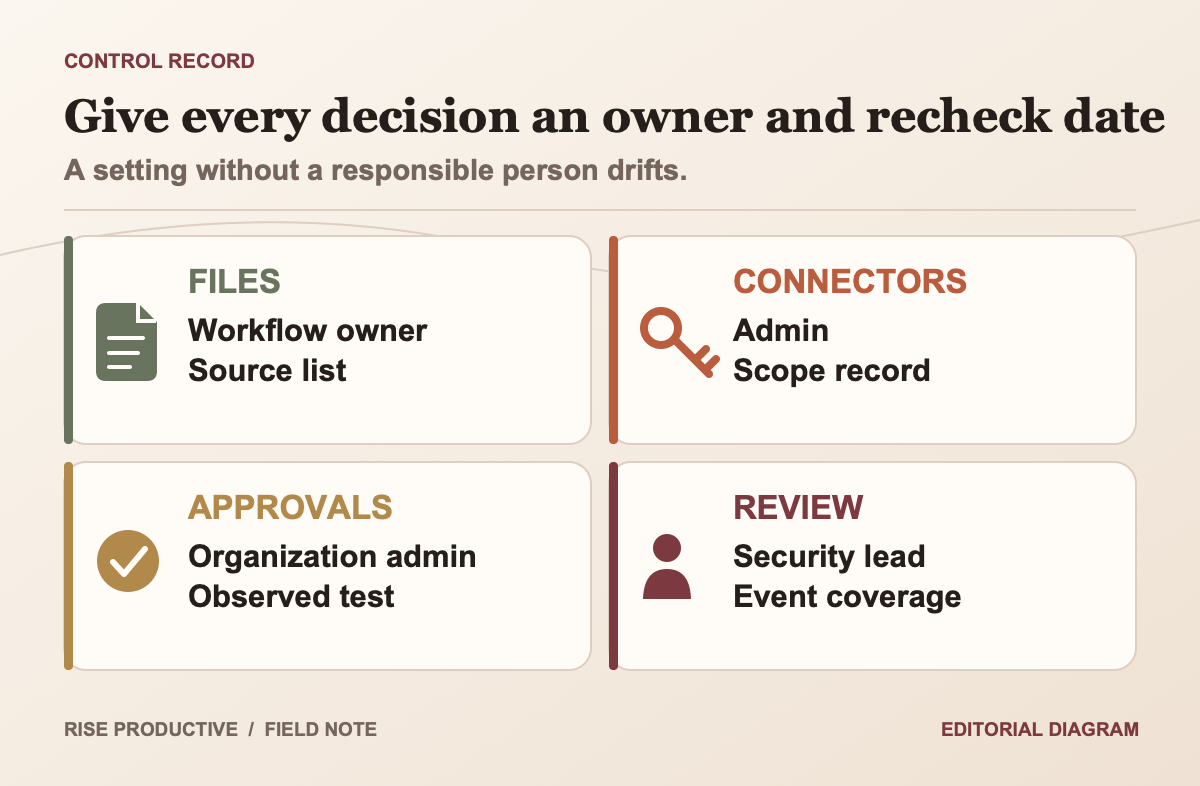
An access matrix makes each role clear. The sample below is a proposed starting point. It is not a vendor default or an assertion that these roles map exactly to a specific plan.
- Bot purpose, shared files and skills: Proposed owner: Workflow owner; Evidence to record: Approved job card and source list; Recheck trigger: Process or owner changes
- Team members and Bot publication: Proposed owner: Bot owner / team admin; Evidence to record: Member list and eligibility; Recheck trigger: Team membership changes
- Plugin and app scopes: Proposed owner: App/workspace admin; Evidence to record: Scope review and approval record; Recheck trigger: New or changed scope
- Secrets and service accounts: Proposed owner: System owner; Evidence to record: Scope, expiry and revoke path; Recheck trigger: Access or task changes
- Auto-review and action boundaries: Proposed owner: Organization admin; Evidence to record: Plan setting and test case results; Recheck trigger: Plan or policy changes
- Slack audience and channel use: Proposed owner: Workspace owner; Evidence to record: Channel membership and app status; Recheck trigger: Audience or channel changes
- Logs and escalation: Proposed owner: Security or operations lead; Evidence to record: Available event list and response owner; Recheck trigger: Incident or retention changes
The matrix prevents the Bot owner from becoming the default approver of every control. A workflow owner can decide whether the output is useful; a Slack admin can approve app scopes; an identity admin can manage user access; and a system owner can set up a service account. Small teams may combine those roles, but the matrix still makes the multiple decisions explicit.
Set a review date and a removal path. When the pilot ends, revoke test credentials, remove temporary files, sign out of accounts the Bot no longer needs, and unpublish the Bot if the team decides not to continue. If an employee leaves, confirm that shared assets and ownership are transferred rather than simply assuming the Bot is self-maintaining. For a longer-running use, include the Bot and its associated service accounts in the existing access review process.
 View image detail
Decide whether to proceed, narrow or stop
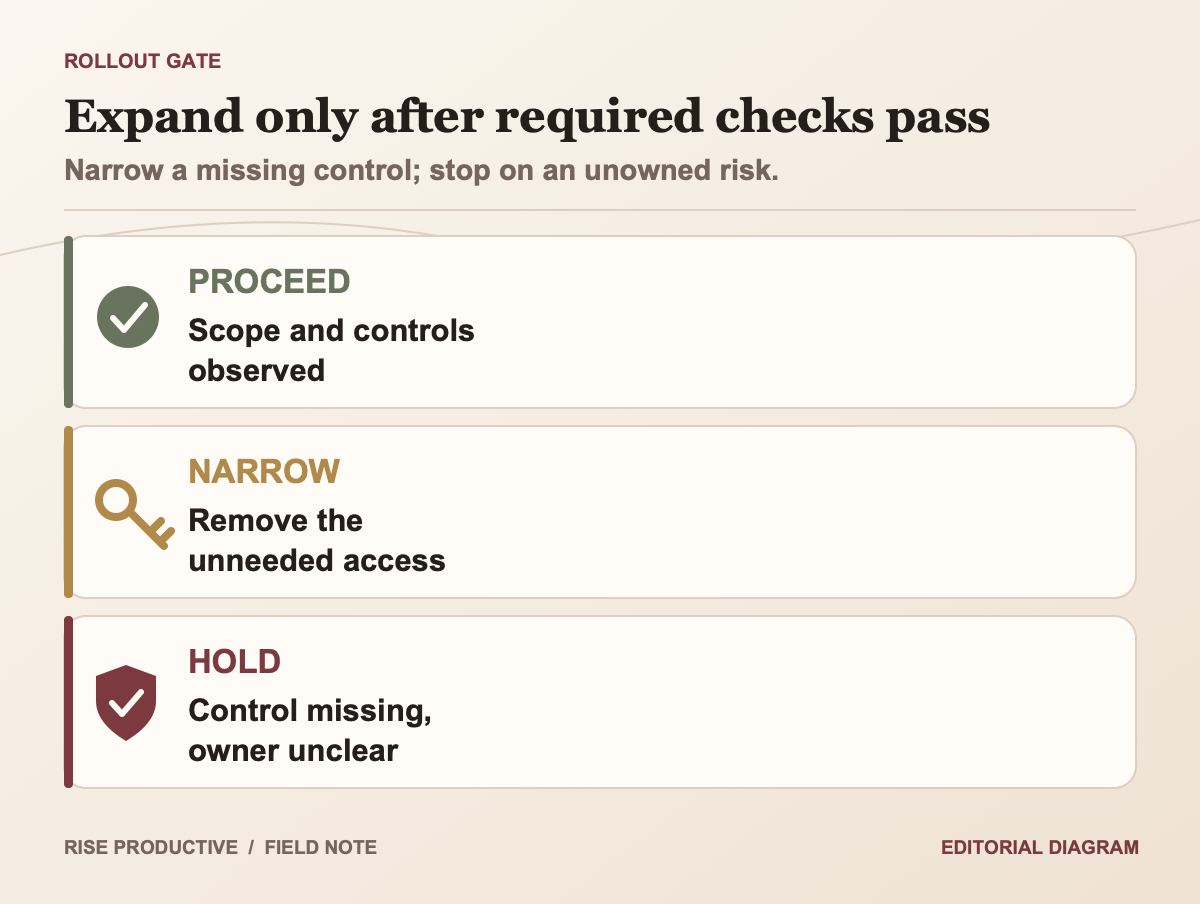
One admin takeaway: controls must hold across the whole path, from the member and chat to the app and action. A narrow setting in one layer cannot offset broad access in another. Record the owner and evidence at each point before the test.
Proceed to a limited rollout only when the workflow has an owner and its sources are approved. Review connector scopes and confirm the plan. Then test whether high-impact actions follow the intended approval rule. This does not guarantee safe operation. It supports a bounded decision with an explicit risk record.
Narrow the rollout if the useful task needs fewer people, fewer files, one read-only connector or a direct-chat path rather than a shared Slack thread. A smaller boundary is an operating choice. It may preserve the part of the product that helps while keeping an action or data class out of scope until the team can evaluate it.
Stop or defer if the plan lacks a required approval control, the app scope is too broad, or the reviewer cannot inspect answers. Stop if the data owner has not approved the sources, or the team cannot explain where the Bot runs and what gets logged. These conditions do not make the product unsuitable for every organization. They show that this task is not ready on the current evidence.
NIST's AI RMF calls for defining task scope and human oversight and for mapping risks across third-party components. That is a useful way to frame the decision: make roles visible, include the connected services in the risk map, and record what remains untested. NIST's framework does not certify the product or prescribe a particular vendor setting.
 View image detail
Questions to settle with an admin
Can the Bot owner read each teammate's chat? The current product guide says personal chats are private to each teammate and the owner cannot read them. Team memory is shared, and the owner controls shared setup. Treat this as vendor-described behavior and verify what your organization needs to rely on.
Are shared secrets private? The guide says values are encrypted and hidden from teammates, while the Bot can use any secret in a teammate's chat. Protecting the value from display is not the same as limiting the capability. Prefer narrow, read-only service credentials when they fit.
Does Enterprise logging record every action? The docs describe certain events recorded for Enterprise. They do not establish complete logging of every prompt, file access or connector call. Ask about the exact event schema, retention and export path.
Does Slack app approval make the Bot safe? No. Slack's app review process gives workspace owners a way to approve requested scopes. Approval does not decide whether every workflow is right, whether the organization's data policy is satisfied, or how the Bot behaves after installation.
Should the first pilot use Slack? Only if the task benefits from a channel and the team understands who can read the channel and how shared-thread run and approvals work. A direct, low-risk path may be easier to rehearse first.
Final recommendation: verify the exact path, not the feature list
Grok Team Bots combine team setup with personal chats and connections to services such as Slack. So one label cannot describe the full access pattern. Before rollout, list the data, connector, key, account, channel, computer, plan control and human action in the task. Rise’s shared-thread Copilot guide shows the related context-boundary decision for a different agent product.
Then test the real path with approved synthetic data. Confirm the account used by each plugin. Inspect Slack scopes. Verify the shared and personal chat behavior separately. Test the approval rule where the Bot will actually be used. Identify what Enterprise logs cover, but do not assume they are complete. Save the decision, its owner and its recheck date.
If a required control is unavailable or unverified, keep that action out of scope. A prepared draft, a read-only lookup or a private test may still let the team evaluate a smaller use case. The Work Worth Doing test can help decide whether the remaining task should be automated with review or kept human. If no one owns or can check even that small task, do not add more systems just to prove the Bot can connect. An admin can expand access later when the workflow and evidence justify it.
Sources and further reading
Editorial method: This checklist compares xAI's current product docs with Slack's app-approval guidance, CISA's general least-privilege advice and NIST's governance framework. It turns those sources into proposed account checks. It does not report a Rise test, security review or verified customer setup. Recheck all plan and feature details against official sources before use.
- Team Bots product docs (current product behavior and plan-specific caveats)
- Grok Bot for teams and enterprises (admin controls, plan access and runtime model)
- Team Bots launch announcement (September 28, 2026; vendor launch statements and examples)
- AI Insiders launch coverage (external reporting that traces claims to xAI; not independent validation of controls or outcomes)
- Slack security recommendations for approving apps (independent platform guidance)
- CISA least-privilege guidance (independent general security context)
- NIST AI RMF Core (independent human-oversight and scope governance context)
- GitHub Copilot in Slack and Teams: Admin Controls Checklist (Rise Productive related guide)
Checked for this article
Sources
Keep going
Related notes.
Automation and Agents
How to Implement MCP Events in ChatGPT: Event-Triggered Automations
Autonomous conversational agents no longer need to rely on wasteful polling loops. Here is how to implement event-triggered automations using ChatGPT MCP Events.
Read the article
Automation and Agents
How to Build Recurring Web Automations with Perplexity Computer
Web scraping scripts break whenever a layout shifts. Here is how to build durable, recurring web automations using Perplexity Computer and persistent state.
Read the article
Automation and Agents
How to Benchmark Classifier Models: Latency, Cost, Determinism
Evaluating AI classifiers requires looking beyond static accuracy. Here is how to benchmark probability calibration, latency percentiles, and unit economics.
Read the article