
AI in Practice
How to Get Siri AI Beta: Check Your Device, Language and Region
Updating your Apple device does not by itself place Siri AI beta on your account. Check the supported hardware, software, language and region before troubleshooting the waitlist.
On this page
- First, separate iOS 27 from Siri AI beta
- Check the device and operating system together
- Check the language and account region
- Use the actual enrollment path, then allow for the waitlist
- If the option is missing, troubleshoot in a fixed order
- What you can do while waiting
- A short eligibility worksheet
- Change one condition at a time
- What this rollout means for your next step
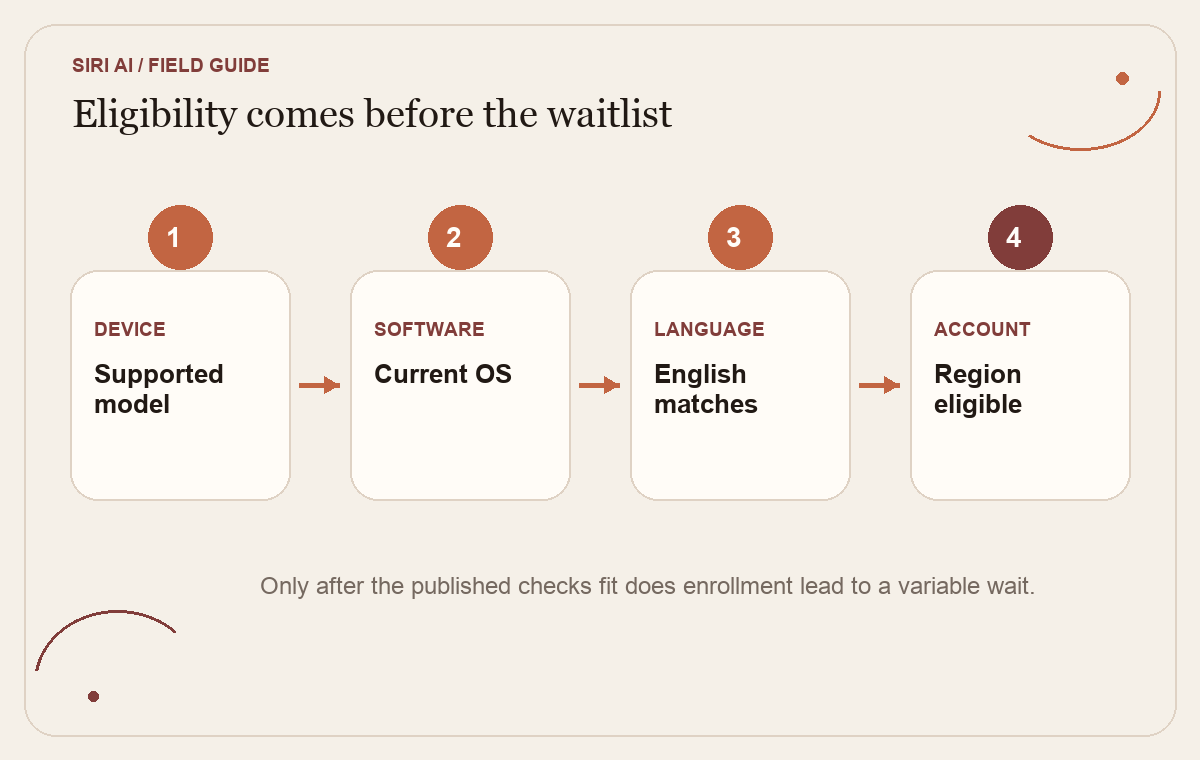
If you updated your Apple device and still cannot see the new Siri AI, the software update may not be the only requirement. Apple’s current Support guide says Siri AI beta depends on a supported device and operating system, matching device and Siri languages, an eligible Apple Account region, and a waitlist. Check those conditions before resetting settings or assuming something is broken.
Apple introduced Siri AI with its 2027 software releases and began the beta rollout in English on September 14, 2026. The company’s current how-to page says wait times vary, and the beta downloads after your place in the waitlist comes up. That distinction matters: a release date is not a promise that every eligible person can turn it on immediately. Apple’s setup guide is the best current place to check your exact device and account conditions.
 View image detail
First, separate iOS 27 from Siri AI beta
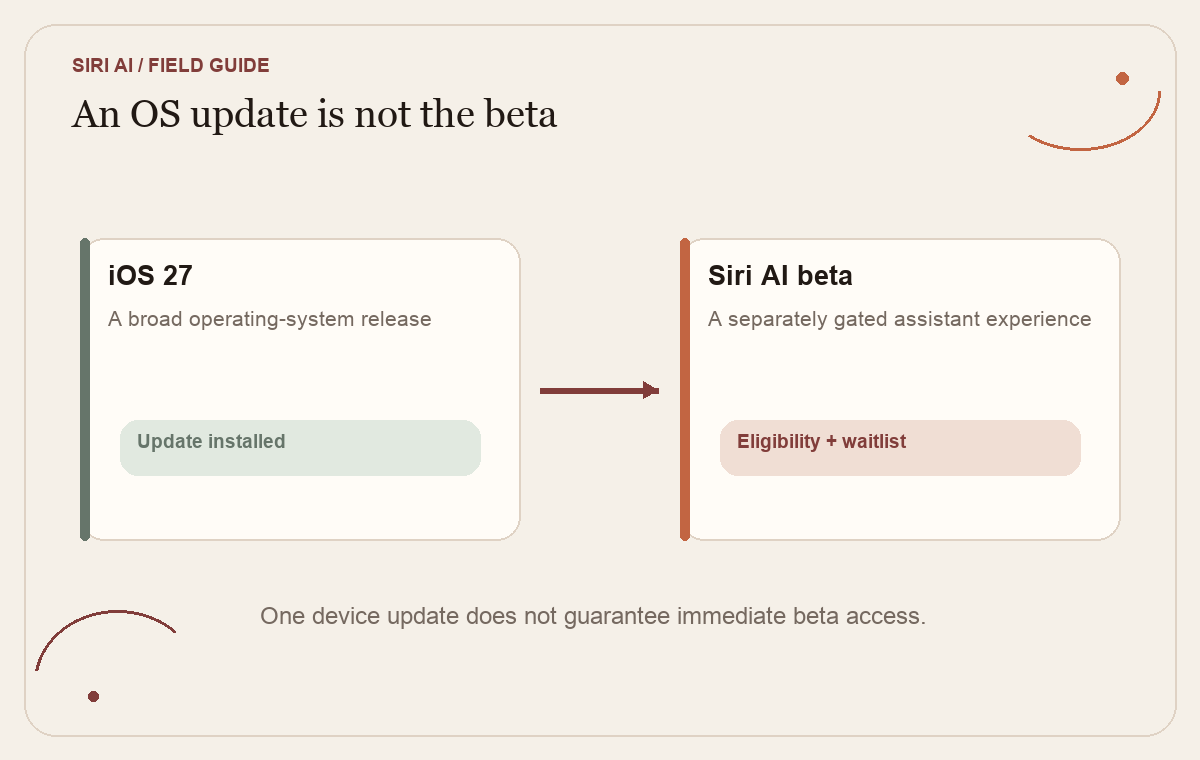
Apple’s wording can make the launch sound broader than the feature is. iOS 27, iPadOS 27, macOS 27 and the other 2027 operating systems include many changes. Siri AI is a specific new assistant experience inside that broader release. Apple says it can understand personal context across messages, email and photos, respond to what is on screen, search for current web information, and take actions across apps. Those are Apple-described capabilities. The beta is still separately gated by device, language, region and enrollment.
That is why an operating system update does not automatically mean the new assistant has arrived on your device. TechRadar made the same distinction for readers who had just installed iOS 27: the update can include other Apple Intelligence features while Siri AI Beta still requires a separate waitlist. The Associated Press also notes that the Siri AI app is initially a beta and that users need to join the waitlist in settings. These reports explain the launch experience, but Apple Support is the authority for the current published requirements.
It also helps to distinguish Siri AI from Apple Intelligence as a product family. Apple lists Apple Intelligence features for a wider range of supported languages than the current Siri AI beta. A language appearing on Apple’s Apple Intelligence availability page does not mean Siri AI supports it today. The Siri AI-specific support page currently lists English. When two Apple pages discuss related features, use the page that names Siri AI and check its date before deciding you meet the beta requirement.
 View image detail
Check the device and operating system together
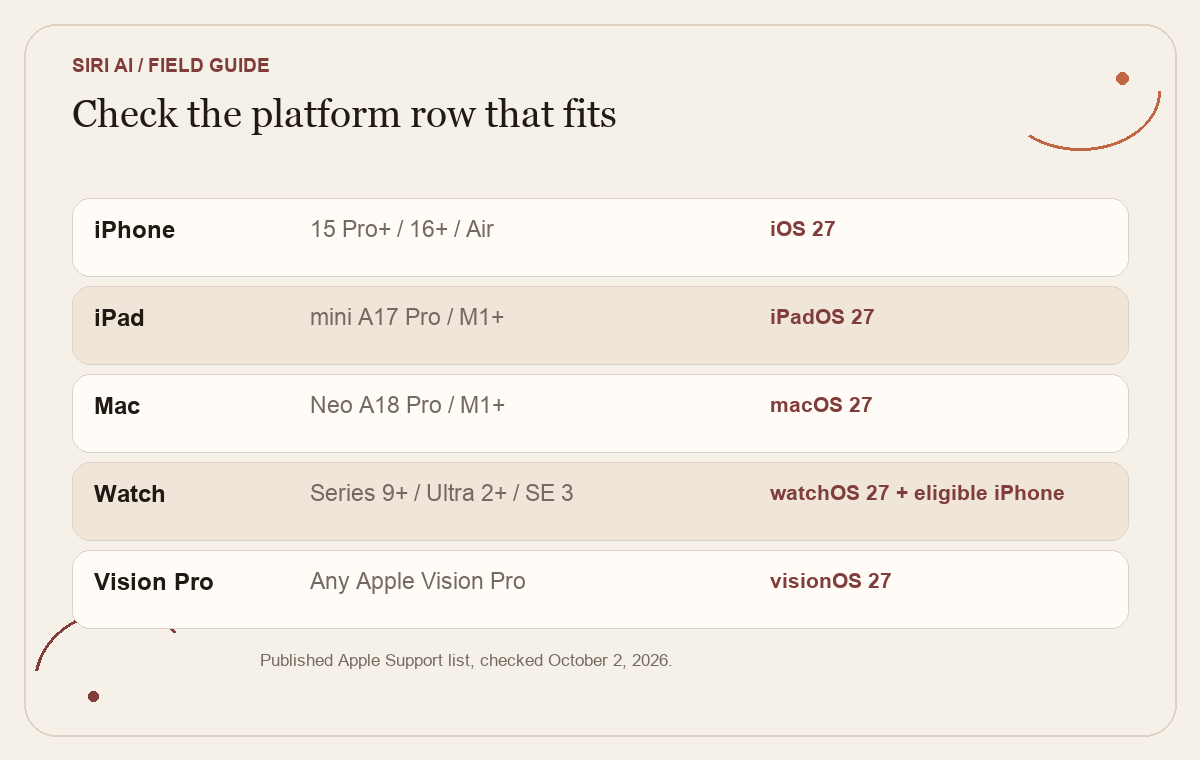
Start with the device you intend to use, not the device you heard about in a launch headline. The current Apple Support list is platform-specific. For an iPhone, it names iPhone 15 Pro models and later, iPhone 16 models and later, and iPhone Air, running iOS 27. A regular iPhone 15 is not in the same listed group as the 15 Pro. For iPad, Apple names iPad mini with A17 Pro and iPad models with M1 or later on iPadOS 27.
Mac requirements are macOS 27 Golden Gate on MacBook Neo with A18 Pro or Mac with M1 or later. Apple Vision Pro uses visionOS 27. Apple Watch requirements are watchOS 27 on Series 9 or later, Ultra 2 or later, or SE 3, paired with an Apple Intelligence-enabled iPhone where Siri AI is enabled. A watch is not a stand-alone path into Siri AI. Its requirement depends on a supported iPhone as well.
- iPhone: Apple's current minimum listed hardware: iPhone 15 Pro models and later, iPhone 16 models and later, or iPhone Air; Software requirement: iOS 27
- iPad: Apple's current minimum listed hardware: iPad mini (A17 Pro) or iPad with M1 or later; Software requirement: iPadOS 27
- Mac: Apple's current minimum listed hardware: MacBook Neo (A18 Pro) or Mac with M1 or later; Software requirement: macOS 27 Golden Gate
- Apple Watch: Apple's current minimum listed hardware: Series 9 or later, Ultra 2 or later, or SE 3, paired with a qualifying iPhone; Software requirement: watchOS 27 and Siri AI enabled on the paired iPhone
- Apple Vision Pro: Apple's current minimum listed hardware: Any Apple Vision Pro; Software requirement: visionOS 27
This is a quick published eligibility summary, not a guarantee that the option will be available to a particular account. Apple can revise compatibility details. Before changing hardware or installing a major system update, open the current Siri AI requirements and confirm your exact model and operating-system version there. Do not rely on a general Apple Intelligence chart when the question is specifically Siri AI Beta. Check each platform you actually use rather than treating eligibility as one account-wide yes or no. For example, an owner of an older iPhone and a supported Mac may find that the phone misses the listed iPhone requirement while the Mac meets its hardware row, subject to the Mac software, language and account-region conditions. That example follows Apple’s separate platform requirements; it is not a promise that a particular account is already enrolled.
If the device does not qualify, the practical answer may be to wait for a broader supported list or use features that are already available to that hardware. It is usually not useful to spend an afternoon trying unrelated settings switches when the actual blocker is a hardware requirement. Nor should a reader replace a device based on a beta feature alone without deciding whether the feature would solve a real need. First write down the task that prompted your interest and check whether a tool you already have can handle it. If the only reason to upgrade is to reach a beta assistant that may still place you on a variable waitlist, compare that uncertain benefit with the cost and useful life of the device. This is a purchasing judgment, not a claim about how quickly Apple will widen the supported list. The published requirement answers whether a model is included today; it does not predict what later releases will support.
 View image detail
Check the language and account region
Apple says Siri AI is currently available in English. The device language and Siri language must both be set to the same supported language. At present, the phrase “supported language” means English for Siri AI, even though Apple Intelligence more broadly lists other languages. If your device is set to French, Spanish or another language, changing only one language field may not meet the requirement. Check both settings as Apple describes them.
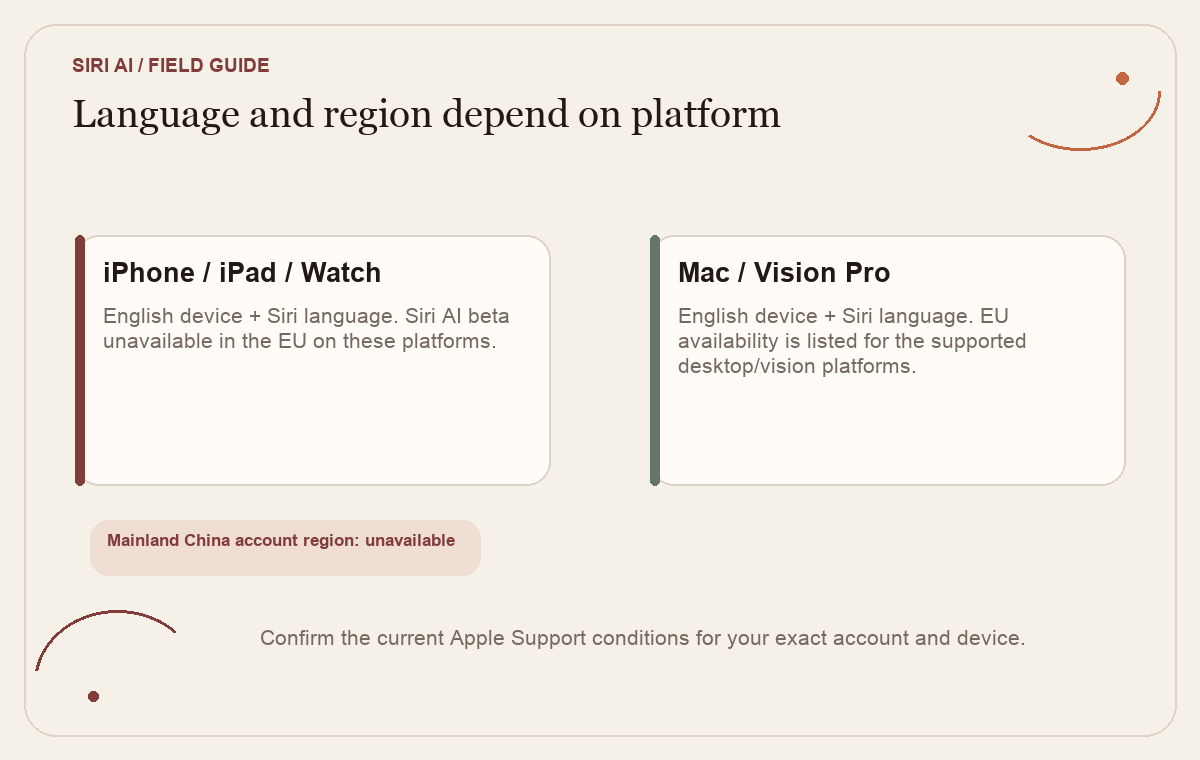
Region is not one simple on/off switch either. Apple says the beta is unavailable on iOS, iPadOS and watchOS in the European Union. It is available for macOS 27 Golden Gate and visionOS 27 for people whose Apple Account region is in the EU and whose device language and Siri language are both English. That is a platform-specific exception. A blanket statement such as “Siri AI does not work in Europe” would be inaccurate because the Mac and Vision Pro path differs from iPhone, iPad and Watch.
Apple also says Siri AI will not currently work if the Apple Account region is mainland China. That statement refers to the account region in Apple’s support guide. It is not a general claim that every Apple Intelligence feature is unavailable on every device used in China. Keep the distinction between the Siri AI beta and the wider feature family intact.
If you travel, Apple's support page says that once Siri AI is turned on, it continues to work when you travel to other regions. That is different from initial eligibility. The account’s region and the platform can affect whether you can enroll; travel after activation is a separate condition. Do not confuse the two when troubleshooting.
 View image detail
Use the actual enrollment path, then allow for the waitlist
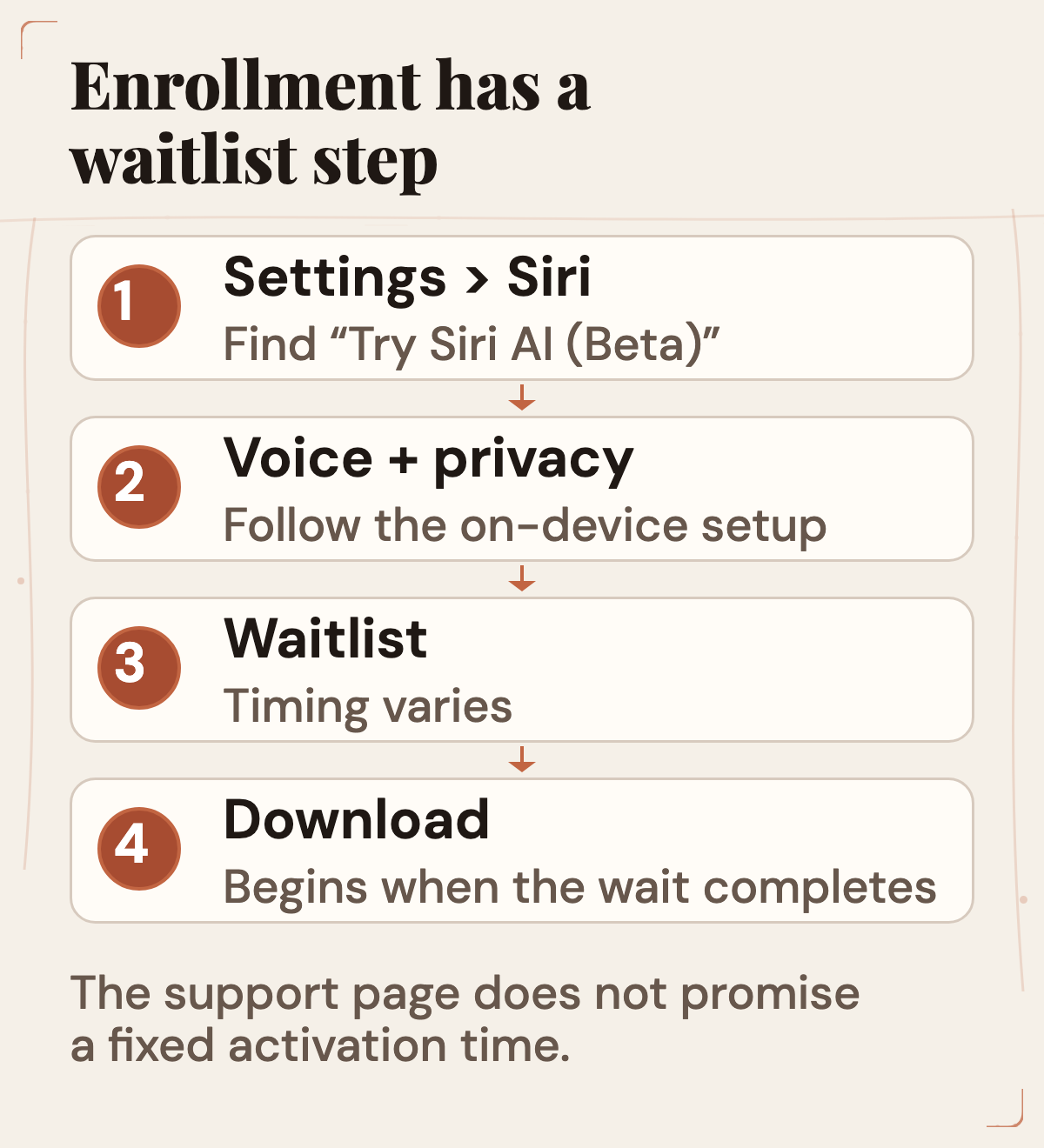
When the device, software, language and region fit Apple’s current requirements, update the device and open Settings. Apple’s instructions are Settings, then Siri, then “Try Siri AI (Beta).” If Siri itself is off, Apple says to turn Siri on first. Follow the prompts to select a voice, complete voice enrollment and review the privacy settings. That process adds you to a waitlist. Apple says wait times vary and Siri AI begins downloading automatically when the wait is complete.
A waitlist is not the same thing as a download error. If you completed enrollment and are waiting, the fact that Siri AI has not appeared yet may be consistent with Apple's stated rollout process. The support page does not promise a specific time, position, or notification schedule. Do not trust a third-party claim that a fixed number of hours guarantees access unless Apple publishes that information.
The enrollment flow also makes the privacy screen worth reading. The right response is not to tap through simply because the goal is to reach a new feature. Review what the actual device says about settings and context, and decide whether that scope fits the task you have in mind. Apple’s support page tells users to review privacy settings, but does not prove that every user interprets each setting the same way or that one tap configures every data flow they care about.
 View image detail
If the option is missing, troubleshoot in a fixed order
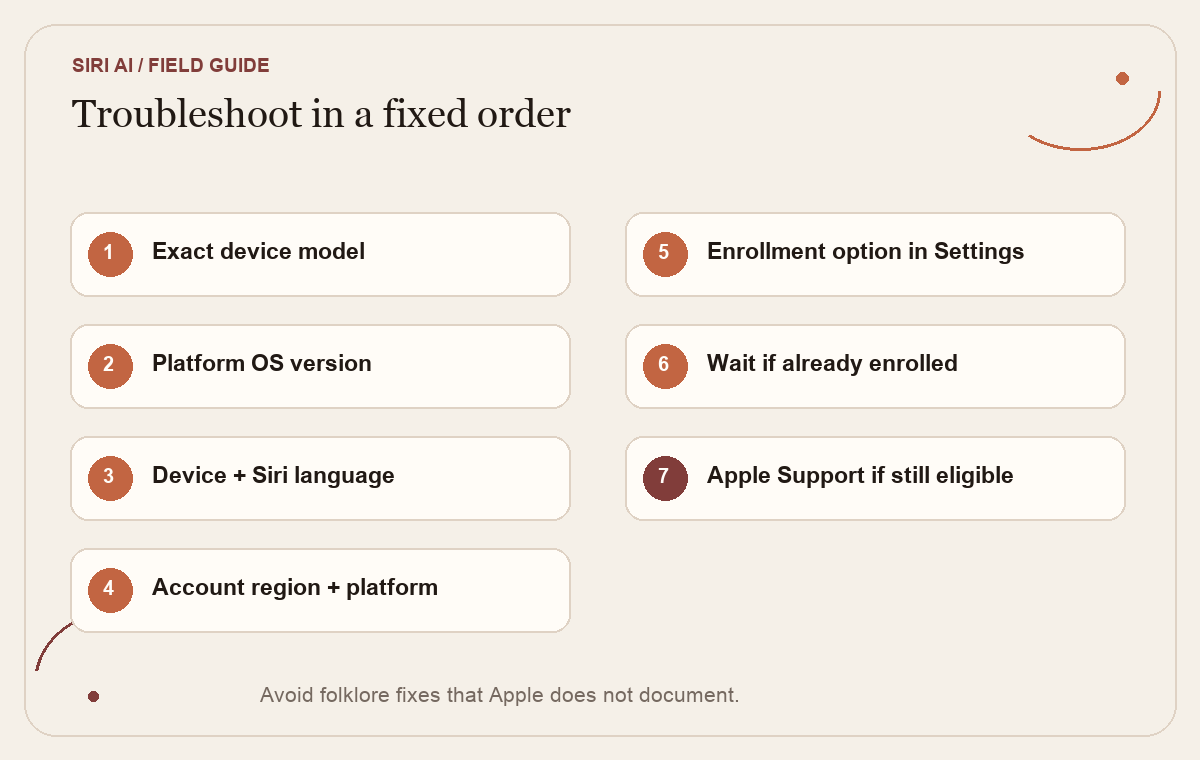
A missing “Try Siri AI (Beta)” item can have several causes. Check them in sequence rather than changing unrelated system settings:
- Identify the exact model. “iPhone 15” is not enough information if Apple lists the Pro models separately. Use Settings or Apple’s model-identification page to check.
- Check the OS version for that platform. A supported model on an older OS does not meet the listed requirement.
- Check both language settings. Confirm the device language and Siri language are the same supported language. Apple currently lists English.
- Check account region and platform. The EU availability differs between iPhone/iPad/Watch and Mac/Vision Pro. Mainland China account region is separately listed as unavailable.
- Look for the enrollment option again. Follow Apple’s current path in Settings > Siri. If Siri is switched off, use Apple’s listed step to turn it on.
- If enrolled, wait for the process Apple describes. The wait time varies. An eligible device does not imply immediate access.
- If all conditions appear to fit but the option remains missing, consult Apple Support. A support page can tell you what is published; your account may still have a particular issue that a general guide cannot diagnose.
This list intentionally avoids folklore fixes. The sources reviewed for this article do not establish that changing a device’s region to bypass restrictions is a supported or reliable way to enroll. Nor do they establish that resetting the phone, signing out of iCloud, or repeatedly reinstalling an operating system will shorten the waitlist. Those actions can create side effects without addressing the documented gate.
TechRadar’s consumer guide helps explain why the distinction feels confusing: many readers install the new OS expecting to see the headline assistant, then find ordinary Siri or another Apple Intelligence feature instead. The useful move is to identify whether the missing item is the new beta, an existing tool, or an account eligibility issue. Do not assume that every mention of “Siri” in a release note describes Siri AI Beta.
 View image detail
What you can do while waiting
First, write down the task that made you interested in Siri AI. A concrete reason might be finding a date buried in an email, asking about content on screen, or drafting a message from information already on the device. Apple's examples show what it intends the assistant to do, but a launch demonstration does not show how well it will work with every person's messages, settings, language or connected app.
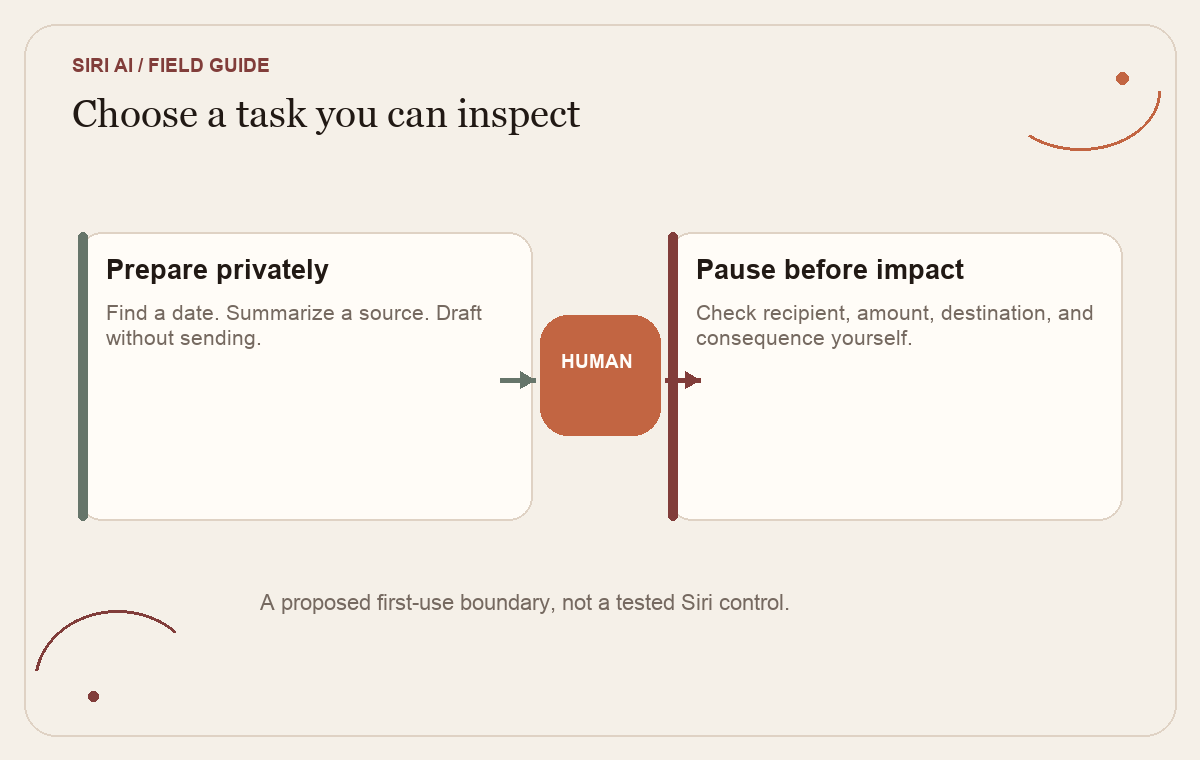
Second, decide what evidence would make the feature useful to you. If Siri finds a date in an email, can you inspect the message it used? If it proposes a calendar event, can you check the time, time zone and invitees before accepting? If it drafts a response, will you review the actual wording and recipient before it leaves the device? Those are sensible test questions. They are not claims that a particular review screen exists or that Siri AI always waits for approval.
Third, separate tasks into a safe first group and a later group. A first experiment could ask for a summary or a draft that remains unsent. A task involving payments, customer commitments, health decisions, deleting records or changing access deserves a stronger check and may not be appropriate to hand to a beta assistant. A beta is an evolving product. Keep high-consequence decisions with a person until you understand the tool and can verify the result.
If you do not currently meet the requirements, you can still use the ordinary features available on your device. But do not treat these as substitutes for the new assistant or tell someone else that you have Siri AI because you updated iOS 27. TechRadar’s distinction between the broader operating-system changes, older Apple Intelligence features and separately waitlisted Siri AI is useful here. Describe exactly what is available on your device.
 View image detail
A short eligibility worksheet
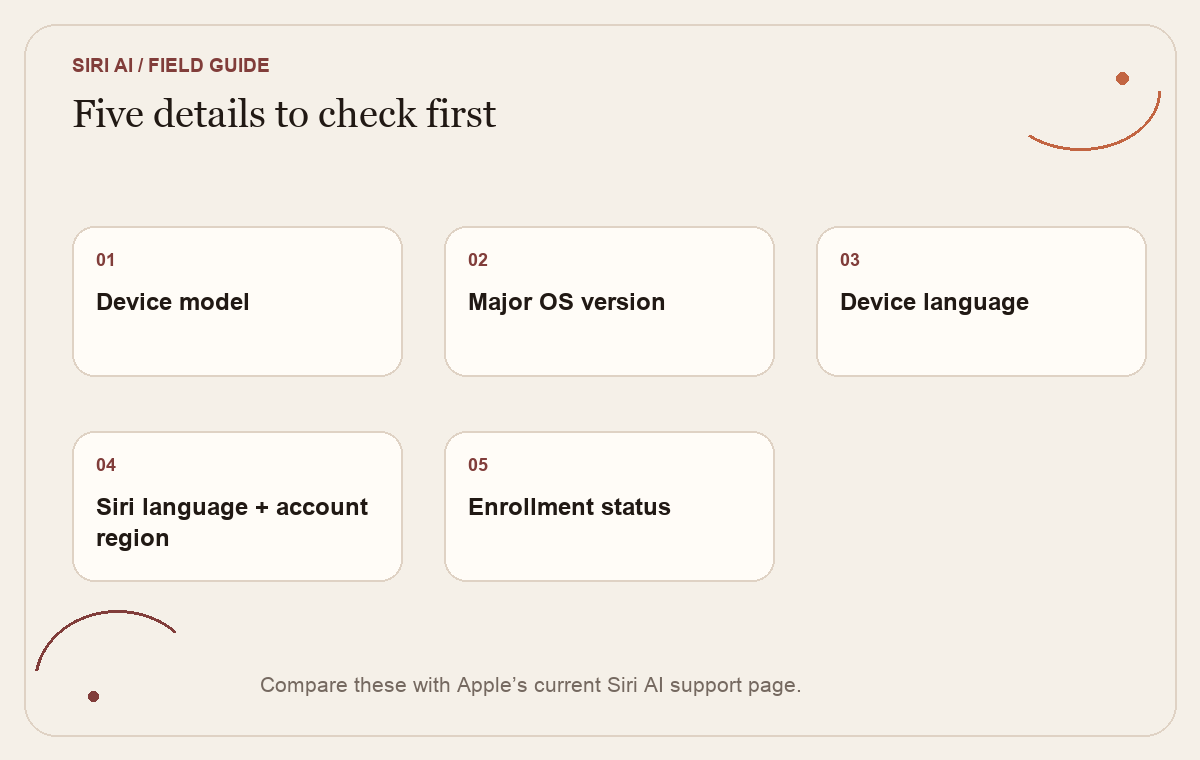
Before troubleshooting, record five details:
- The device model and platform you plan to use.
- The installed major OS version.
- The device language and Siri language.
- The Apple Account region associated with the device.
- Whether “Try Siri AI (Beta)” appears, and if enrolled, what status the device shows.
Then compare those facts with Apple’s current support page, not a screenshot from an old social post. If every stated condition fits and enrollment is complete, waiting may be the remaining step. If a condition does not fit, identify it rather than repeatedly retrying the same setup. If the page has changed since this article was checked, follow the current Apple page and treat this guide’s date as the point in time it was researched.
The worksheet is a simple way to keep troubleshooting factual. It also prevents a common category error: treating a feature that is rolling out in beta as though it were available in exactly the same way to every user of a new operating system. Apple’s own date and support pages can change as the rollout evolves, so use the requirements as a checklist to revisit, not as a permanent promise.
For a broader question about deciding whether a new tool is worth introducing into repeated work, see Rise Productive’s five-part test for what work deserves automation. Siri AI availability is one thing; whether a particular task should be delegated is another decision.
 View image detail
Change one condition at a time
If you are trying to understand why the option is missing, keep a short record before changing settings. Write down the exact device family and model, its current major software version, the language shown for the device, the language selected for Siri, and the Apple Account region. Then compare those facts against Apple's Siri AI page. This makes it easier to see whether the gap is a published requirement or something the public guide cannot diagnose.
Avoid changing language or region simply to make the beta appear. Apple's requirements describe eligibility; they do not establish that changing an account's region is an approved workaround, nor that it will make an account eligible. A controlled check is more useful than changing several settings and then not knowing which change mattered. If one requirement is not met, note it and decide whether waiting or using an existing tool makes more sense. If the published conditions do appear to be met but the enrollment control is still absent, take the model, software version and settings record to Apple Support rather than repeatedly resetting the same device.
What this rollout means for your next step
Siri AI is a separate beta layered into Apple's new operating systems, not a feature every person gets automatically by installing an update. The current Apple Support guide makes the practical requirements explicit: supported hardware and software, matching language settings, eligible account region, and a waitlist whose timing varies. The EU platform exception and mainland China account rule make it especially important to check the actual device and region combination.
The useful sequence is straightforward. Confirm eligibility first. Enroll through the settings route Apple describes if it appears. Wait for the variable queue, then begin with a task whose result you can inspect. If you cannot meet one of the published conditions, stop treating the missing button as a mysterious bug and decide whether to wait or use another tool already available to you.
This article does not establish whether Siri AI performs well, protects every category of personal data, or saves time on a particular job. Apple’s launch announcement describes its capabilities; Apple’s support document describes eligibility and setup; independent reporting explains why the update and the beta are easy to confuse. Your next decision is not to believe a broad promise. It is to see whether your account can enroll and whether a low-risk task produces an output you can check.
Checked for this article
Sources
Keep going
Related notes.
AI in Practice
How to Try Meta Muse With One Bounded Task and Limited Access
A personal agent can look useful long before you know whether you should connect everything. Start with one reversible job, narrow permissions, and verified completion.
Read the article
AI in Practice
ChatGPT Sites and Connected Apps: Who Can See What?
A shared Site does not make every coworker\x27s source account the same. Map the separate controls, test a normal member\x27s path, and make access understandable before rollout.
Read the article
AI in Practice
ChatGPT Sites Plugins: How to Scope MCP Tools Before You Share
A ChatGPT Site can host a supported plugin, but the useful question is what its tools should be allowed to do. Here is a practical contract-and-test process before you share.
Read the article