
Creator Workflows
How to Master Suno v6 Stems: Targeted Song Edits and Inpainting
Generative music is no longer an all-or-nothing roll of the dice. Here is how to master Suno v6 stems, targeted timeline inpainting, and hybrid DAW workflows.
On this page
- Architectural Foundations: How Suno v6 Generates Multitrack Stems
- The Four Native Stems in Production Workflows
- Latent Diffusion Mechanics and Hyperparameter Tuning
- Classifier-Free Guidance (CFG) Scale
- Temperature and Seed Determinism
- Mastering Timeline Inpainting: Targeted Audio Surgery
- Step 1: Identifying the Target Edit Boundary
- Step 2: Selecting the Modification Mode
- Step 3: Managing Boundary Crossfades and Phase Alignment
- Hybrid Production: Integrating Suno v6 Stems into Your DAW
- Step 1: Stem Export and Session Setup
- Step 2: Corrective Equalization and Frequency De-masking
- Step 3: Layering Real Acoustic Elements
- Step 4: MIDI Stem Extraction and Resynthesis
- Advanced Prompting for Sectional Dynamics
- Structural Formatting Tags
- Common Pitfalls and Troubleshooting in Suno v6
- Advanced Stereo Bus Compression and Dynamic Glue
- Mastering the Final Stereo Output
- Operational Checklist for Media Production Teams
- Conclusion: The Professional Era of Generative Audio
- Sources
Generative music production has reached an inflection point with the release of Suno v6. In earlier generative audio systems, creating music was an all-or-nothing proposition. Creators would enter a text prompt, specify a genre tag, and receive a completed two-minute audio render. If the verse featured a brilliant vocal melody but the chorus suffered from an awkward drum breakdown, the creator had no surgical recourse. The only option was to roll the dice again, generating dozens of alternative tracks in the hope that random chance would align every musical section.
This slot-machine paradigm made generative music unusable for serious commercial productions, video game soundtracks, and broadcast media, where precise timing, dynamic mixing, and targeted arrangement are mandatory.
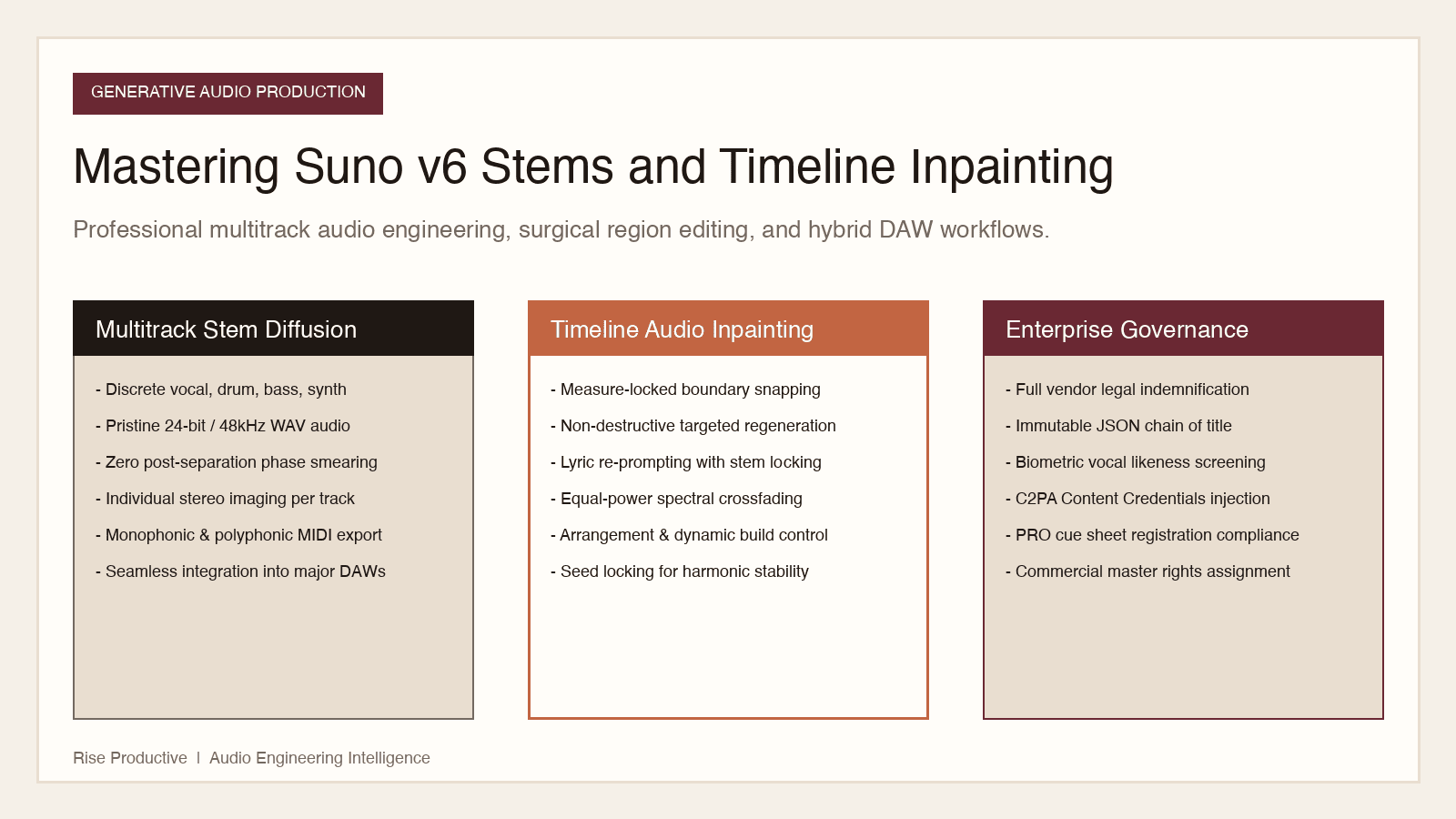
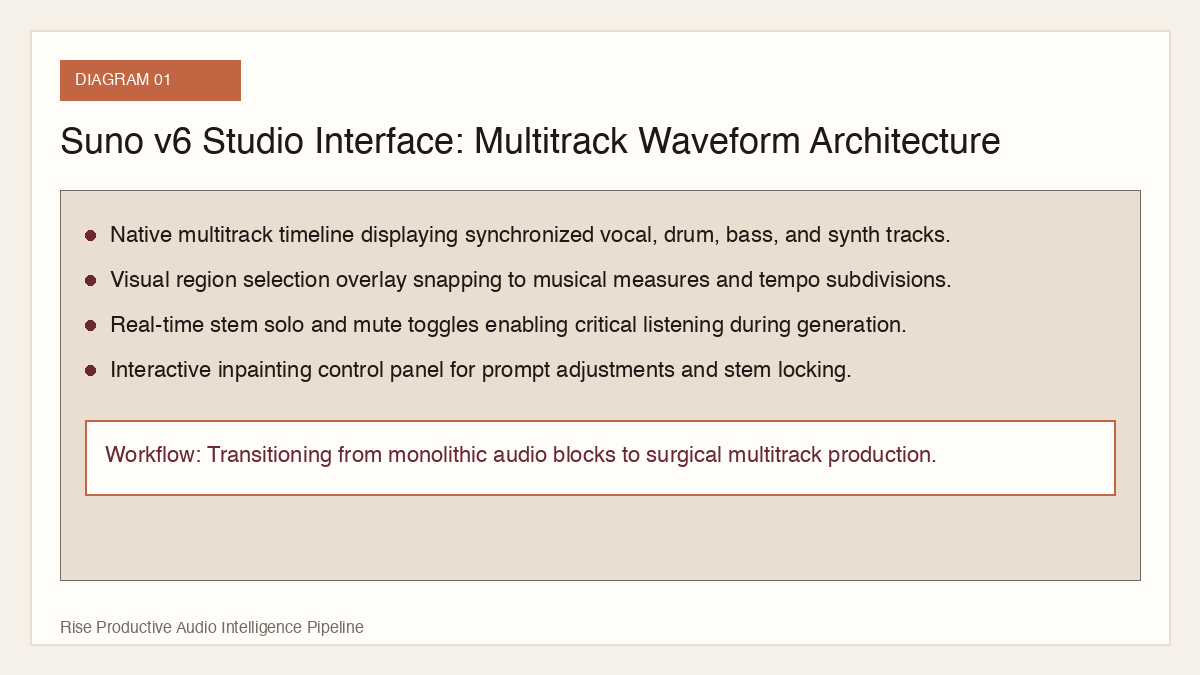
Suno v6 dismantles this limitation by introducing native stem separation, multi-track generation, and non-destructive timeline inpainting. Rather than outputting a flattened, monolithic stereo file, Suno v6 exposes the foundational architectural layers of the composition: discrete vocal, drum, bass, and instrumental tracks. Furthermore, the platform introduces time-slice editing, allowing producers to highlight specific bars on a visual waveform and re-prompt or regenerate only that targeted section while preserving the surrounding composition, key signature, and tempo.
This comprehensive guide details the workflows required to master Suno v6 in professional media pipelines. We will explore stem isolation techniques, timeline inpainting strategies, lyric alignment adjustments, and hybrid digital audio workstation (DAW) mixing workflows.
 View image detail
Architectural Foundations: How Suno v6 Generates Multitrack Stems
To leverage Suno v6 effectively, producers must understand the fundamental shift in its underlying neural audio architecture.
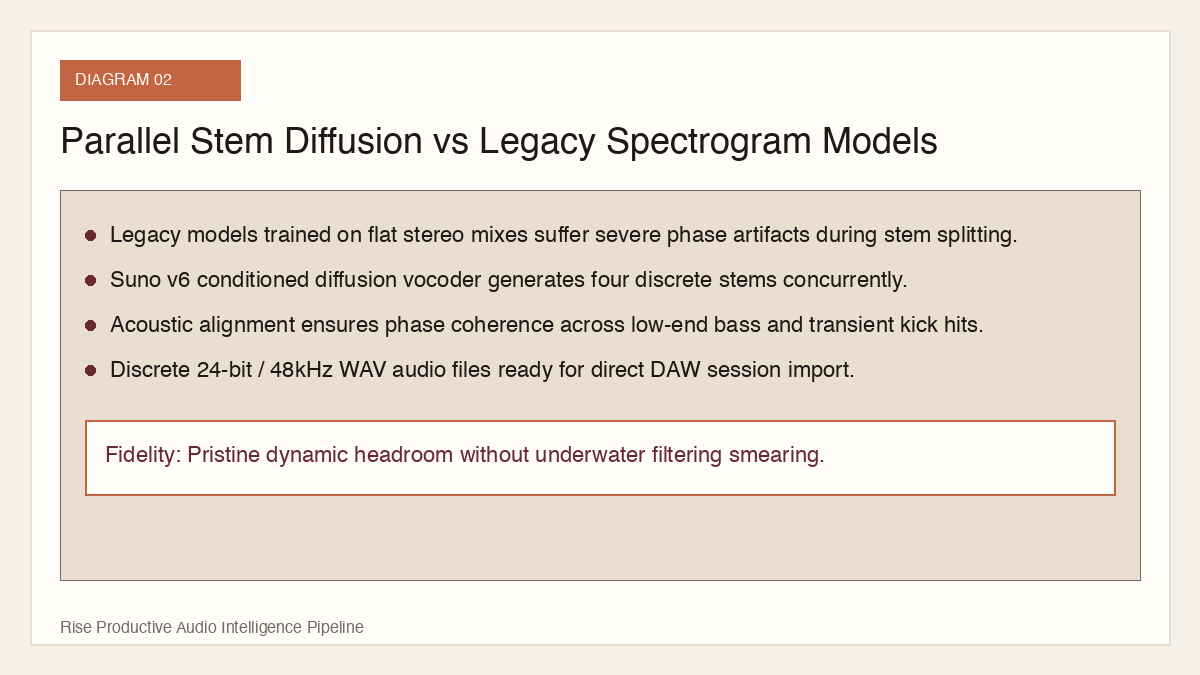
Previous iterations of generative music models relied on end-to-end mel-spectrogram diffusion or direct waveform synthesis trained on mixed stereo master recordings. Because the training objective minimized reconstruction loss across the entire acoustic spectrum simultaneously, the model learned complex, entangled representations where vocal harmonics, snare transients, and bass frequencies were inextricably blended together. Attempting to isolate stems using post-processing algorithms like Demucs or Spleeter inevitably introduced phase cancellation, underwater artifacts, and frequency smearing.
Suno v6 transitions to a multimodal, conditioned diffusion vocoder architecture trained on multitrack studio stems. During synthesis, the model generates four discrete latent representations in parallel:
- Vocal Stem: Lead vocals, background harmonies, ad-libs, and vocal processing (reverb and delay).
- Drum Stem: Kick, snare, hi-hats, cymbals, percussion, and transient rhythm loops.
- Bass Stem: Sub-bass, bass guitar, synthesizer basslines, and low-frequency groove foundations.
- Instrumental / Melodic Stem: Guitars, pianos, synths, orchestral strings, brass, and ambient textures.
By generating these tracks as synchronized, phase-aligned stems from the outset, Suno v6 eliminates post-separation artifacts. Each stem outputs at pristine 24-bit, 48kHz resolution with discrete stereo imaging and clean dynamic headroom.
 View image detail
The Four Native Stems in Production Workflows
Understanding the utility of each isolated stem track unlocks complete creative control:
- The Vocal Track: Isolated vocals allow producers to apply custom vocal tuning (such as Melodyne or Auto-Tune), insert specialized sidechain compression, or route vocals through external vintage analog modeling plugins like 1176 or LA-2A compressors.
- The Drum Track: Having discrete drum stems allows mixing engineers to quantize rhythm, perform transient shaping, or layer punchy acoustic kick samples underneath synthetic drums.
- The Bass Track: Low-end clarity is the hallmark of professional mixing. With an isolated bass stem, engineers can carve out precise EQ notches at 60Hz and 120Hz, ensuring that the kick drum and bass never clash in the club or on mobile phone speakers.
- The Instrumental Bed: Stripping out vocals and drums leaves a rich harmonic backing track, perfect for creating instrumental underscore versions for podcast intros, documentary film cues, and broadcast commercials.
Latent Diffusion Mechanics and Hyperparameter Tuning
Generating high-fidelity audio requires configuring the underlying diffusion parameters to match your stylistic goals. Suno v6 exposes several previously hidden generative levers within its advanced settings panel:
Classifier-Free Guidance (CFG) Scale
The Guidance Scale slider (ranging from 1.0 to 15.0) controls how strictly the diffusion model adheres to your text prompt versus exploring spontaneous musical variations:
- Low CFG (2.0 to 4.0): Produces loose, organic, experimental textures with high dynamic range. Ideal for ambient soundscapes, background film cues, and lo-fi jazz.
- Moderate CFG (5.0 to 7.5): The optimal commercial sweet spot. Delivers structured verse-chorus arrangements with tight rhythmic coherence while avoiding over-compression artifacts.
- High CFG (8.0 to 14.0): Forces strict adherence to niche sub-genres or complex lyrical structures. However, setting CFG above 10.0 often introduces high-frequency harshness and digital clipping in transient drum attacks.
Temperature and Seed Determinism
Temperature governs the probabilistic entropy of token sampling. At a temperature of 0.20 to 0.35, the model generates highly predictable harmonic progressions and conventional chord voicings. At temperatures above 0.75, the composition introduces unexpected modal shifts, polyrhythms, and experimental vocal runs.
When working on a commercial production, always record the generation seed. Locking the seed allows you to perform iterative inpainting passes without causing the model to change the underlying key signature, tempo, or foundational groove.
Mastering Timeline Inpainting: Targeted Audio Surgery
The most transformative capability in Suno v6 is audio inpainting. Inpainting allows a producer to select a defined time region (for example, between 1:12 and 1:28) and execute surgical modifications without altering the rest of the song.
 View image detail
Step 1: Identifying the Target Edit Boundary
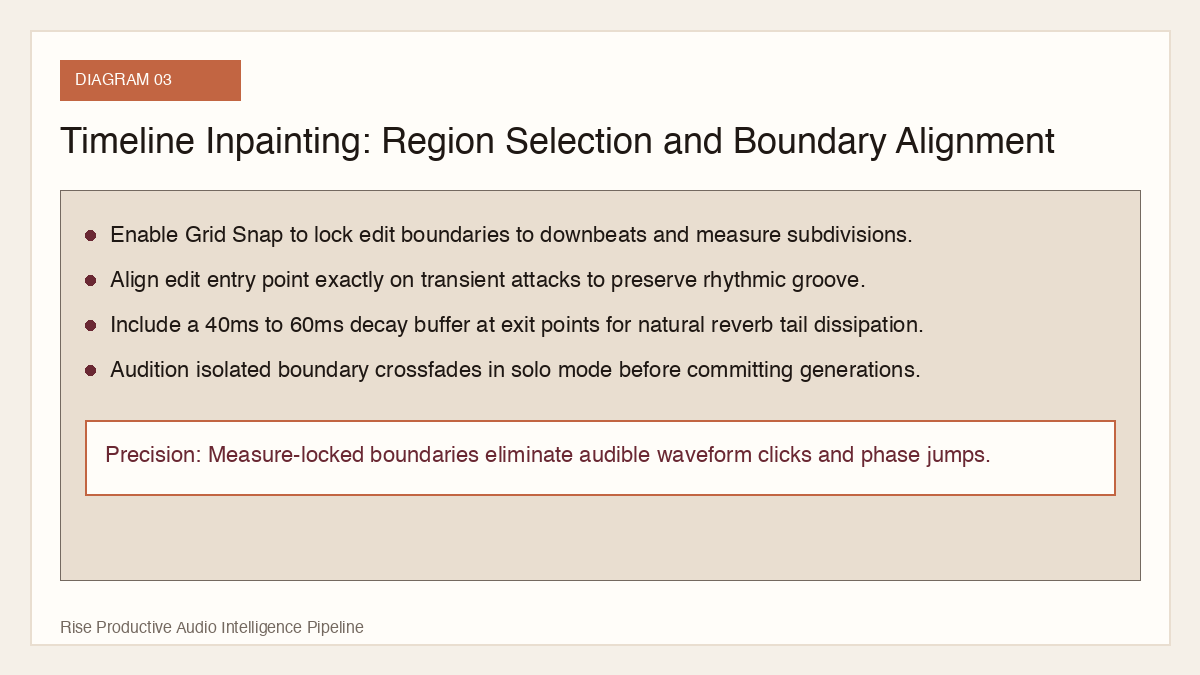
When executing an inpainting pass, the first rule is to align edit boundaries to musical measure bars rather than arbitrary seconds. Cutting a waveform mid-transient or during a vocal sustain creates unnatural phase discontinuities.
In the Suno v6 timeline editor:
- Enable the Grid Snap toggle and set the time division to 1/4 or 1/8 note subdivisions based on the song tempo (BPM).
- Zoom into the waveform to identify the downbeat of the bar where the edit begins.
- Set the region start boundary exactly on the transient attack of the downbeat.
- Set the region end boundary on the final upbeat of the target bar, allowing a 50ms buffer for natural reverberation decay.
Step 2: Selecting the Modification Mode
Suno v6 offers three distinct inpainting modes, each optimized for different production objectives:
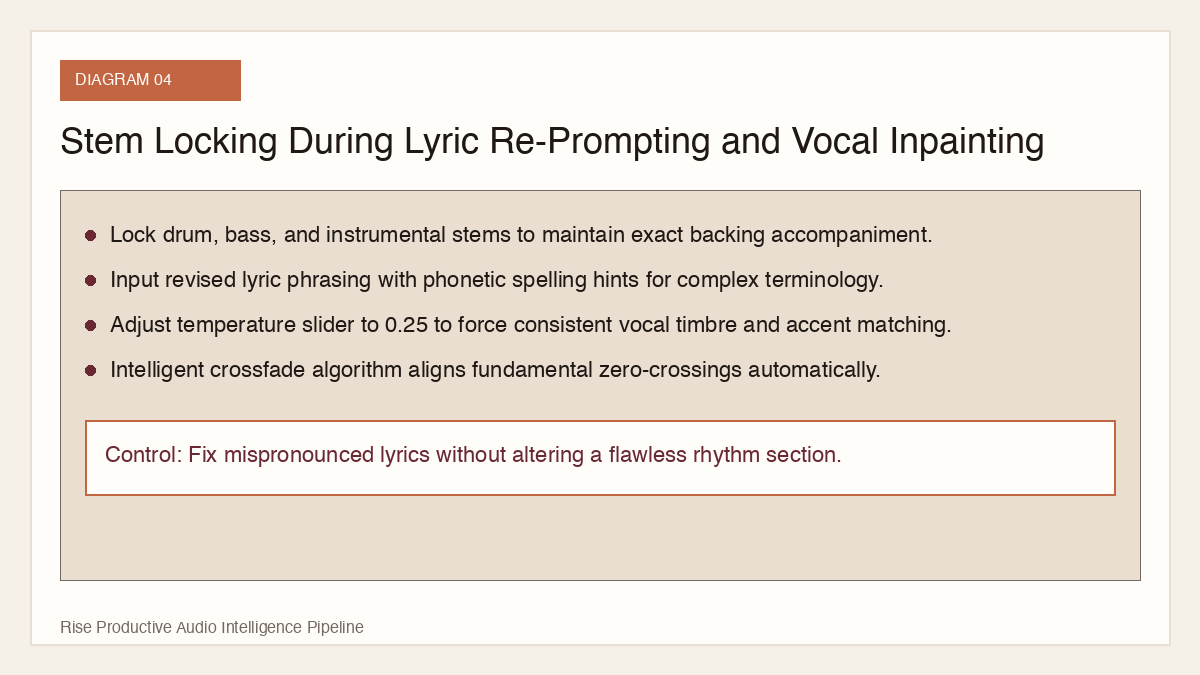
- Lyric Re-Prompt: Use this mode when the melodic structure and accompaniment are excellent, but the model mispronounced a word, hallucinated an unintended lyric, or used outdated phrasing. You enter revised lyric text, and the model re-synthesizes the vocal melody while locking the instrumental stems in place.
- Arrangement Variation: Use this mode to increase energy or alter dynamics. For instance, you can select the second chorus and instruct the model to add soaring backing vocal harmonies, double-time hi-hats, and an energetic guitar riff.
- Total Section Re-Generation: If an entire bridge fails to deliver emotional impact, this mode completely wipes the selected bars across all four stems and generates three alternative musical directions while ensuring seamless harmonic transitions at the entry and exit points.
```json
{
"inpaintingTask": {
"trackId": "suno_track_99214a",
"region": {
"startBar": 17,
"endBar": 25,
"timeStartSec": 34.285,
"timeEndSec": 51.428
},
"mode": "lyric_reprompt",
"targetStems": ["vocals"],
"lockedStems": ["drums", "bass", "instrumental"],
"newLyrics": "We built the engine from the ground up / Standing tall through the storm",
"boundaryCrossfadeMs": 45,
"temperature": 0.35
}
}
```
 View image detail
Step 3: Managing Boundary Crossfades and Phase Alignment
The technical challenge in any audio inpainting system is preventing audible clicks, phase smearing, or sudden shifts in room acoustics at the splice points.
Suno v6 utilizes an intelligent crossfade algorithm that analyzes the spectral envelope of the audio immediately preceding and following the edit region. The system automatically calculates an optimal crossfade curve (typically an equal-power logarithmic fade between 20ms and 60ms) and aligns zero-crossing points in the fundamental frequency.
Producers should always audition the transition in solo mode across the isolated drum and bass tracks to verify that rhythmic timing remains locked to the global tempo grid.
Hybrid Production: Integrating Suno v6 Stems into Your DAW
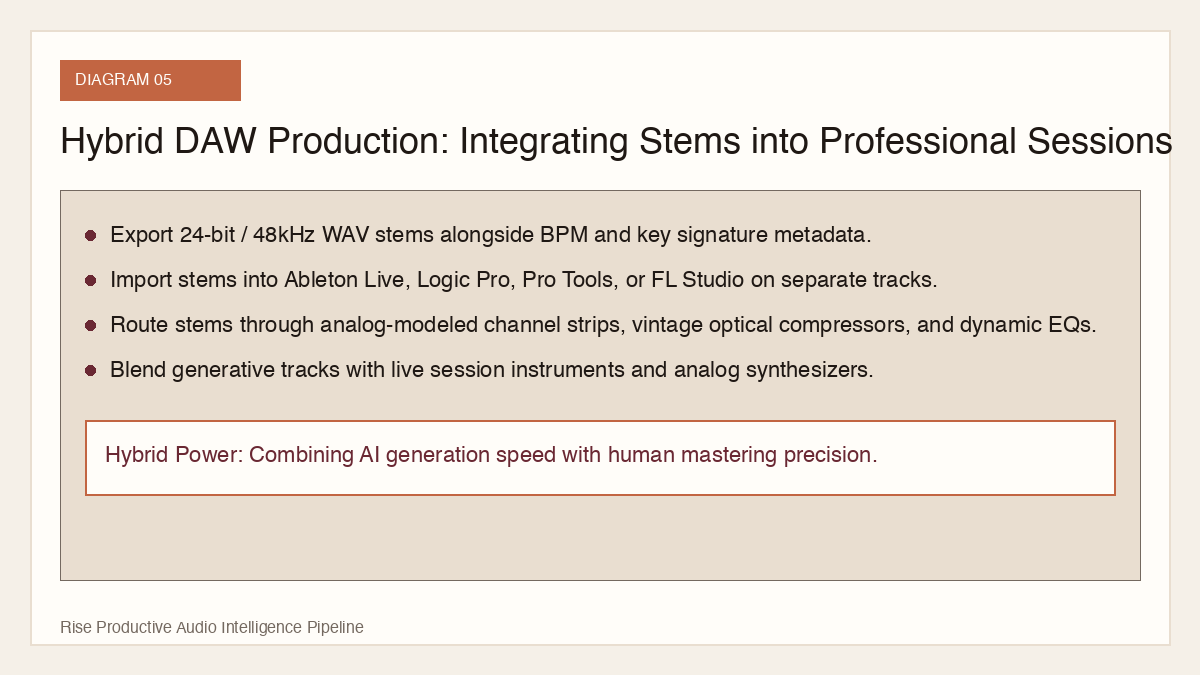
While Suno v6 provides powerful browser-based tools, professional audio engineering culminates inside a Digital Audio Workstation such as Ableton Live, Logic Pro, Pro Tools, or FL Studio.
Exporting multitrack stems from Suno v6 into a DAW enables a hybrid production workflow that combines the generative velocity of AI with the surgical mixing and mastering precision of human audio engineers.
 View image detail
Step 1: Stem Export and Session Setup
When your composition and inpainting passes are finalized in Suno v6:
- Navigate to the Export dialog and select Multitrack Stems (24-bit WAV / 48kHz).
- Download the ZIP package containing the discrete tracks:
vocals.wav,drums.wav,bass.wav, andinstruments.wav, along with the metadata file containing tempo (BPM) and key signature. - Open your DAW and set the project tempo and sample rate to match the Suno metadata exactly.
- Drag and drop the four stem files into adjacent audio tracks starting at bar 1, beat 1.
Step 2: Corrective Equalization and Frequency De-masking
Although Suno v6 stems are remarkably clean, generative models often produce subtle low-frequency rumble below 30Hz and harsh digital resonant peaks in the 3kHz to 5kHz range.
Apply the following mixing corrections:
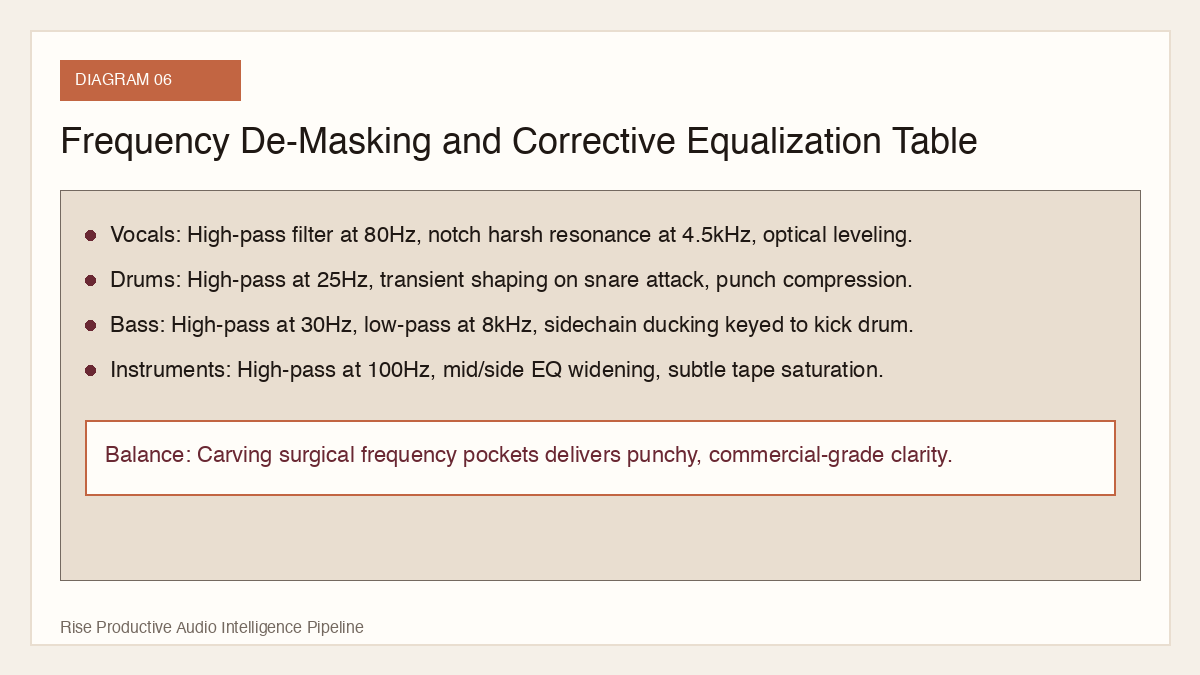
- High-Pass Filtering: Apply a 12dB/octave high-pass filter at 80Hz on the vocal stem and at 100Hz on the instrumental stem. This removes sub-frequency mud and creates clean headroom for the kick and bass.
- Dynamic EQ on Vocals: Insert a dynamic equalizer (such as FabFilter Pro-Q 3) on the vocal track. Set a narrow bell cut at harsh sibilant frequencies (typically around 4.5kHz and 7.2kHz) to tame synthetic harshness during loud vocal phrases.
- Bass and Kick Sidechain: Set up a sidechain compressor on the bass track keyed to the drum stem. Whenever the kick drum strikes, duck the bass by 2dB to 3dB for 40 milliseconds to preserve punch and low-end definition.
Recommended stem equalization and dynamics matrix:
- Vocals: High-pass filter at 80Hz, low-pass filter at 18kHz. Tame 4.5kHz harshness with dynamic EQ; apply 2:1 opto compression.
- Drums: High-pass filter at 25Hz to eliminate sub-frequency rumble. Apply transient shaping to accentuate snare attack.
- Bass: High-pass filter at 30Hz, low-pass filter at 8kHz. Configure sidechain compression to duck 2dB under kick drum.
- Instruments: High-pass filter at 100Hz, low-pass filter at 16kHz. Apply mid/side equalization to widen the outer stereo field.
 View image detail
Step 3: Layering Real Acoustic Elements
The most effective method for masking synthetic AI artifacts and elevating a track to commercial release standards is layering organic, human-performed instruments over the Suno stems:
- Replace or Double the Bassline: Re-record the bassline using a real electric bass or an analog synthesizer (such as a Moog Sub 37). The subtle micro-timing variations of a human musician infuse warmth and life into the groove.
- Add Live Percussion: Layer real tambourines, shakers, or acoustic crash cymbals over the Suno drum stem. Generative drum models often struggle with cymbal wash and high-frequency air; real percussion fills this acoustic space naturally.
- Vocal Doubling and Harmonies: Record a human vocal harmony track underneath the Suno AI lead vocal. Blending human vocal timbre with AI synthesis produces a rich, compelling hybrid texture.
Step 4: MIDI Stem Extraction and Resynthesis
Suno v6 introduces experimental MIDI transcription for exported stems. Alongside raw WAV audio, producers can export monophonic MIDI for vocal and bass lines, as well as polyphonic MIDI for keyboard and guitar chords.
This opens an extraordinary sound design path:
- Import the exported MIDI file into your DAW on a new software instrument track.
- Route the MIDI into high-end virtual instrument libraries, such as Native Instruments Kontakt, Spitfire Audio symphonic strings, or Spectrasonics Omnisphere.
- Blend the pristine acoustic samples of the virtual library with the original Suno audio stem. The result is an expansive, cinematic production that retains the unique compositional structure of the generative track while boasting the sonic fidelity of multi-gigabyte orchestral sample libraries.
Advanced Prompting for Sectional Dynamics
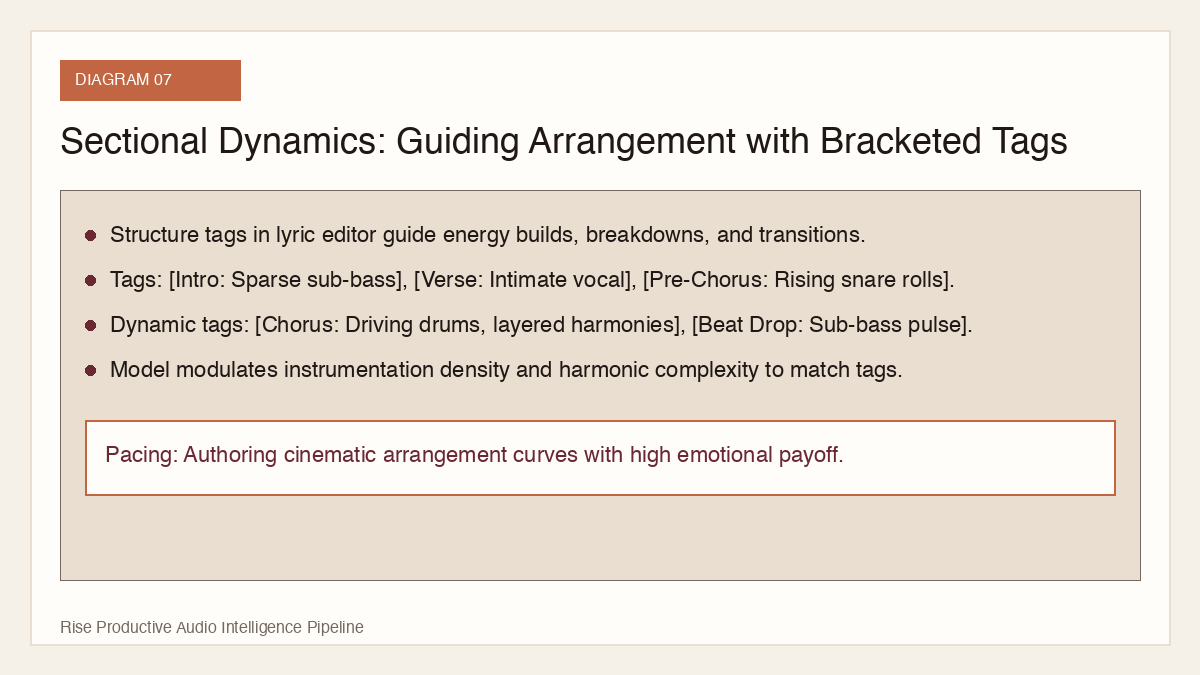
In Suno v6, prompt engineering extends beyond genre labels. Producers can utilize structural tags in the lyrics window to dictate arrangement dynamics, instrumentation drops, and emotional pacing.
Structural Formatting Tags
Use bracketed tags to guide the internal arrangement engine:
- [Intro: Ambient Rhodes and sparse sub-bass]
- [Verse 1: Intimate vocal, dry acoustic guitar, finger snaps]
- [Pre-Chorus: Rising snare rolls, filtered synth sweeps]
- [Chorus: Explosive multitrack vocals, driving four-on-the-floor drums, heavy bassline]
- [Beat Drop: Drums cut out, sub-bass pulse, whispered vocal]
- [Guitar Solo: Melodic blues-rock lead over energetic rhythm section]
- [Bridge: Stripped-down acoustic piano, haunting vocal harmonies]
- [Outro: Gradual filter sweep, decaying reverb tail]
 View image detail
Common Pitfalls and Troubleshooting in Suno v6
Even with advanced inpainting and stem separation, creators encounter specific challenges during intensive production sessions:
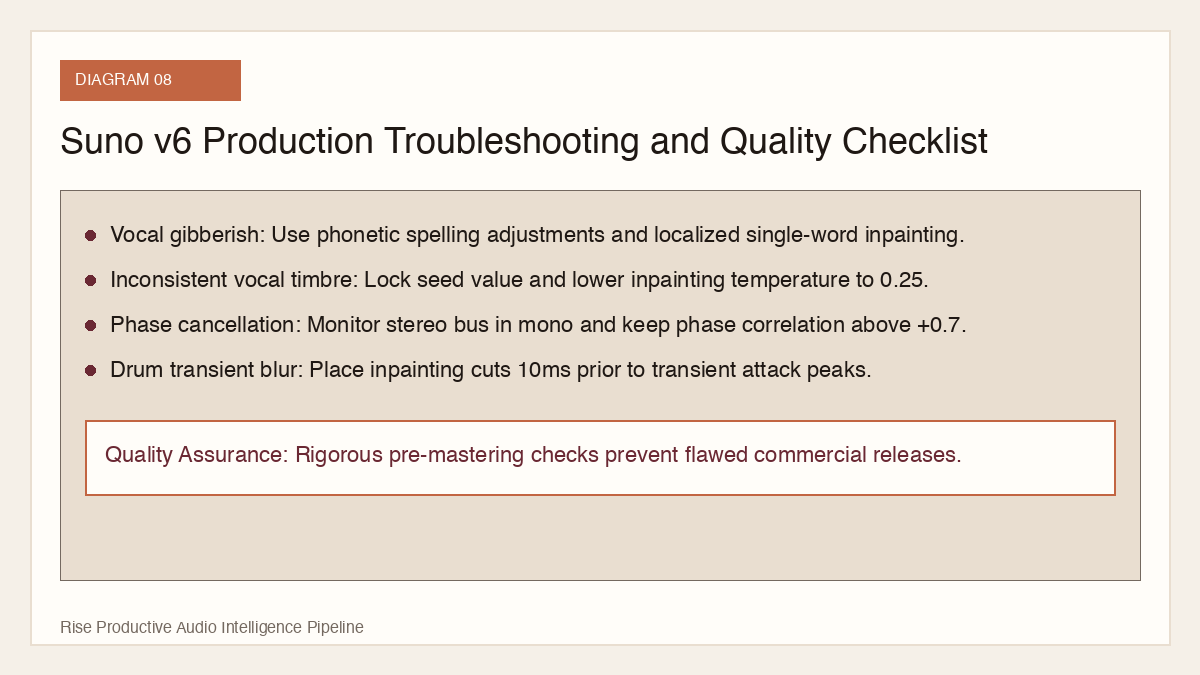
- Hallucinated Gibberish in Complex Lyrics: When entering rapid lyrics or technical vocabulary, the vocal engine may blur syllables. Solution: Insert phonetic respelling in the lyrics window (for example, typing
al-go-rith-uminstead ofalgorithm), or use inpainting on the single word. - Inconsistent Vocal Timbre Across Inpainting Passes: When inpainting a vocal section, the regenerated voice may exhibit a slightly different tone or accent. Solution: Lower the inpainting
temperatureslider to 0.25 to force the model to adhere tightly to the acoustic profile of the preceding bars. - Stereo Phase Cancellation: If you widen the instrumental stem excessively using stereo spread plugins, the track may disappear when collapsed to mono on club sound systems. Solution: Always monitor your mix in mono and use correlation meters to keep phase alignment above +0.7.
- Transient Smearing in Drum Inpainting: Splicing drum tracks mid-measure can blur the attack of snare drums or kick hits. Solution: Always place the inpainting boundary exactly 10 milliseconds before the transient peak, allowing the neural vocoder to reconstruct the initial attack envelope cleanly.
 View image detail
Advanced Stereo Bus Compression and Dynamic Glue
When assembling four independently synthesized stems inside a DAW session, micro-variations in room ambiance and diffusion reverb tails can occasionally prevent the tracks from feeling entirely unified. Applying a multi-stage stereo bus chain restores organic acoustic coherence.
First, route all four stem channels through a dedicated pre-master summing bus. Insert a hardware-emulated tube saturation plugin (such as the Fairchild 670 or Thermionic Culture Vulture) operating at subtle drive levels (under 1.5 percent total harmonic distortion). Tube saturation introduces shared even-order harmonic overtones across all stems, subtly gluing the synthetic textures together. Follow this with a precision multiband dynamic controller to gently pin the 200Hz to 400Hz frequency band, preventing low-mid buildup when heavy vocal harmonies overlap with piano chords. Finally, apply linear-phase oversampling to eliminate inter-stem intermodulation distortion during loud transient peaks.
Mastering the Final Stereo Output
Once your hybrid DAW session is balanced, the final step is professional mastering. Generative audio tracks typically exhibit elevated crest factors (the ratio of peak amplitude to RMS energy).
To prepare your track for global distribution across Spotify, Apple Music, and YouTube:
- Bus Compression: Apply a transparent VCA compressor (such as an SSL G-Master Bus Compressor) with a 2:1 ratio, 30ms attack, and auto release to glue the stems together.
- Stereo Imaging: Keep everything below 120Hz completely mono to ensure punchy low-end playback on mobile devices and club subwoofers.
- True Peak Limiting: Utilize an inter-sample peak limiter (such as FabFilter Pro-L 2) set to -1.0dB True Peak ceiling and target an integrated loudness of -14 LUFS for streaming services, or -16 LUFS for broadcast video soundtracks.
Operational Checklist for Media Production Teams
Before publishing any track generated with Suno v6, production leads should run through this final operational checklist:
- Verify that generation took place under an active commercial subscription account with enterprise indemnification terms.
- Confirm that vocal inpainting boundaries are snapped to musical measure bars and that zero-crossing crossfades are inaudible.
- Check low-frequency phase correlation across stereo buses and apply high-pass filters to remove sub-frequency rumble below 30Hz.
- Inspect the four exported stems for phase coherence and ensure stem-level provenance metadata is archived in the enterprise asset vault.
- Export both dry stems and wet processed stems so external mixing engineers have maximum flexibility during final mastering.
Conclusion: The Professional Era of Generative Audio
Suno v6 marks the transition of generative music from a novelty toy into a professional creative instrument. By pairing parallel stem diffusion with non-destructive timeline inpainting and MIDI export, the platform gives creators the surgical control required to realize specific artistic visions.
Whether you are producing game audio, scoring branded video content, or exploring experimental musical genres, mastering multitrack stem isolation and inpainting workflows ensures that AI serves as a powerful collaborator rather than an uncontrollable black box.
Sources
- Suno Official Release Notes: Introducing Suno v6: Multimodal Song Creation and Targeted Audio Editing
- Suno Creator Blog: Stem Separation, Audio Inpainting, and Timeline Control in Suno v6
Checked for this article
Sources
Keep going
Related notes.

Creator Workflows
Adobe for Claude: How to Review PDFs and Edit Express Designs
Adobe for Claude pairs Acrobat tools and Express layer editing with conversational reasoning. Here is how to maintain document integrity and signoff.
Read the article
Creator Workflows
Adobe in Gemini: What Can You Create with Adobe AI Tools?
Adobe in Gemini connects Photoshop, Lightroom, and Express to conversational prompts. Here is how to test a bounded creative task and verify outputs.
Read the article
Creator Workflows
Suno Speech Beta: How to Evaluate a Spoken Track With Music
Suno says Speech beta generates spoken voice and background music together. Here is a proposed way to brief and review a short track without mistaking an early draft for a finished asset.
Read the article